⏰ Timecards
Review, approve, and export the hours your team clocks — the source of truth for payroll.
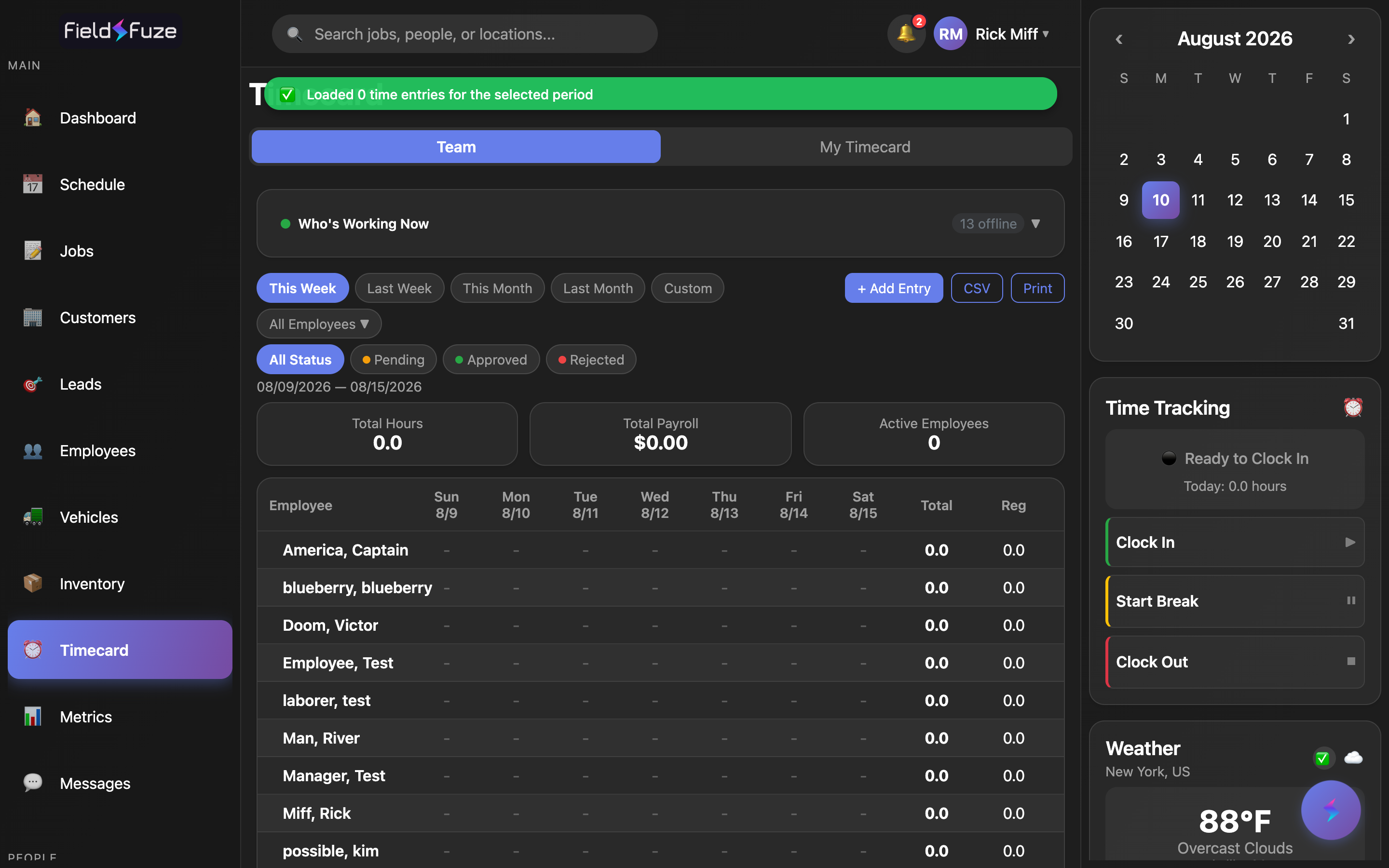
Timecards turn every clock-in into payroll-ready hours — automatically. FieldFuze tracks who's on the clock right now, tallies daily and weekly totals, applies your overtime, holiday, and weekend rules, and hands you a clean CSV or printout when it's time to run payroll. Two tabs cover both sides of it: Team (the whole crew's timesheet) and My Timecard (your own personal time clock).
- Switch between the Team timesheet and My Timecard. The Who's Working Now banner shows who's on the clock.
- Pick a period (This Week, Last Week, This/Last Month, Custom) and filter by status (All, Pending, Approved, Rejected).
- Read the totals — Total Hours, Total Payroll, Active Employees (and Overtime when applicable).
- Approve or Reject entries (with an optional reason), then export with CSV or Print for payroll.
Team vs. My Timecard
The tab toggle at the top of the screen switches between two views. Managers land on Team; everyone gets My Timecard for their own hours.
- Team — the crew-wide timesheet: the live Who's Working Now banner, KPI cards, the Sun–Sat hours grid, and the approve/reject and export tools. This is where payroll gets reviewed and signed off.
- My Timecard — your personal time clock and history: Quick Actions (Clock In / Break / Clock Out), your Current Status, a period picker, a Timecard Summary, and your list of time entries.
Managers open on the Team tab and can flip to My Timecard anytime with the toggle. Everyone can always see and clock their own time on My Timecard. A notification about a timecard opens straight to the relevant tab.
Who's Working Now
At the top of the Team tab, the Who's Working Now banner is a live read of the whole crew's status — perfect for a morning glance to confirm everyone's started, or an end-of-day check that nobody's still on the clock. It refreshes on its own every minute so it's always current.
- Status counts — a green working count, a yellow on break count, and a gray offline count, so you see the whole crew's state at a glance.
- Per-person rows — each teammate's name, a status dot, their clock-in time, and how long they've been on the clock (e.g. 3h 20m). People currently working sort to the top, then alphabetically.
- Clock out from here — tap anyone who's active to see their clock-in time, running duration, and break state, then Clock Out Now or Clock Out At… a specific time — handy when a crew member forgot on their way home.
- Collapsible — expand or collapse the banner with the arrow to keep the grid front-and-center.
Pick a period & filter by status
Set the window you're paying for, then narrow to exactly the entries you're reviewing.
- Period — This Week, Last Week, This Month, Last Month, or Custom. Choose Custom to set a Start Date and End Date and hit Apply — great for a semimonthly or biweekly pay run that doesn't line up with a calendar week.
- Approval status — filter by All Status, Pending, Approved, or Rejected. Tap Pending to zero in on just what still needs your sign-off before payroll.
- Employees — review the whole team or pick specific people; search by name or email to find someone fast, and Clear to reset.
Read the totals (KPIs)
The stat cards above the grid roll up the entire selected period so the payroll number is right in front of you before you export.
- Total Hours — every hour the team logged (regular + overtime) across the period.
- Total Payroll — the team's gross pay for the period, already reflecting your overtime, holiday, and weekend rules.
- Active Employees — how many people have entries in the period.
- Overtime — total OT hours for the period, called out on its own card so premium hours are always visible.
The Sun–Sat hours grid
The heart of the Team view is a day-by-day grid: one row per employee, one column per day (Sun–Sat within the period), with a running Team Total row at the bottom.
- Daily columns — each column shows the weekday and date (e.g. Mon 4/14) with the hours worked that day in each employee's cell.
- Per-employee totals — a Total column (regular + OT), a Reg column, an OT column, and a Pay column with that person's gross for the period.
- Approval at a glance — a status dot next to each name shows green when everything's approved, orange when something's still pending, so you know who's left to sign off.
- Team Total row — the same columns summed for the whole crew, bold at the bottom — your payroll bottom line.
- Drill in — tap any employee row to open their detail view: hourly rate, period summary, a day-by-day breakdown with each entry's clock-in/out, breaks, and pay, plus an edit history showing who changed what and when.
On a phone the same data becomes a compact per-employee card with a mini bar chart of daily hours plus pay and days worked — the full timesheet in your pocket.
Adding or correcting a time entry
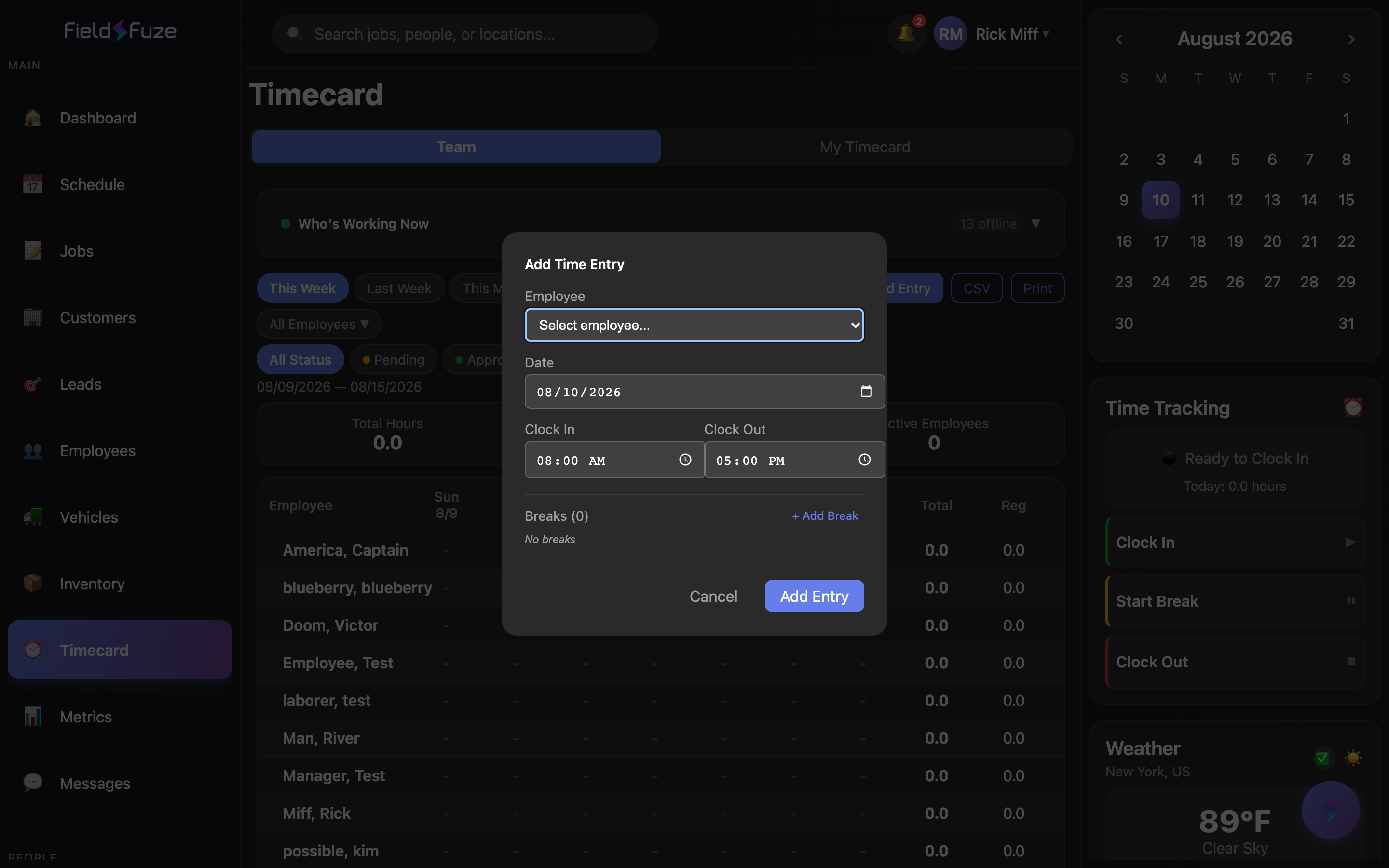
Missed punch? Paper timesheet to enter? A manager can add or fix an entry for anyone in seconds — the totals and payroll recalculate the moment you save.
- Click + Add Entry to open Add Time Entry.
- Choose the Employee and the Date.
- Set Clock In and Clock Out (they default to 08:00 and 17:00 to save typing).
- Add any Breaks — click + Add Break and enter each break's Start and End (add as many as you need; remove one with the ✕).
- Click Add Entry. The grid, KPIs, and gross pay update instantly.
Open any existing entry to adjust its Clock In, Clock Out, or Breaks. Every change is recorded in the entry's edit history — who edited it, which field, and the old → new values — so corrections are fully transparent for payroll. Editing an already-approved entry returns it to Pending for a quick re-approval.
Approve, reject & export for payroll
Sign off on hours before they become pay. Approvals are the green light that an entry is ready for payroll.
- Approve — mark an entry as ready. Clear a whole person's pending entries at once with Approve All.
- Reject — send an entry back with an optional Reason so the note is right there when it's corrected. The reason shows inline on the rejected entry.
- Status badges — every entry carries an Approved, Pending, or Rejected badge, so where each hour stands is never a guess.
Export CSV or print
- Set your period and approval filter so the export contains exactly what you want.
- Click CSV to download a spreadsheet (per-employee rows with hours, regular, OT, and gross pay, plus a Team Total row) — ready to hand to your payroll provider or bookkeeper.
- Or click Print for a clean, paginated Team Timecards report with the period, summary totals, and the full table — great for a signed paper record or your files.
Because Total Payroll already applies every pay rule, the CSV is drop-in for payroll — no re-keying overtime by hand. If any entries are still unapproved when you export, FieldFuze offers to include them so nothing gets left off a paycheck.
Clock in, take a break, clock out
On the My Timecard tab, the Quick Actions card is your personal time clock. A status badge shows whether you're 🟢 Working, 🟡 On Break, or ⚫ Offline.
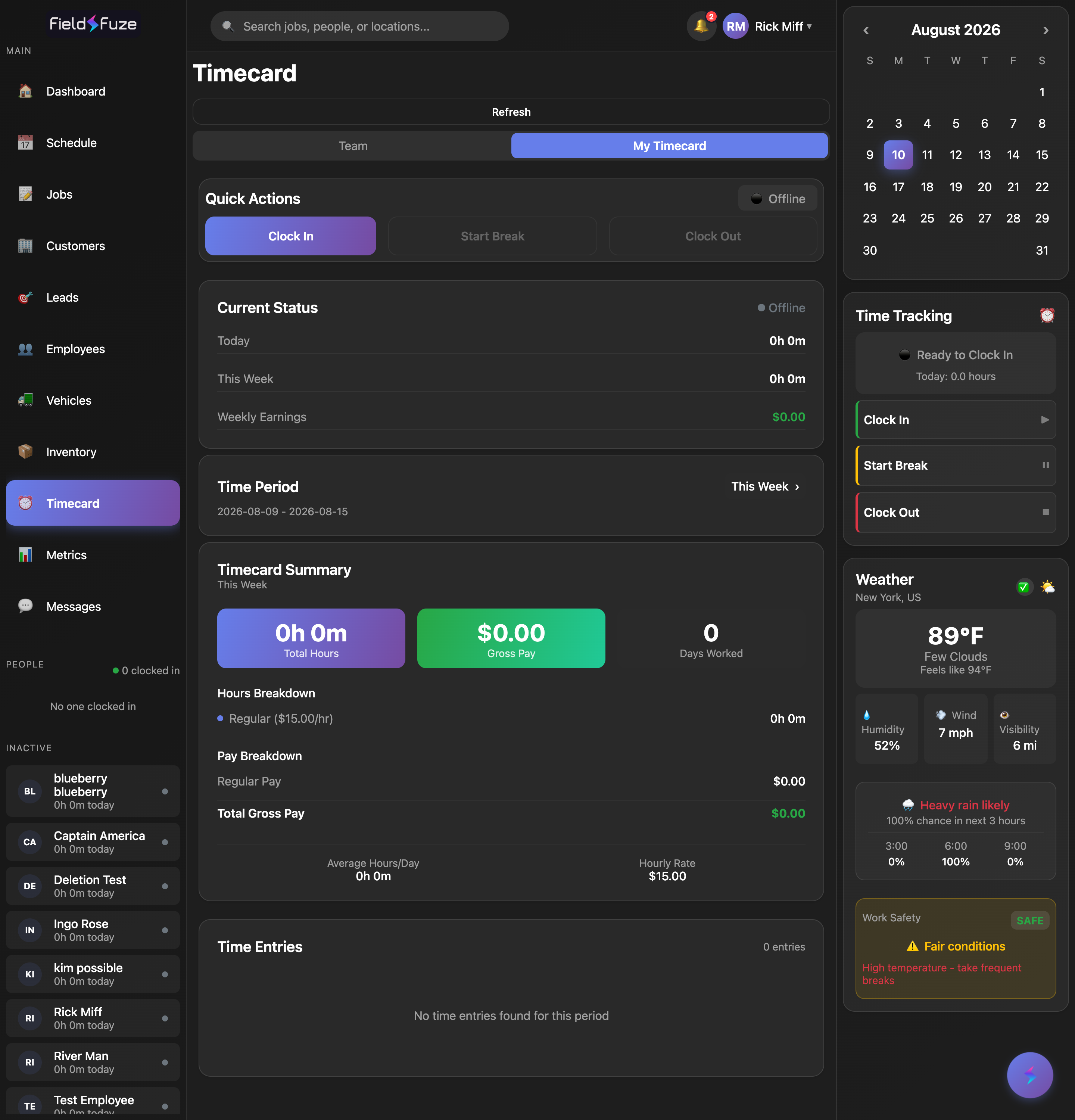
- Clock In to start your shift.
- Start Break / End Break pauses and resumes the clock.
- Clock Out to end the shift.
Below the buttons, Current Status shows today's and this week's hours plus your weekly earnings, and the Timecard Summary breaks down Total Hours, Gross Pay, and Days Worked, with a Hours Breakdown separating Regular from Overtime (each at its own rate). On wide screens you can also clock in/out from the Time Tracking widget in the right rail without leaving whatever screen you're on.
Clock in from the sidebar widget, the My Timecard tab, or the field app — it's all the same clock. The status indicator refreshes automatically, so your hours and earnings stay current everywhere.
Set your pay rules & auto clock-out
An owner or manager sets how hours turn into pay in Organization Settings → Operations → Time Tracking Settings. FieldFuze then applies these to every timecard automatically — you never calculate overtime by hand. Most changes save automatically; the pay-rule panel has a Save Timecard Settings button.
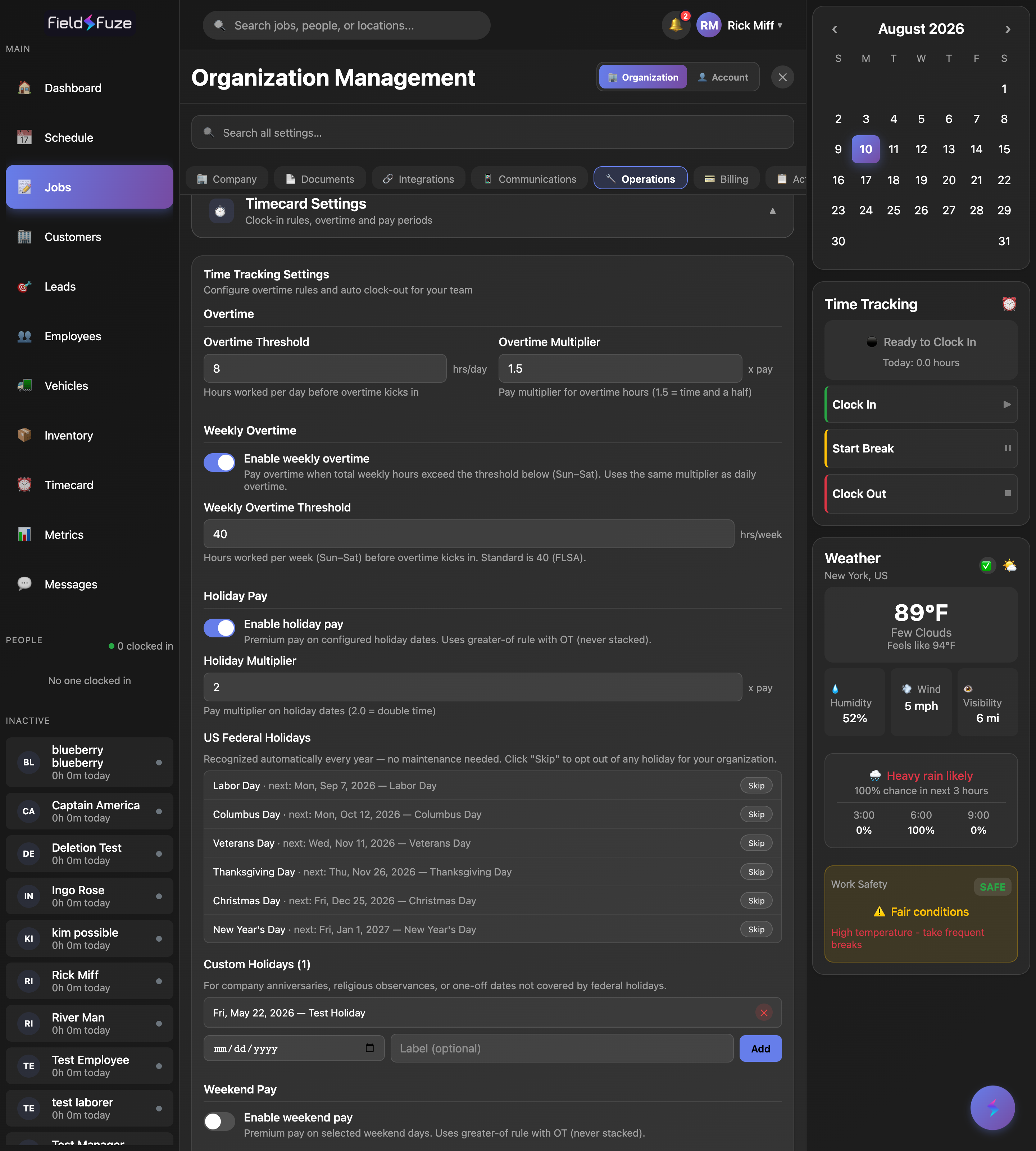
- Daily overtime — set the Overtime Threshold (hours/day before OT kicks in, default 8) and the Overtime Multiplier (default 1.5 = time-and-a-half).
- Weekly overtime — turn on Enable weekly overtime to pay OT once total weekly hours pass a Weekly Overtime Threshold (default 40, Sun–Sat / the FLSA standard), using the same multiplier.
- Holiday pay — flip on Enable holiday pay and set a Holiday Multiplier (default 2.0 = double time). US federal holidays are recognized automatically every year — no maintenance — Skip (and later Restore) any your company doesn't observe, and add Custom Holidays with your own dates and labels for company anniversaries or religious observances.
- Weekend pay — turn on Enable weekend pay for premium pay on the weekend days you choose (Saturday / Sunday) at a Weekend Multiplier (default 1.5).
- Auto clock-out — a Max Shift Length (default 16h) automatically clocks someone out if they forget, and a Shift Reminder (default 10h) nudges them first.
Holiday and weekend premiums use a greater-of rule with overtime — they don't pile on top of each other, so each hour is paid at the single highest applicable rate. If someone gets auto-clocked-out at the max shift length, they see a heads-up the next time they log in.
Need a one-off adjustment? Open any entry and turn on Override Overtime Hours to set that entry's OT by hand — FieldFuze even shows what the automatic calculation would give (e.g. "Auto would give 2h OT") so you can adjust with full context. The override applies to just that entry; every other timecard keeps using your standard rules.
Where timecards pay off
- Payroll, done in minutes — filter to the pay period, approve the pending entries, and export a CSV where overtime, holiday, and weekend premiums are already calculated. Hand it straight to your payroll service.
- Accurate job costing — because every hour is captured with rates applied, labor cost is a real number, not a guess — feed it into your Metrics to see true job profitability.
- Real-time crew oversight — Who's Working Now confirms the whole team is on the clock and lets a dispatcher clock out anyone who forgot.
Everyone can view and clock their own time on My Timecard. Viewing the team, adding or editing entries, and approving/rejecting are manager-level abilities. Editing an already-approved entry sends it back to Pending for re-approval. CSV export and Print are on the web app.