🪜 Multistage Jobs
A job in FieldFuze is a container, and the schedulable work inside it lives in stages. A simple one-visit job is just a job with a single stage; a multistage job spreads the work across several scheduled visits — like a fence install (Setting → Finishing) or an estimate-first job (Estimate → Setting → Finishing). Each stage gets its own date, times, crew, and status, and lands as its own block on the Schedule.
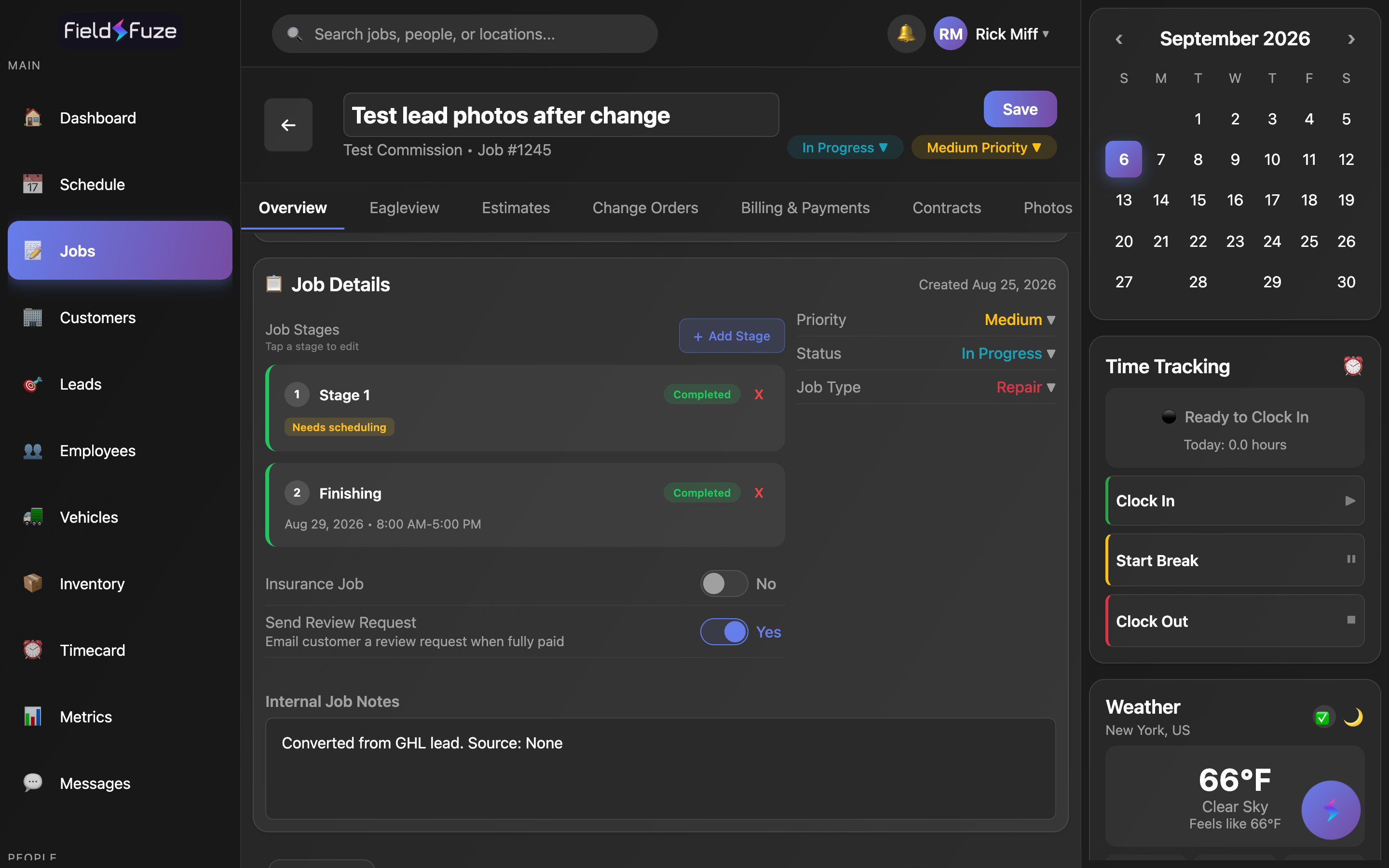
Reach for stages any time one job happens in phases — because it takes more than a day, needs different crews, or has to be quoted before it's booked. A re-roof might run Tear-off → Dry-in → Shingle → Cleanup; a remodel Demo → Rough-in → Finish; a fence Setting → Finishing. You can schedule each phase on its own day, assign a different crew to each, watch progress (a job reads "Stage 2/4"), and close phases one at a time. One-visit jobs work perfectly as a single stage — you never have to add more.
What a stage holds
You'll find the Job Stages planner at the bottom of the Overview tab. Every stage is a card showing its number, name, status, schedule, and who's assigned. Tap a card to Edit it, or + Add Stage to plan another.
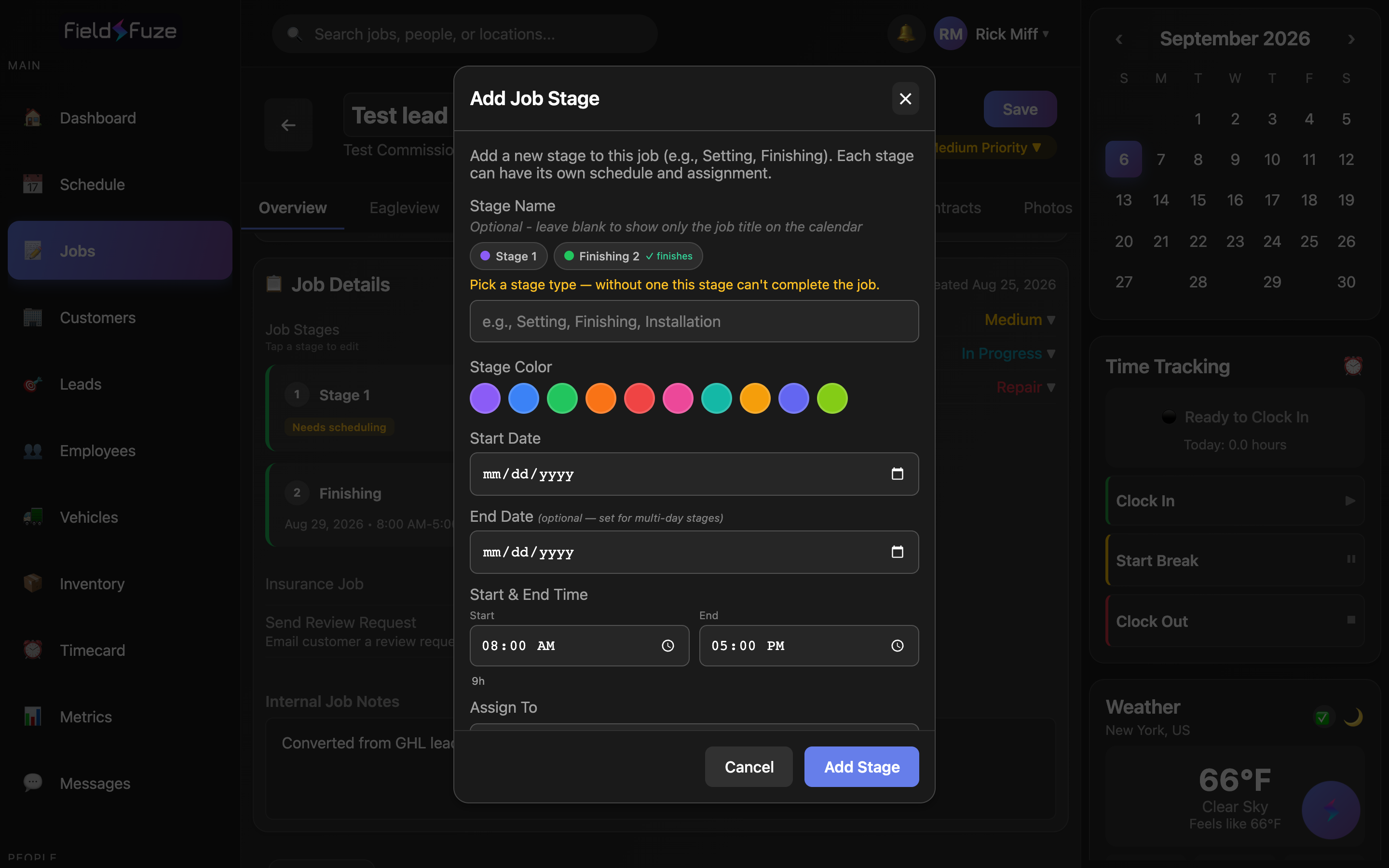
- Name — label the phase (e.g. Setting, Finishing, Installation). If you've set up stage types (below), they show as one-tap chips so your names stay consistent. The name is optional — leave it blank to show just the job title on the calendar.
- Color — pick from the stage palette so each phase is easy to spot on the Schedule. Choosing a stage type sets its color for you.
- Schedule — a Start Date, an optional End Date, and Start & End Time. Add an end date and the stage becomes multi-day (see below).
- Assign To — a whole crew, or one or more individuals — whichever fits that phase. Different stages can go to different teams.
- Status — Draft, Scheduled, In Progress, Completed, or Cancelled, color-coded on the card. A stage with no date yet is a Draft; give it a date and it becomes Scheduled on its own.
- Notes — a short, stage-specific note that shows right on the card.
Adding a stage
Add a stage to a job
- On the job's Overview tab, tap + Add Stage.
- Give the stage a name and color — or tap a stage-type chip to fill both at once.
- Set the Start Date and Start & End Time. Add an End Date to make it a multi-day phase.
- Under Assign To, choose a crew or add individuals.
- Add any notes, then save. The stage joins the list and appears on the Schedule as its own block.
Every job always keeps at least one stage. The first time you add an extra stage to a simple job, FieldFuze shows "Converting to Multi-Stage Job" and turns the job's current schedule into Stage 1 — you just name that existing work ("Setting", "Phase 1", "Initial Visit"), then add the new phase. Nothing you'd already scheduled is lost.
Multi-day stages
Set an End Date on a stage and it spans a date range. FieldFuze tags it with an "N-day stage" badge and applies the same Daily Start & End Time to every day, showing you the math — for example 8h/day × 3 days = 24h total.
- Same hours each day — the default: set one start and end time and it applies across the whole span.
- Customize per day — tap Customize per day to give each day its own hours (handy for a short Friday or a late start). FieldFuze totals the hours as you go; Reset to same time puts it back to a single daily schedule.
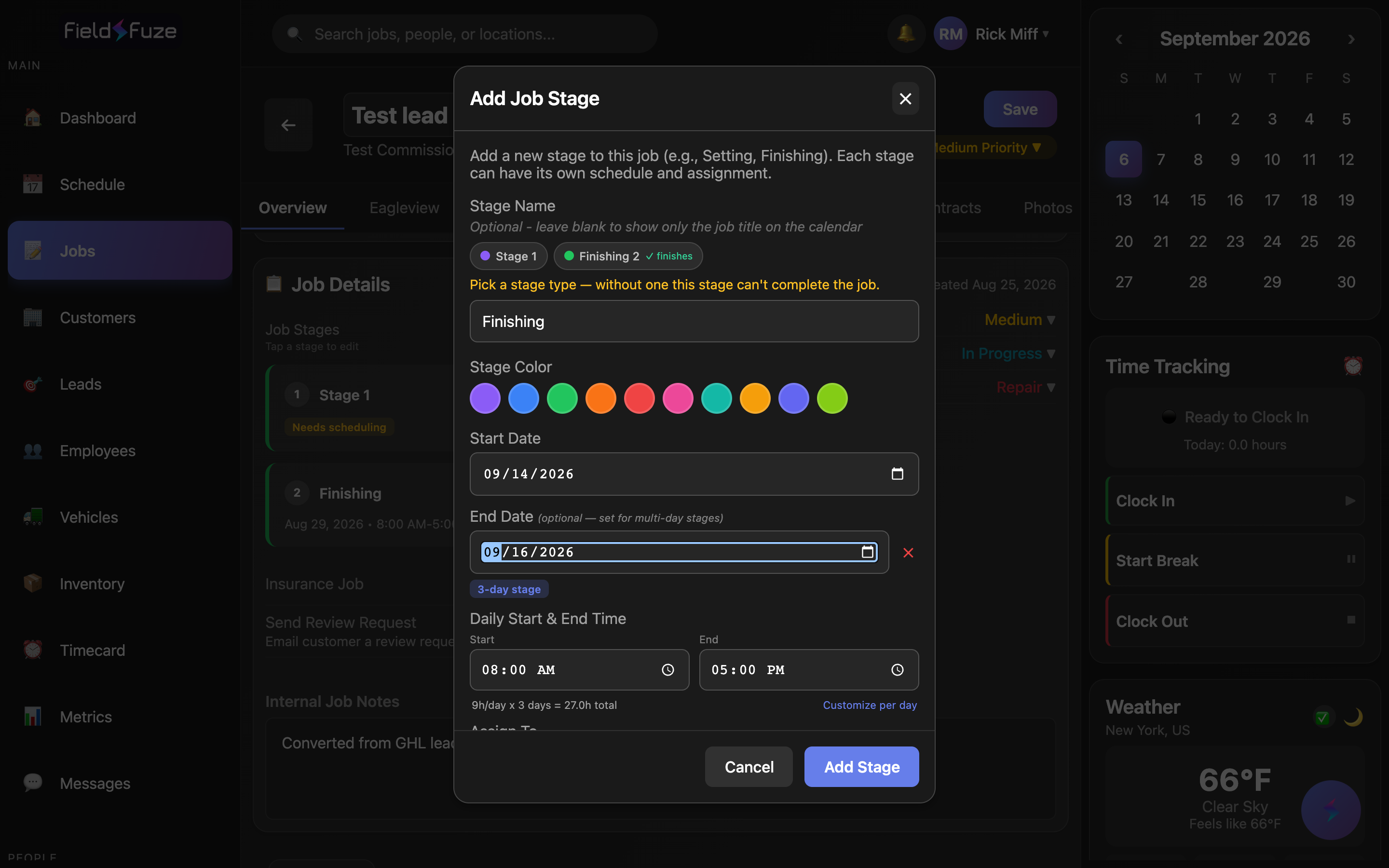
A multi-day stage is the right tool when a single phase simply runs long — a two-day tear-off, say — rather than being several different phases. On the Schedule it shows across each day of the range so the crew always sees it on the days they're working.
Assigning different crews to each stage
Because assignment is per-stage, one job can hand different phases to different people. Under Assign To on each stage, pick either a crew or one or more individuals (the two are mutually exclusive — a stage goes to a crew or to named people).
Assign a Tear-off crew to Monday's stage and a Shingle crew to Wednesday's, and each crew sees only their phase on their calendar — all under one job. This is what makes stages more than just a checklist: they're how a multi-crew job actually gets dispatched.
Completing stages & the whole job
Each stage card has a Complete button, so you close out phases one at a time as the crew finishes them. What happens to the job when a stage is completed depends on whether you've set up stage types:
- Out of the box — a job finishes on its own once every stage is settled (completed or cancelled) and at least one was completed. That's perfect for jobs where all the work really is done when the last visit is.
- With stage types — you decide which kinds of stage actually finish a job. A job then completes only when every stage is settled and at least one completed stage is a type you've marked as completing the job. This is what stops an estimate-only job from quietly marking itself done.
When the conditions are met, FieldFuze marks the whole job Completed and tells you — "All stages complete — job marked as completed" — so the job's status always reflects what's really finished in the field.
If you create a job as an estimate before it's booked, the plain "all stages done = job done" rule will close the job the moment the estimate visit is over. Setting up stage types — and ticking "completes the job" only on your real finishing stage — fixes that for good. It's a five-minute, one-time setup.
Set up stage types (Settings → Job Stages)
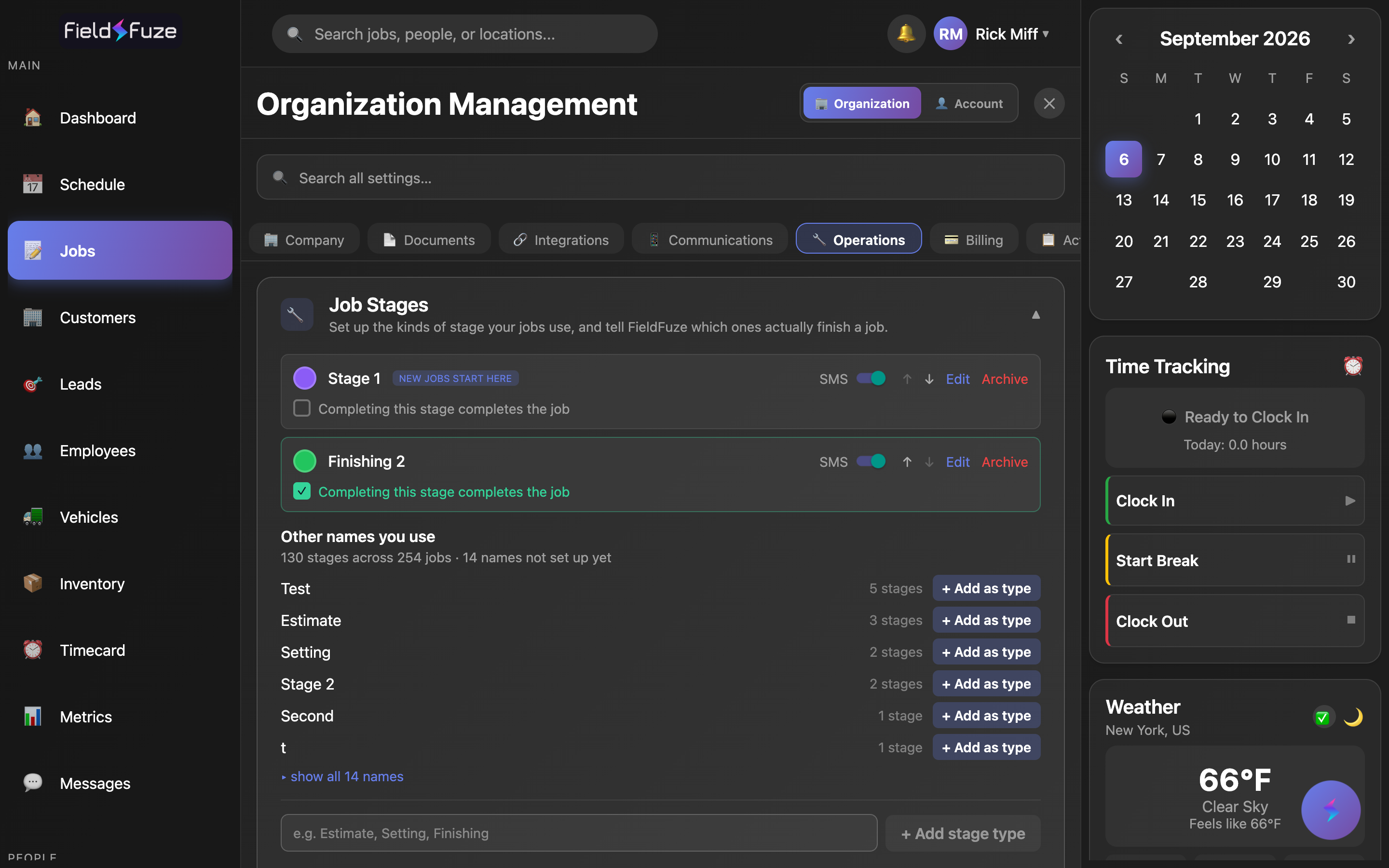
Stage types are your company's reusable list of stage kinds — Estimate, Setting, Finishing, and so on — each with a color, and a switch that says whether finishing that kind of stage finishes the job. Find them under Settings → Operations → Job Stages. (If you've used the old Stage Colors section, this is the same place, grown up.)
Configure your stage types
- Open Settings and expand Job Stages. If FieldFuze already sees stage names you use, it offers them as one-tap + Add as type suggestions.
- Add each kind of stage your jobs go through and give it a color. Type a name in the box and tap + Add stage type, or add a suggested one.
- Put them in order with the ↑ ↓ arrows. The one at the top is where new jobs start — a brand-new job's Stage 1 becomes that type.
- On whichever type means the work is finished, tick "Completing this stage completes the job." Usually that's one type (e.g. Finishing), not your Estimate or mid-job stages.
- Tap Save stage types. The first time, FieldFuze confirms the change and shows what it means for your existing jobs.
- Which one completes a job — the whole point. Leave it off every type and jobs simply complete by hand; FieldFuze shows a Manual completion note so it's a choice, not a surprise.
- Renaming is safe — stages remember which type they are, not what it's called, so renaming a type changes labels everywhere and behavior nowhere.
- SMS reminders — each type has an SMS switch controlling whether stages of that kind send the customer an appointment reminder text (see SMS Texting Setup).
- Archive — retire a type you no longer use. It stays attached to the older stages that already used it, so past jobs still read correctly.
- "What this changes for your jobs" — before you commit, FieldFuze previews how many existing jobs carry on unchanged, how many will stop auto-completing (the fix), and any whose stage names it needs you to map to a type.
Now and then an estimate genuinely is the whole job, or an install must not close it. You can override the rule on a single stage without changing your company setup — the per-stage setting wins over the type. The type is the default; the stage has the final say.
Stages on the Schedule
Stages are what actually appear on the Schedule — not the job as a whole. Each stage is its own color-coded block, so a single job's phases can sit on different days with different crews.
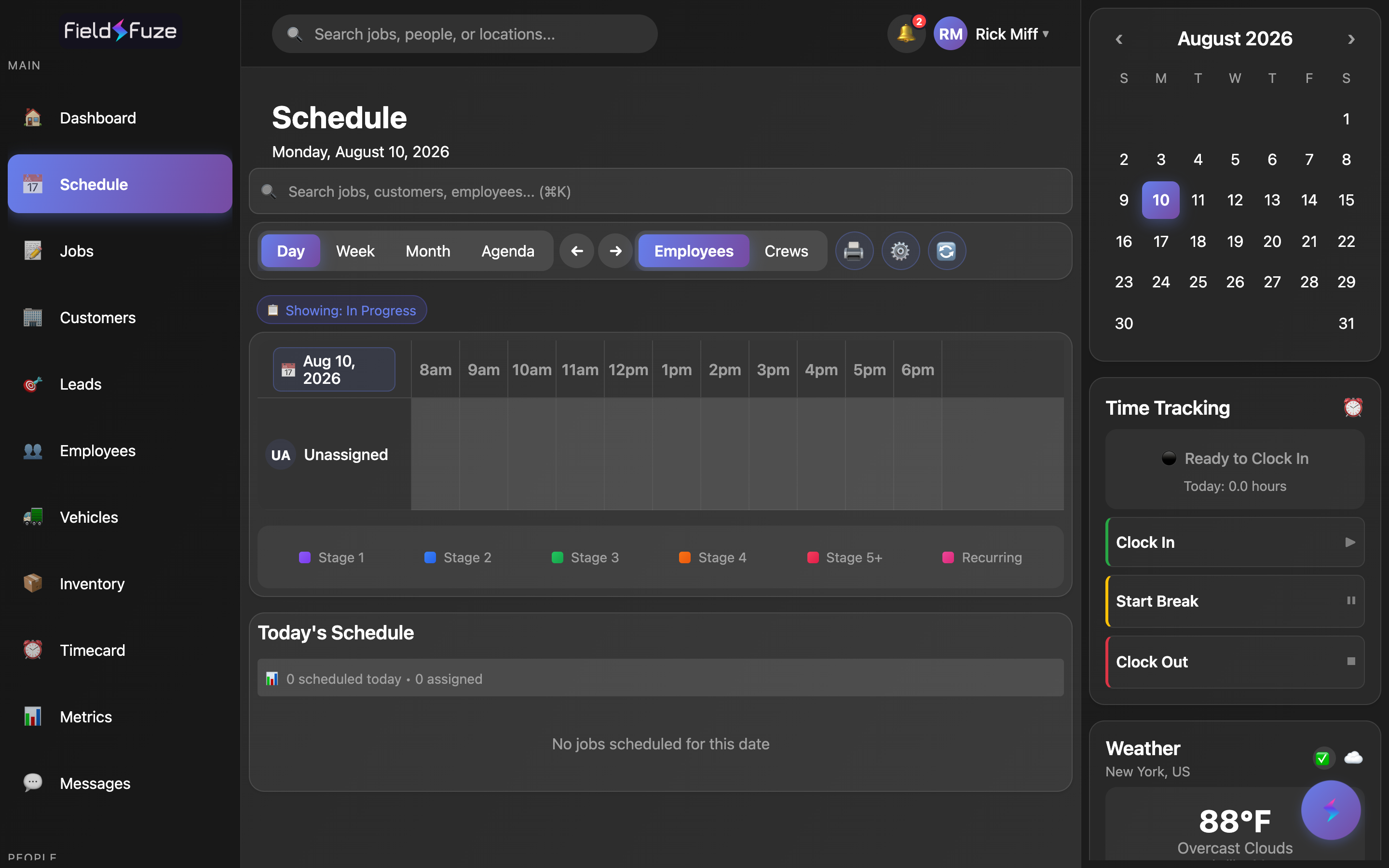
Use cases
- Multi-day re-roof — plan Tear-off → Dry-in → Shingle → Cleanup as color-coded stages, assign a crew to each, and let the job auto-complete when the last stage is done.
- Estimate-first sales — set up an Estimate type that doesn't complete the job and a Finishing type that does, so quoting a job never closes it before the work happens.
- Fence install — a Setting visit to sink posts, then a Finishing visit days later once the concrete cures — two stages, two dates, one job.
- Split crews — hand the demo phase to one team and the finish phase to another; each sees only their stage on their calendar.