🧰 Subcontractor Bidding
If you sub out trade work, the Bids tab runs the whole process right on the job: publish a scope, invite subcontractors to bid through a private link (no account needed), compare their prices side by side, award the winner, then track the subcontract, payments, and schedule — all in one place.
Turn on Subcontractor Bidding for a job
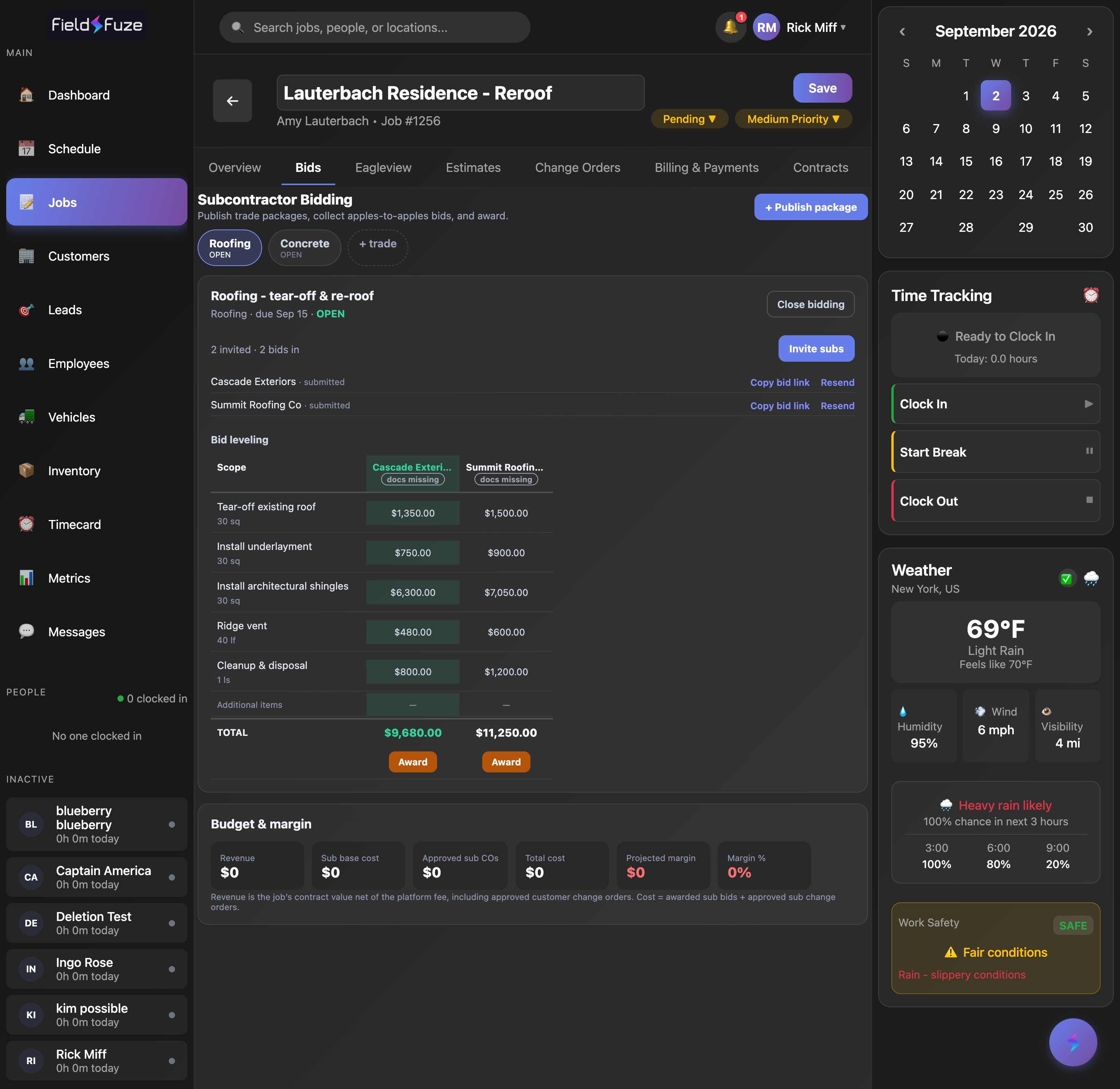
Bidding lives on the individual job, so you switch it on where the job is. Open the job's Overview tab, find Subcontracted Job under Job Details, and set it to Yes. A new Bids tab appears on the job.
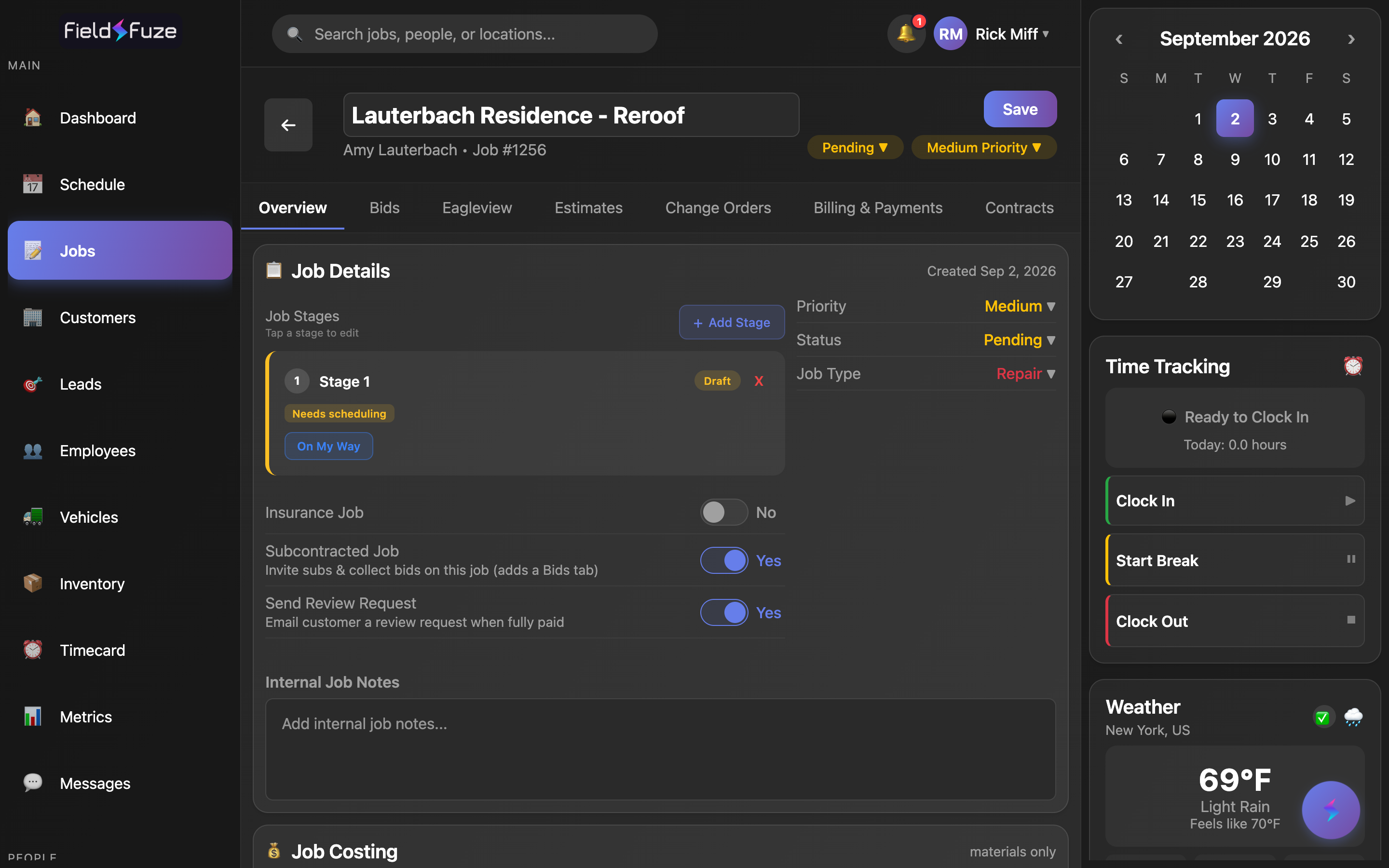
The moment you publish your first package, the job is committed to subcontracting and the toggle locks to Yes — switching it back off would hide live bids from the rest of your team. Managing bids needs a role that can edit jobs; if you don't see the tab, check your permissions with your admin.
Publish a trade package
A package is one trade you're putting out to bid — roofing, concrete, electrical, and so on. From the Bids tab click + Publish package and fill in:
- Trade — pick Roofing, Concrete, Electrical, Framing, or Plumbing. Choosing a trade pre-fills a sensible starter scope you can edit.
- Package title (optional) — a plain label like "Roofing — tear-off & re-roof."
- Bid deadline — the date bids are due. Once it passes, the package stops taking new bids on its own.
- Scope line items — the exact rows every bidder will price (Description, Qty, Unit). Add or remove rows with + Add scope row and the ✕ button.
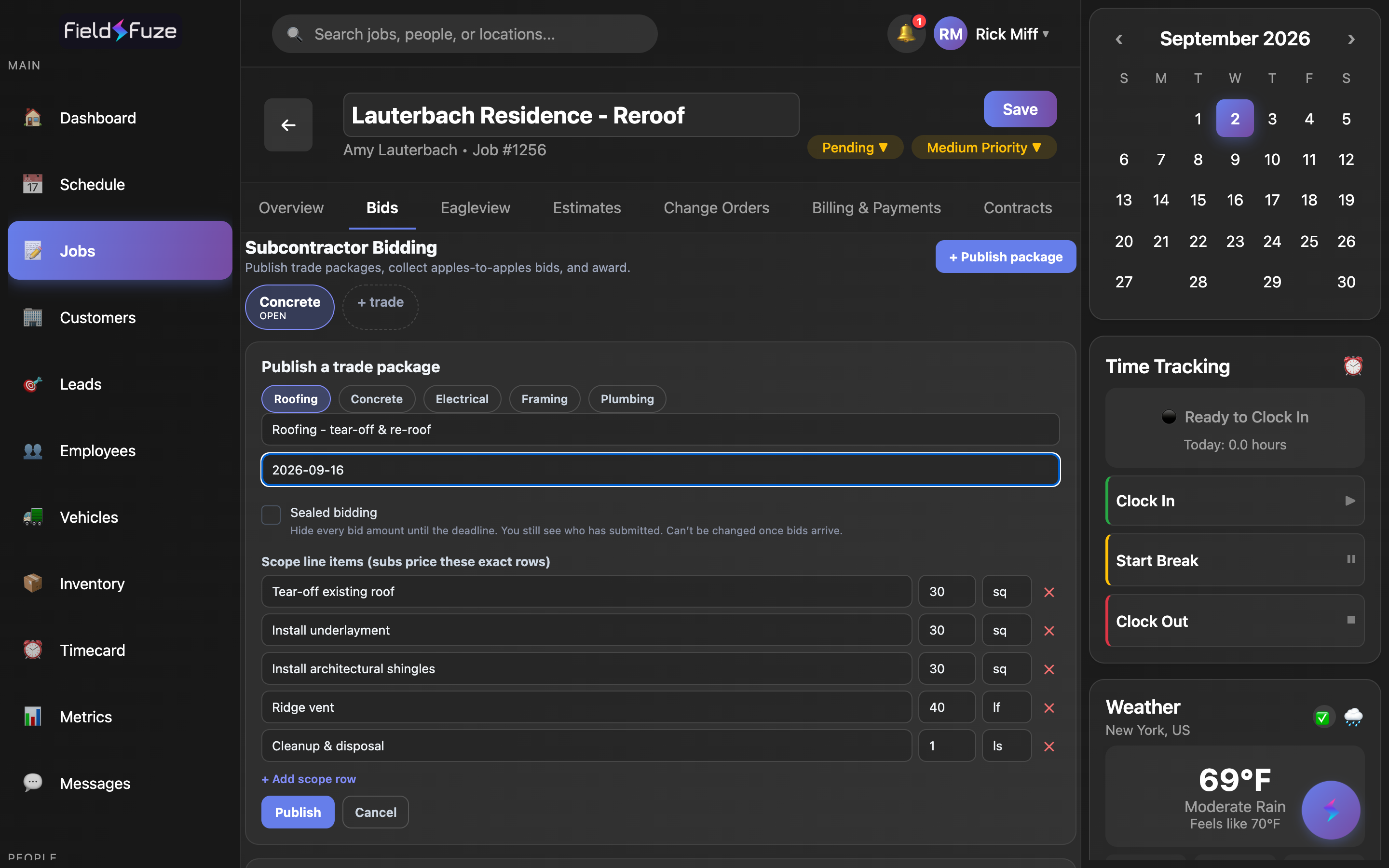
Because every sub prices the same rows, their bids line up apples-to-apples on the leveling table later. Subs can still add their own extra items, but they can't change your quantities or units — so a "cheaper" bid is genuinely cheaper, not just quoting less work.
Sealed bidding (optional)
Tick Sealed bidding to hide every bid amount until the deadline. You still see who has submitted, just not their numbers, which keeps the process fair and stops early bids from leaking. Sealed bidding needs a deadline — that's when the amounts unlock — and it can only be set at publish; once bids arrive, it can't be switched on.
You can unseal before the deadline if you truly need to, but it's recorded in the audit log against your name. Early reveals are how "bid shopping" starts, so FieldFuze makes it a deliberate, attributable action rather than a quiet click.
More than one trade on a job
A single job can carry several packages. Use + trade (or + Publish package again) to add roofing and concrete and electrical to the same job — each gets its own chip, its own subs, and its own leveling table.
Attach plans, specs & photos
Give your subs everything they need to price accurately. In the package's Plans, specs & photos section, click Attach plans, specs, or photos (or Add more files) to upload drawings, spec sheets, or site photos — PDF, JPG, or PNG, and you can select several at once. Images show a thumbnail you can tap to open; each file has a ✕ to remove it. Every invited sub sees the same files on their own bid page.
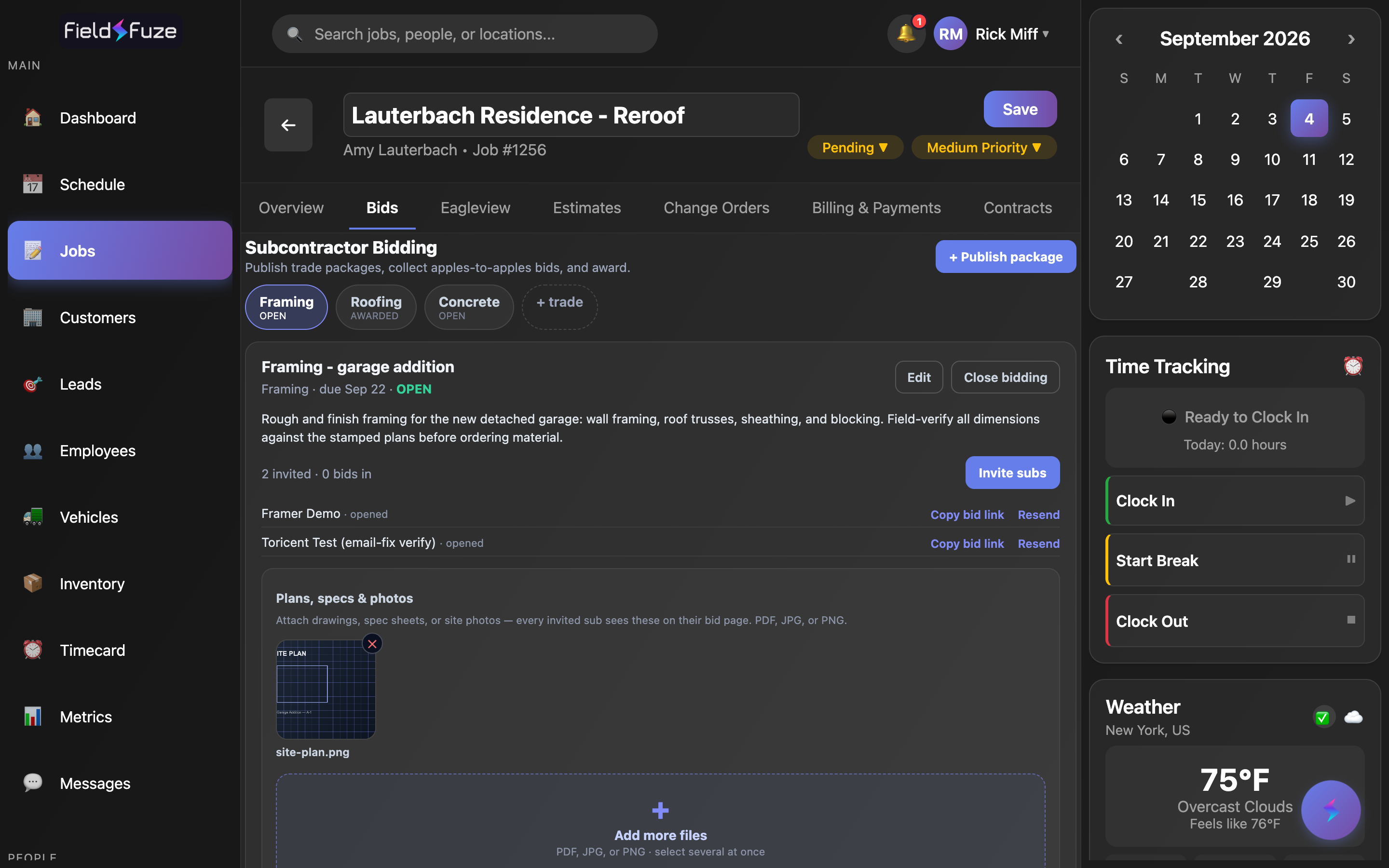
A locked scope tells a sub what to price; the plans and site photos tell them how — pitch, access, existing conditions. Better information up front means tighter, more comparable bids and fewer change orders later. Add or remove files any time the package is open, and subs always see the current set.
Bid attachments live in a private, encrypted store — never a public link. Each file is served to you and to invited subs through a short-lived, single-file link created only when someone opens it, so nothing is browsable or shareable outside the invitation.
Edit a package after publishing
Plans change. While a package is still Open and its deadline hasn't passed, click Edit in the package header to revise the trade, title, scope notes, scope line items, and bid deadline. Save and your invited subs see the updated scope on their bid page right away.
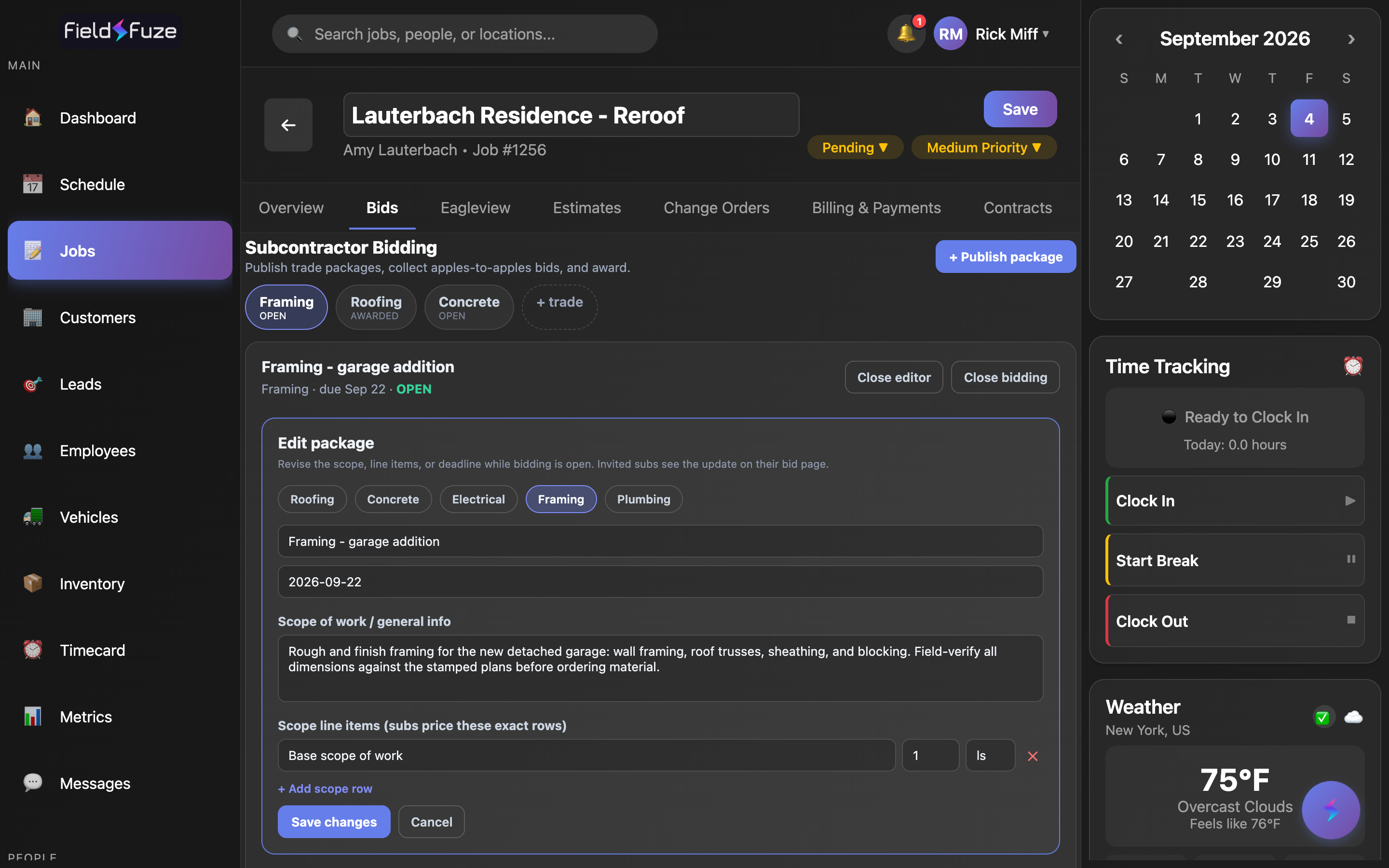
Editing the scope after subs have priced it means their bids may no longer match the work — so FieldFuze asks you to confirm before saving, and you should re-notify those subs (Resend on each invitation) so they can adjust. Once a package is awarded or closed, or its deadline has passed, it's frozen and the Edit button goes away.
Invite subcontractors
Open a package and click Invite subs. There are two ways to invite:
- From your roster — pick a sub you've saved before. Each shows a compliance badge (see below), so you can tell at a glance who's insured and papered before you invite.
- By email — type a company name and email for a one-off sub; they're added to the package right away.
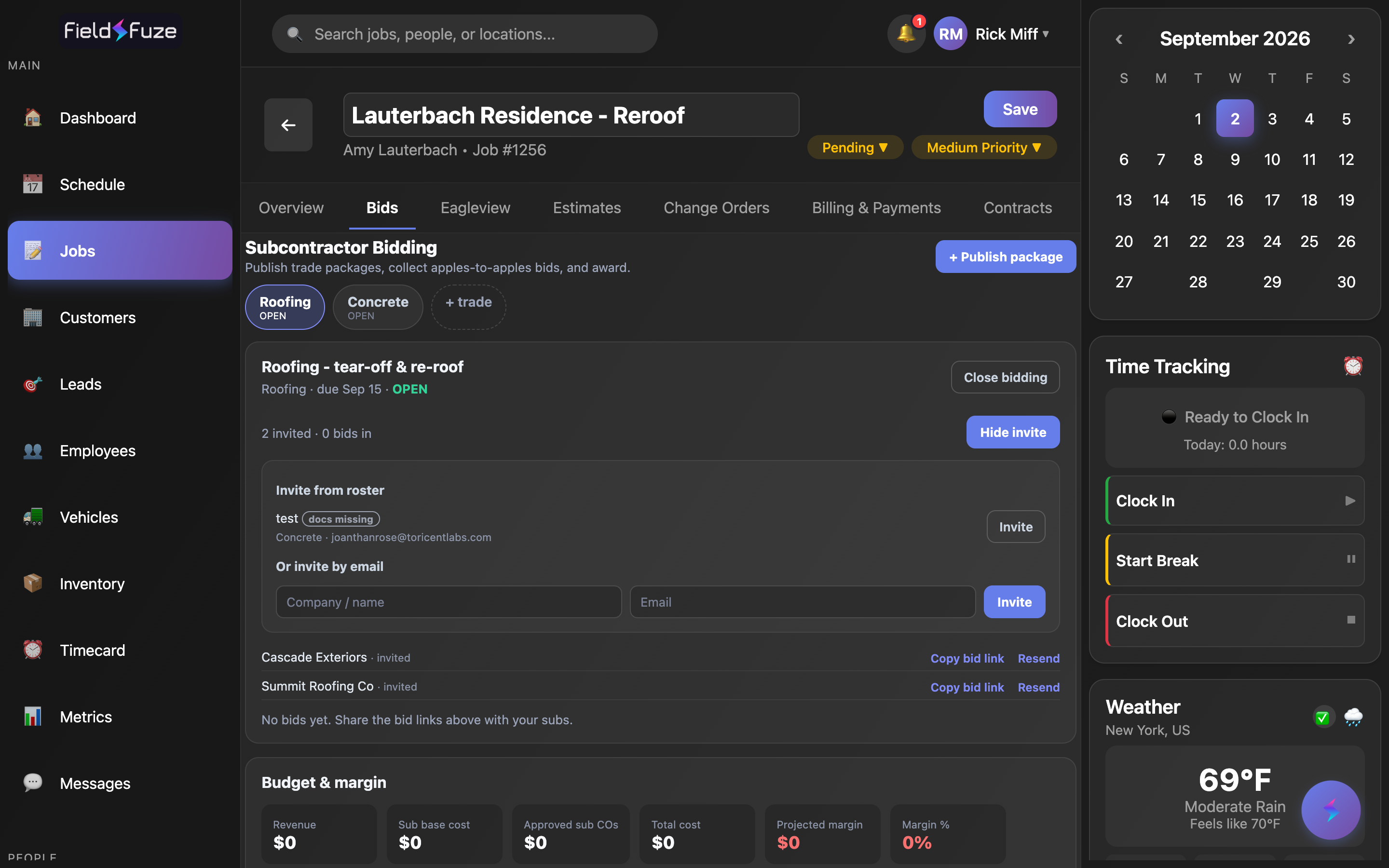
Every invited sub gets a private bid link. Use Copy bid link to grab the URL and send it yourself, or Resend to email the invitation again (that also refreshes the link). Each invitee shows a live status: invited, opened, submitted, or declined.
Inviting a sub also sends them a branded email from bids@fieldfuze.com that carries your company name and logo, the project and trade, a scope summary, and the bid deadline in red — with a big button to their private link. It reads like a real bid invitation, not a generic notification, so it looks professional and lands in the inbox rather than being mistaken for spam.
A sub's link logs them straight in with no password, so treat it like one. Don't post it publicly or forward one sub's link to another. If a link is ever mis-sent, just invite that sub again for a fresh one.
What the subcontractor sees
Your subs don't need a FieldFuze account. Their link opens a clean, standalone Bid Portal page with only their invitation on it — no app, no login, nothing else from your account. The page leads with the trade and scope, shows the bid deadline prominently in red so it's never missed, and puts your attached plans and specs right there to review before pricing.
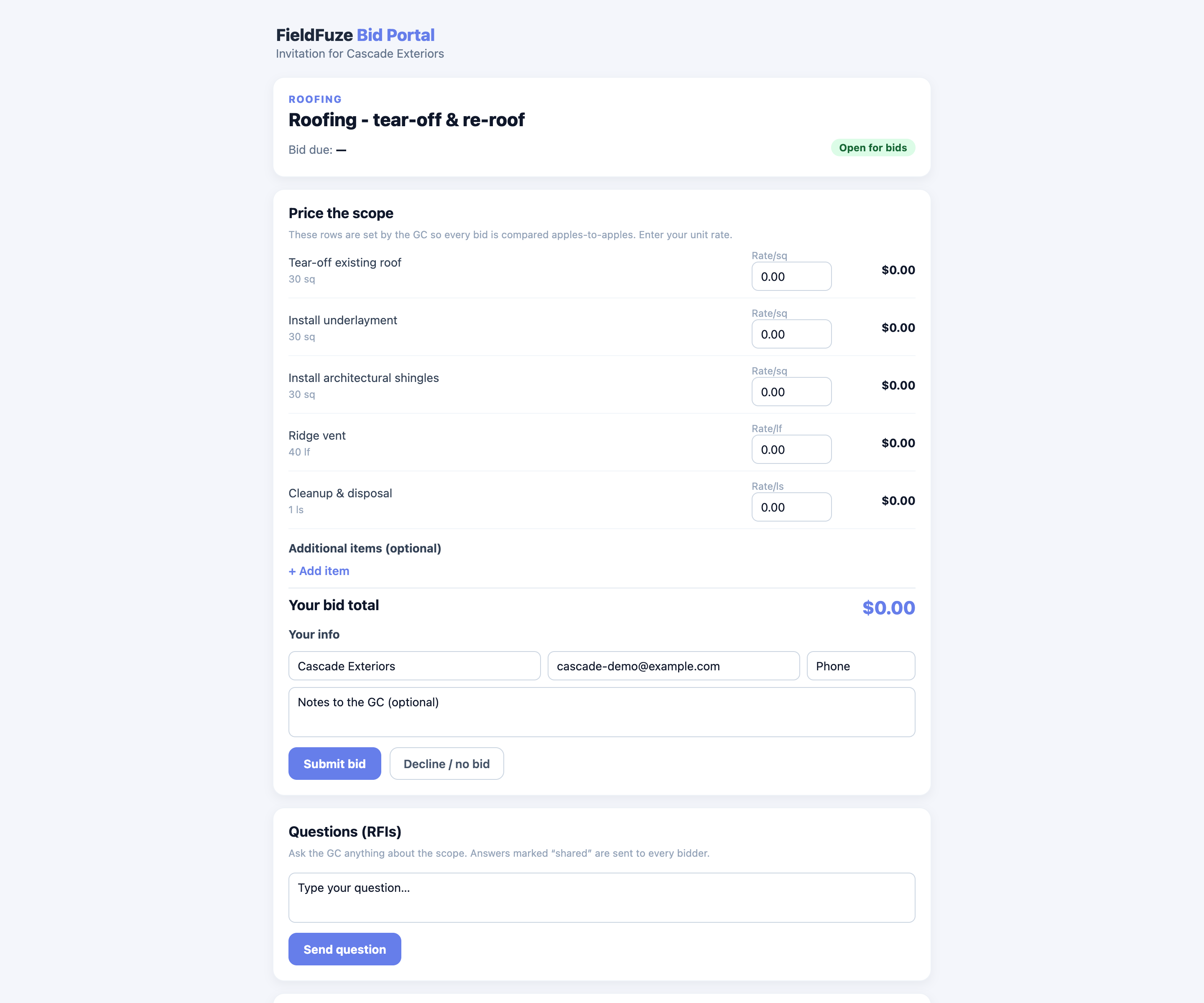
On that page a sub can:
- Price the scope — enter a unit rate on each of your locked scope rows; the line and grand totals add up as they type.
- Add extra items — optional lines for anything outside your scope (say, an access charge).
- Fill in contact info & notes — company, email, phone, and a note to you.
- Submit, revise, or withdraw — they can update their number any time before the deadline, or pull the bid entirely.
- Decline / no bid — bow out cleanly so you're not left waiting on them.
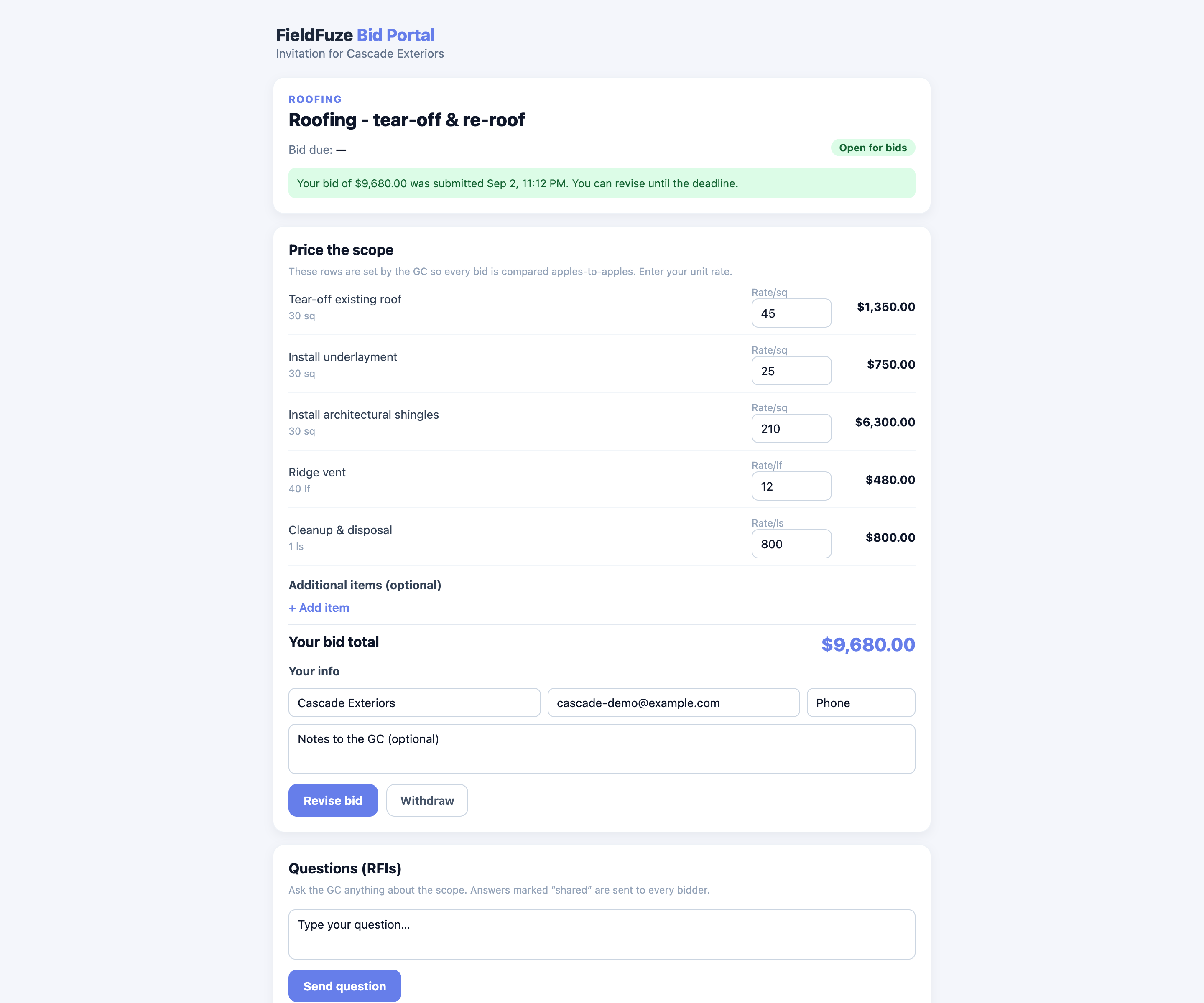
They can also open any plans & specs you attached, read shared addenda from other bidders' questions, ask their own questions (RFIs), and upload their compliance documents — certificate of insurance and license.
Subs upload their COI and license, but there's deliberately no W-9 upload — a W-9 carries a Social Security number, and FieldFuze doesn't store those. Collect the W-9 from your sub directly for your own 1099s.
Compare bids — the leveling table
As bids land, the Bid leveling table builds itself: your scope rows down the side, one column per sub across the top, and a bold TOTAL row at the bottom. The lowest total is highlighted in green, and each sub's extra items are summed on their own Additional items line, so you're always comparing the same base scope.
Every column also carries a compliance badge pulled from that sub's roster record:
If the package is sealed, amounts show as •••• and each total reads Submitted ✓ until the deadline unlocks them — so you can watch participation without seeing a single number.
Questions & clarifications (RFIs)
When a sub asks a question, it lands in the package's RFIs list, where you can:
- Answer & share to all — broadcasts your answer to every bidder as an addendum (the asker's name is stripped). Use this for anything that changes the scope, so everyone bids on the same information.
- Reply privately — answers just that one sub, for questions specific to them.
Award the winner
When you've decided, click Award under the winning column. That closes bidding on the package and creates a subcontract for that bid. If the sub has a compliance gap, FieldFuze warns you first, so awarding is always a conscious choice.
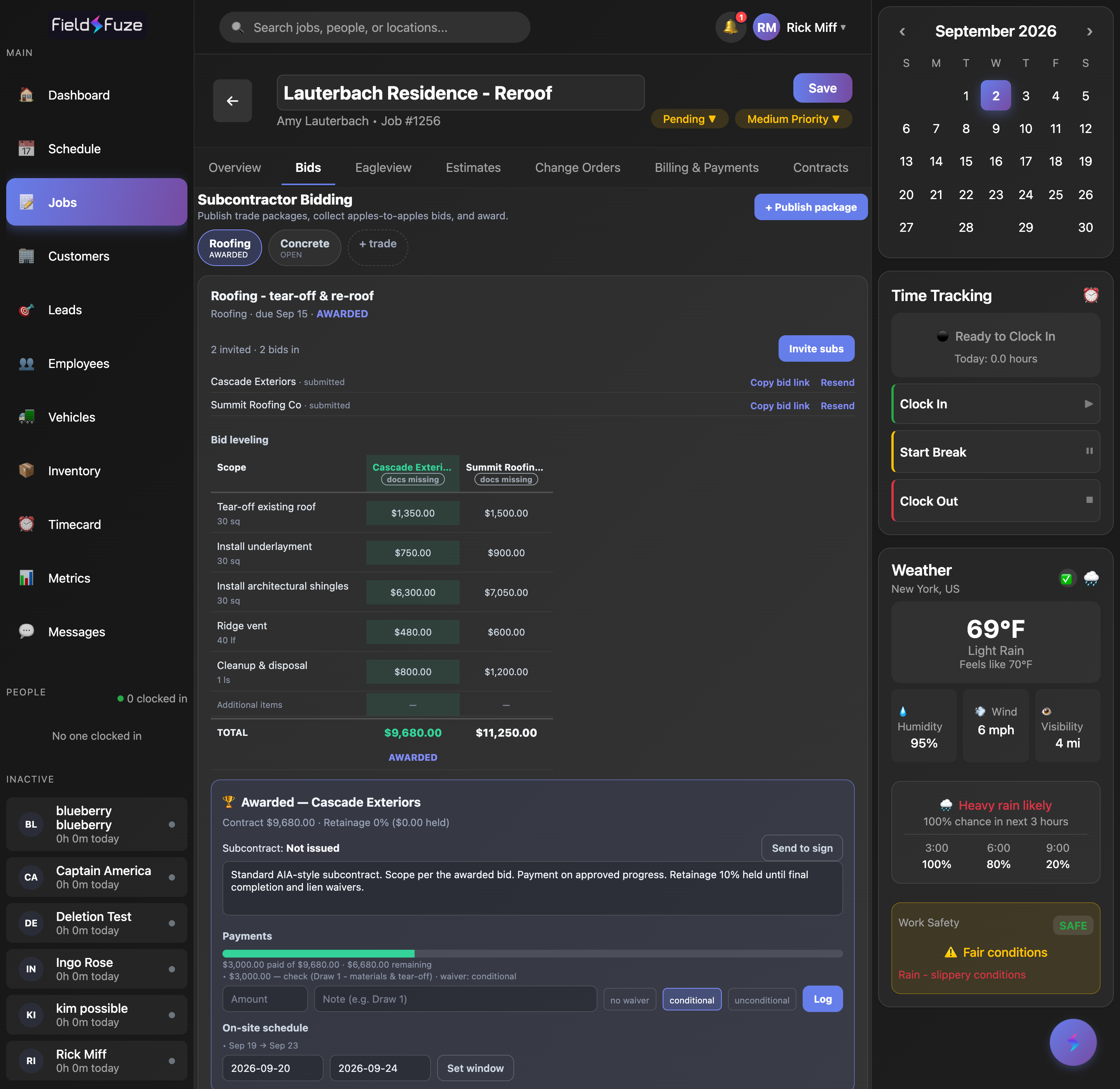
The award opens a subcontract panel where you manage everything after the handshake:
Send the subcontract for signature
Edit the terms, then click Send to sign. FieldFuze builds a subcontract PDF and emails it to the sub for a binding e-signature — the same signing engine your estimates and change orders use. The status moves Not issued → Issued (awaiting signature) → Signed.
Track payments & retainage
- Log payments as you pay the sub (amount, method, and a note like "Draw 1"). A progress bar shows paid-to-date against the contract, with the remaining balance.
- Lien waivers — tag each payment as conditional or unconditional (or none), so your waiver trail matches your payments dollar for dollar.
- Retainage — hold back a percentage until the work is complete, then Release retainage in one click.
Logging a sub payment records what you paid out — it doesn't move money and it's entirely separate from the customer payments you collect in Billing & Payments. No processing fee applies.
Schedule & change orders
- On-site window — set the sub's start and end dates so everyone knows when they're on the job.
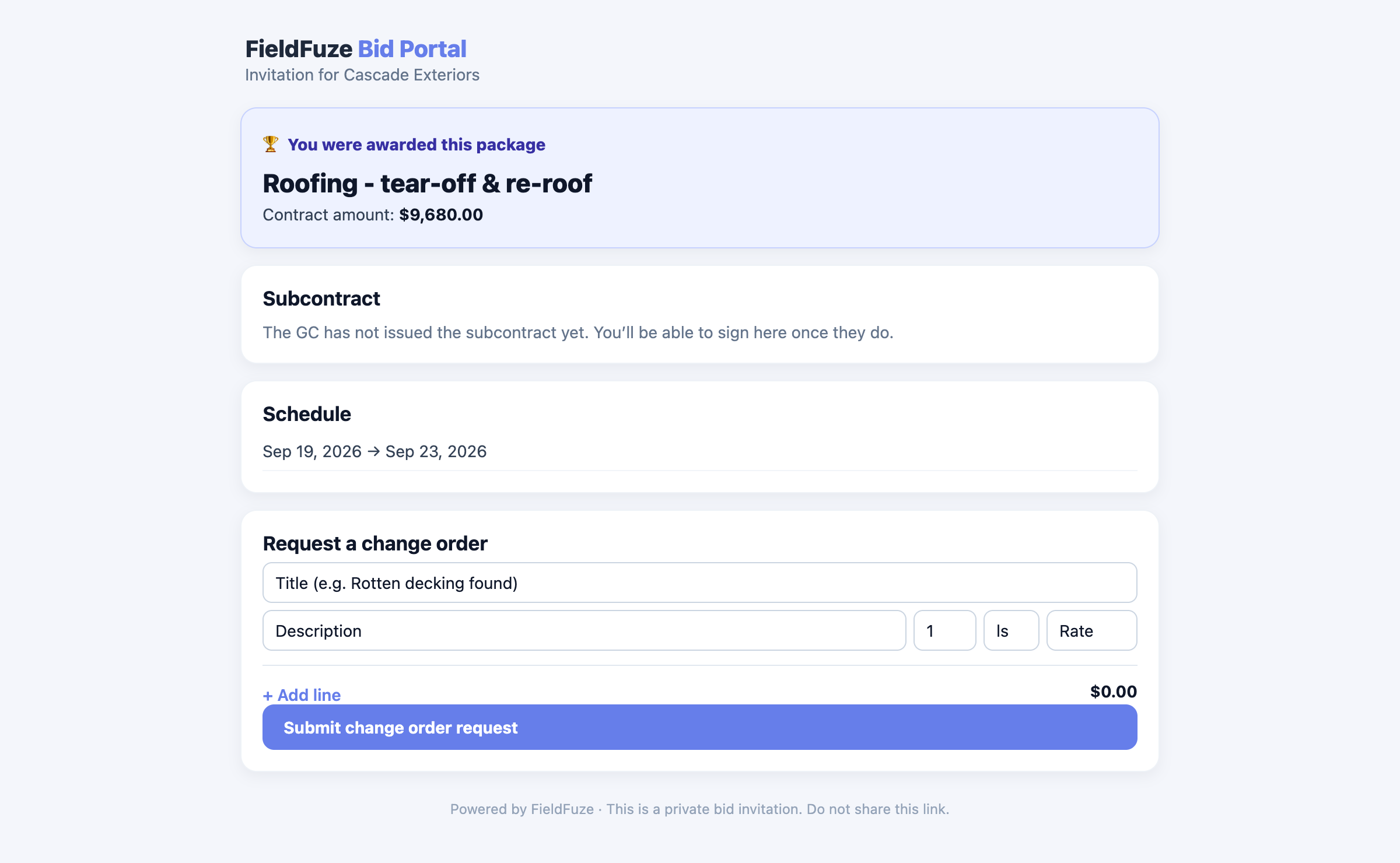
- Change-order requests — if the sub asks for more money (say, rotten decking turns up), the request appears here to Approve or Reject. Approving adds the amount to the subcontract total automatically.
After you award — the sub's view
Once awarded, the same private link switches to an awarded view for the sub. There they can e-sign the subcontract, see their scheduled on-site window, and submit itemized change-order requests — the same ones you approve or reject from your Bids tab.
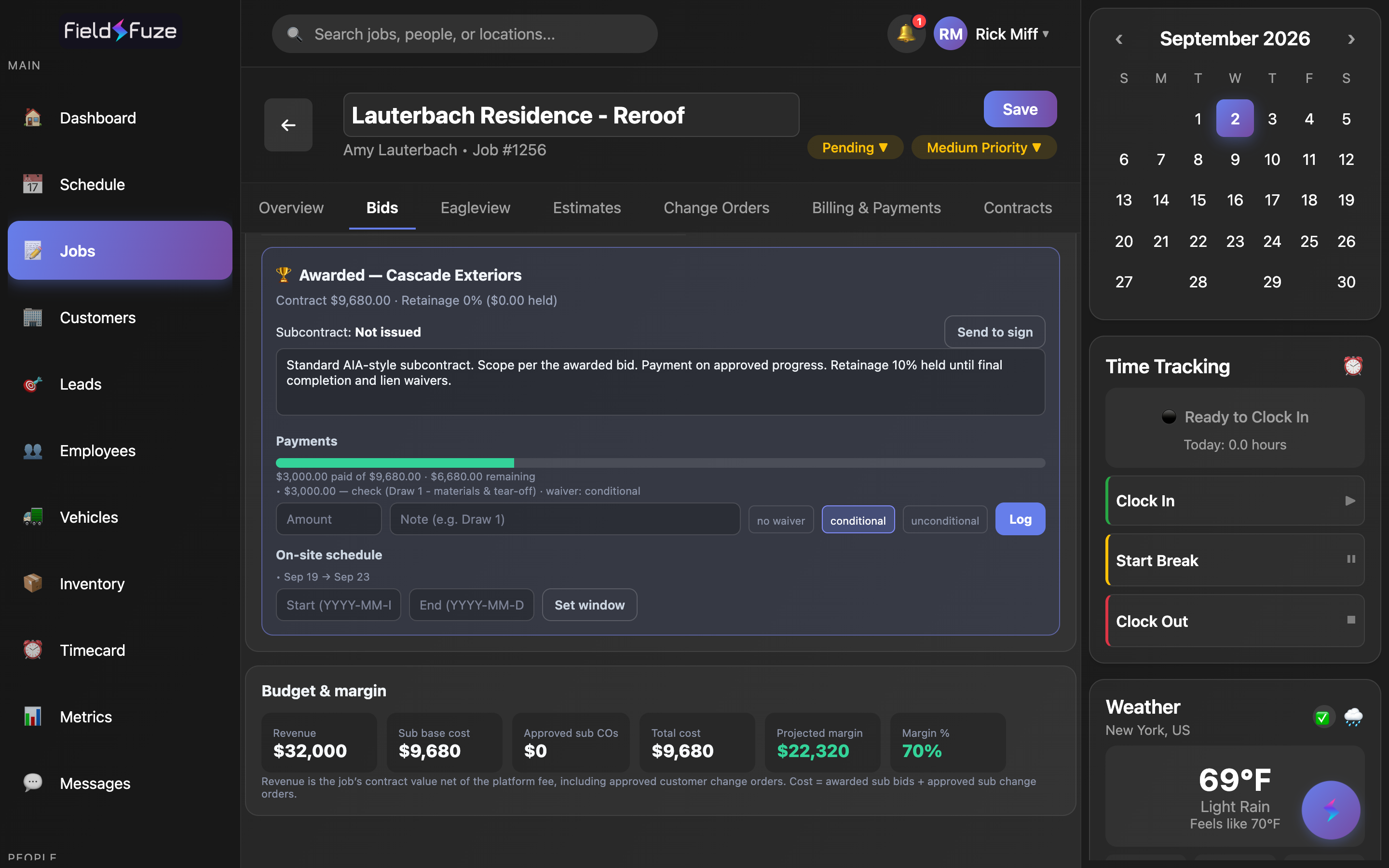
Budget & margin
At the bottom of the Bids tab, the Budget & margin card rolls the whole job up so you can see, live, whether it's making money:
- Revenue — the job's contract value (approved estimates plus approved customer change orders), net of the platform fee.
- Sub base cost + Approved sub COs = Total cost — what your awarded subs cost you.
- Projected margin and Margin % — revenue minus cost, colored green, amber, or red so the job's health reads at a glance.
You win a re-roof but sub out the labor. On the job's Overview you flip Subcontracted Job to Yes, then Publish package for Roofing with a locked scope and a Friday deadline. You invite three roofers from your roster and email a fourth; each gets a private link and bids without an account. Their prices stack up on the leveling table, you answer one shared RFI about underlayment, and you award the lowest compliant bid. FieldFuze creates the subcontract — you send it for e-signature, set the on-site week, log draws with lien waivers as you pay, and watch your projected margin the whole way.