📝 Jobs List & Creating a Job
The Jobs screen is your command center — every job lives here, from the first phone call to the final payment. Two views, a full shelf of smart filters, instant search, and one-tap job creation let you find, sort, and start work in seconds.
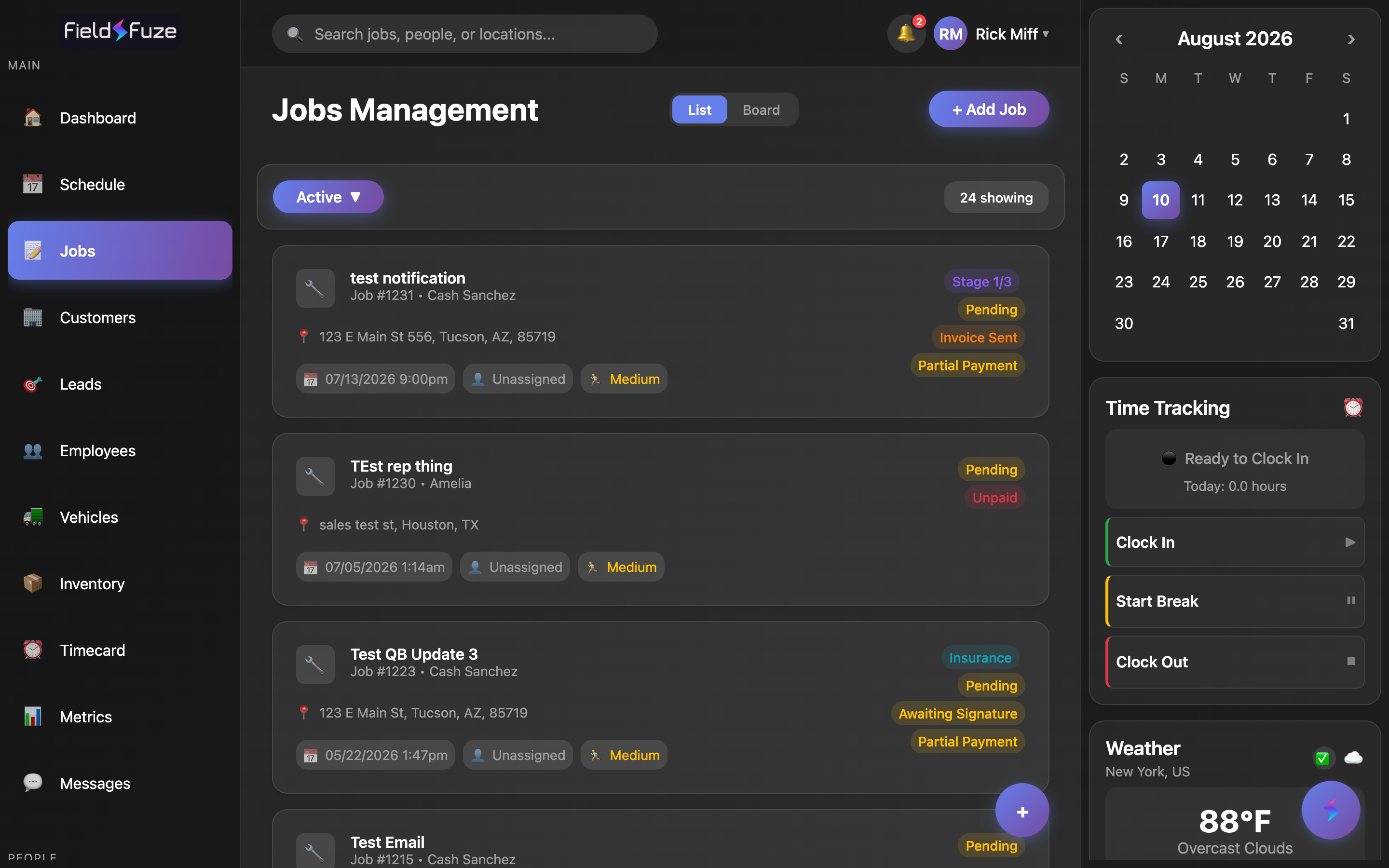
Two ways to see your work: List & Board
A centered List / Board toggle sits at the top of the screen next to the + Add Job button. Switch any time — your filters and search carry across, and the toggle remembers where you were.
- List view — a scrollable stack of rich job cards, newest work first. This is the detail-heavy view: full status badges, payment state, schedule, and assignment all show on each card. Pair it with the filter dropdown and search to zero in fast.
- Board view — a Kanban-style layout where each column is a stage of the job lifecycle, so you read the whole pipeline left to right at a glance. Columns are Needs Estimate, Estimate Sent, Approved / Ready, Scheduled, In Progress, and Completed, with a Show Cancelled toggle for the terminal column. Every column loads and paginates on its own with a Load more button, so even a busy pipeline stays fast.
Use List when you know what you're looking for — filter or search straight to it. Flip to Board for the morning stand-up view: how many jobs need an estimate, what's approved and ready, what's on the schedule, and what's in progress, all in one screen. Open any card in either view to work the job.
Finding jobs
- Toggle List vs Board. The Board groups jobs by lifecycle stage for a quick pipeline overview.
- In List view, tap the filter (a labeled dropdown on desktop, a button that opens a picker on mobile) and choose from Active, All, Pending, In Progress, Completed, Upcoming, Awaiting Approval, Recently Approved, Needs Estimate, Ready to Schedule, and Archived.
- Search from the top-bar box; open any card to work the job.
Every filter, and what it surfaces
The filter menu is a one-tap shortcut to exactly the slice of work you want. The selected filter shows in the pill, with a ✓ next to the active choice.
- Active — the default. Your live pipeline: everything except completed jobs, so your day's work is front and center.
- All — every job in the org, including completed ones. The counter shows how many are loaded out of the full total.
- Pending — jobs that are booked but not yet started.
- In Progress — jobs your crews are actively working.
- Completed — finished work, ready to review or bill.
- Upcoming — scheduled jobs with future dates, so you can see what's coming and staff for it. Supports the day-range picker (below).
- Awaiting Approval — jobs with an estimate sent for e-signature that the customer hasn't signed yet — your open proposals to follow up on. See Estimates & E-Signatures.
- Recently Approved — jobs whose estimate was signed within your chosen window, so freshly-won work is easy to spot and act on. Supports the day-range picker (below).
- Needs Estimate — pending jobs that don't have an approved estimate yet — your quoting to-do list.
- Ready to Schedule — jobs that are approved and ready to go on the calendar. This filter even shows a helpful hint: "To schedule a job, tap the stage in the Overview tab and select a date." See Schedule.
- Archived — jobs you've tucked away for record-keeping, kept out of your day-to-day list until you want them.
Narrowing by time — the day-range picker
The time-based filters — Upcoming and Recently Approved — add a row of quick day-range pills so you can widen or tighten the window instantly.
- 7d · 14d · 30d · 60d · 90d — one tap sets the lookback (or look-ahead) window. Recently Approved opens on 7 days, Upcoming on 14 — sensible defaults you can change any time. The active pill highlights in your brand gradient.
- Custom — pick exact From and To dates with a date picker for a precise window — great for pulling "everything approved last month" or "jobs booked for the holidays."
On Recently Approved the range looks backward — "won in the last 30 days." On Upcoming it looks forward — "scheduled in the next 30 days." Each filter remembers its own chosen range, so bouncing between them keeps both set the way you left them.
Search across everything
The top-bar search box searches your jobs server-side and updates as you type — a spinner and a Searching… label show while results come back. Search looks across the fields that matter — title, customer, and address — and while you're searching it reaches across every status (even completed jobs) so nothing hides behind the active filter.
Next to the filter, a live counter always tells you exactly what you're looking at: "12 showing" on the active list, "12 of 340 showing" when there's more to load on All, "8 completed (25 total)" on a status filter, or "7 results for "Smith"" while searching. As you scroll, more jobs load automatically until you've reached the end — then it reads "All jobs loaded."
Reading a job card
Every List card is a mini-dashboard for the job — you can read its whole state without opening it.
- Title — the job's name, front and center (🔧).
- Job # & customer — the sequential Job # followed by the customer name, so you can reference and recognize it instantly.
- Address — the property/job address with a 📍 pin.
- Time — the scheduled time (📅), so you know when it's on the calendar.
- Assignee or crew — the assigned person (👤) or, when a whole crew is on it, the crew name (👥). Unassigned jobs read Unassigned until you staff them.
- Priority — High, Medium, or Low (🏃), color-coded so urgent work jumps out.
Reading the status & badge chips
The right side of each card stacks smart chips that tell you the whole story at a glance — lifecycle status, special job types, multi-stage progress, e-signature and invoice state, and payment state — each in its own color.
- Status — the lifecycle chip: Pending, In Progress, or Completed, each in its own status color.
- Estimate Sent — a teal chip when a quote has gone out but isn't approved yet, so you know a decision is pending. Awaiting Signature appears when an e-signature estimate is out awaiting the customer's sign, and Needs Your Signature when it's your turn to countersign.
- Invoice Sent — an orange chip flags a job with an invoice out awaiting payment, so your receivables are impossible to miss.
- Payment — an animated payment chip flips on once there's a balance: Paid (green), Partial Payment (amber), or Unpaid (red). It updates with a little animation the moment a payment lands, and brand-new jobs with nothing owed stay clean.
- Insurance — a chip marks jobs flagged as insurance work, so claims stand out from standard jobs.
- Stage X/Y — for multi-stage jobs, a chip shows the current phase out of the total (e.g. Stage 2/4), so you can read progress right off the list. See Job Details & Overview for how stages work.
- QB Import — a green tag marks jobs brought in from QuickBooks, so imported history is clearly labeled.
Board cards show the title, customer, and location, plus a billing chip — Paid or the outstanding Balance — right in their lifecycle column. Open a card to jump straight into the full job.
Creating a new job
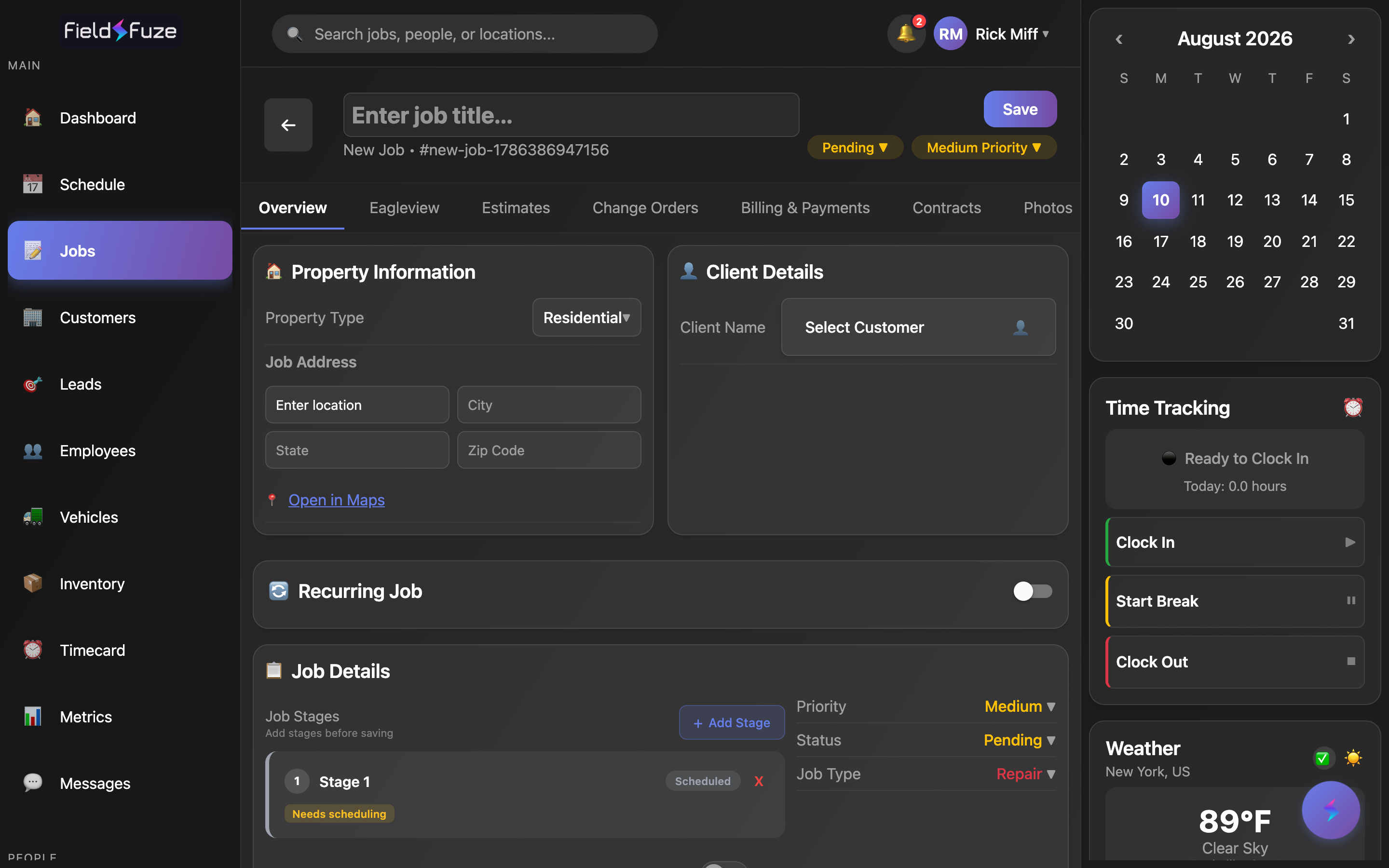
- Click + Add Job (top-right), or tap the floating + button in the lower corner of the list — both open a fresh, blank job.
- Type a title, set Status and Priority, and pick the customer under Client Details → Select Customer.
- Fill in the Property/Job address, add Job Stages if the work has phases, then click Save.
A new job opens straight into the tabbed Job Overview editor — the same workspace you'll use to build estimates, put phases on the schedule, and take payment. Every job you save gets its own sequential Job # and slots into the list newest-first.
A new job starts as a draft, so fill in the title, customer, address, and any stages first, then hit Save — that's what gives it a Job # and adds it to your list. Everything you need to run the job lives on the tabs that open with it.
Use-cases
- Run your morning — open on the default Active filter to see today's live pipeline, or flip to Board to eyeball the whole flow before the crews roll out.
- Chase the money — scan for the orange Invoice Sent and red Unpaid chips, or switch to Completed, to see exactly what's ready to bill or collect.
- Follow up on quotes — use Awaiting Approval to see every open proposal, then Recently Approved (7d) to jump on freshly-won jobs while they're hot.
- Clear the quoting queue — Needs Estimate lists exactly the jobs waiting on a price so nothing sits un-quoted.
- Fill the calendar — Ready to Schedule shows approved work to place, and Upcoming (14d) shows what's already booked for the next two weeks.
- Find one job fast — type a customer name, address, or title into search and it surfaces across every status instantly.
- Pull a report window — set Recently Approved → Custom to a From/To range to review everything won in, say, last quarter.