📱 SMS Texting Setup
Set up a dedicated business texting number so you can two-way text customers and send automated review, reminder, "on my way," and invoice texts.
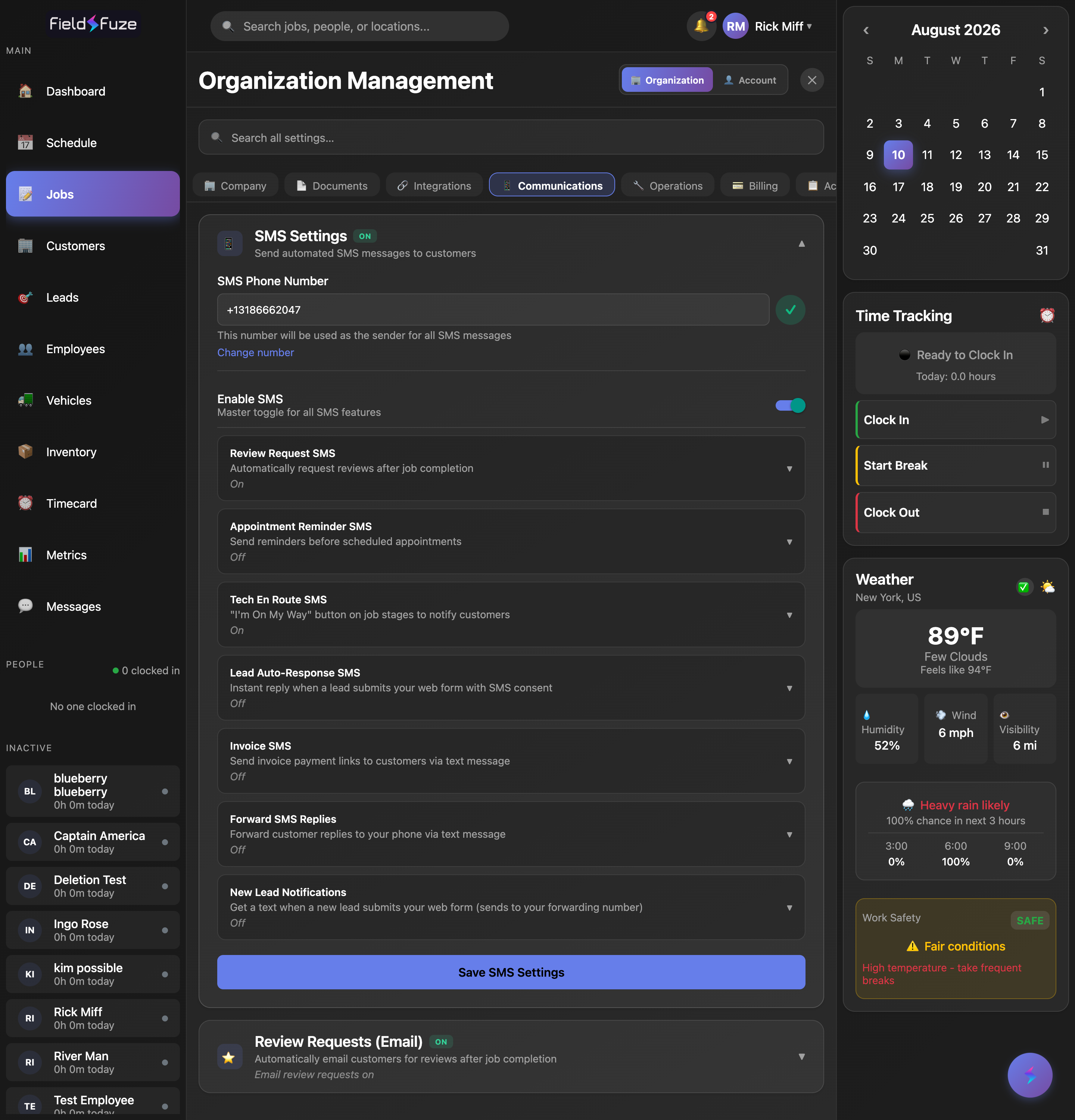
Set up your number
- Organization Settings → 📱 Communications tab → SMS Settings.
- Under SMS Phone Number, click the + to auto-provision a local number, or click Enter number manually to use a Telnyx number already on your 10DLC campaign, then Save Number.
- Flip Enable SMS on (it stays disabled until a number exists).
Turn on the automations you want
Each has its own toggle plus an editable message template with a live preview:
- Review Request SMS — texts a review link after a job is completed.
- Appointment Reminder SMS — reminders before scheduled appointments (uses your org timezone).
- Tech En Route SMS — the "I'm On My Way" text from a job stage.
- Lead Auto-Response SMS — instant reply when a web-form lead comes in with SMS consent.
- Invoice SMS — texts a payment link.
- Forward SMS Replies / New Lead Notifications — forward customer replies / new-lead alerts to your phone.
Click Save SMS Settings when done.
Good to know
Many accounts get a number provisioned automatically at signup — the + button is the manual fallback. Customers must be opted in to receive texts, and every template ends with "Reply STOP to opt out." If Messages shows "SMS Messaging Not Set Up," a number and the master toggle both need to be in place.