💳 Billing & Payments
Invoice the customer, collect online or in person, and keep every dollar reconciled on the Billing & Payments tab. It always shows exactly what's owed, what's been paid, and what's on its way — and each action keeps your books and QuickBooks in sync.
Reading the Payment Summary
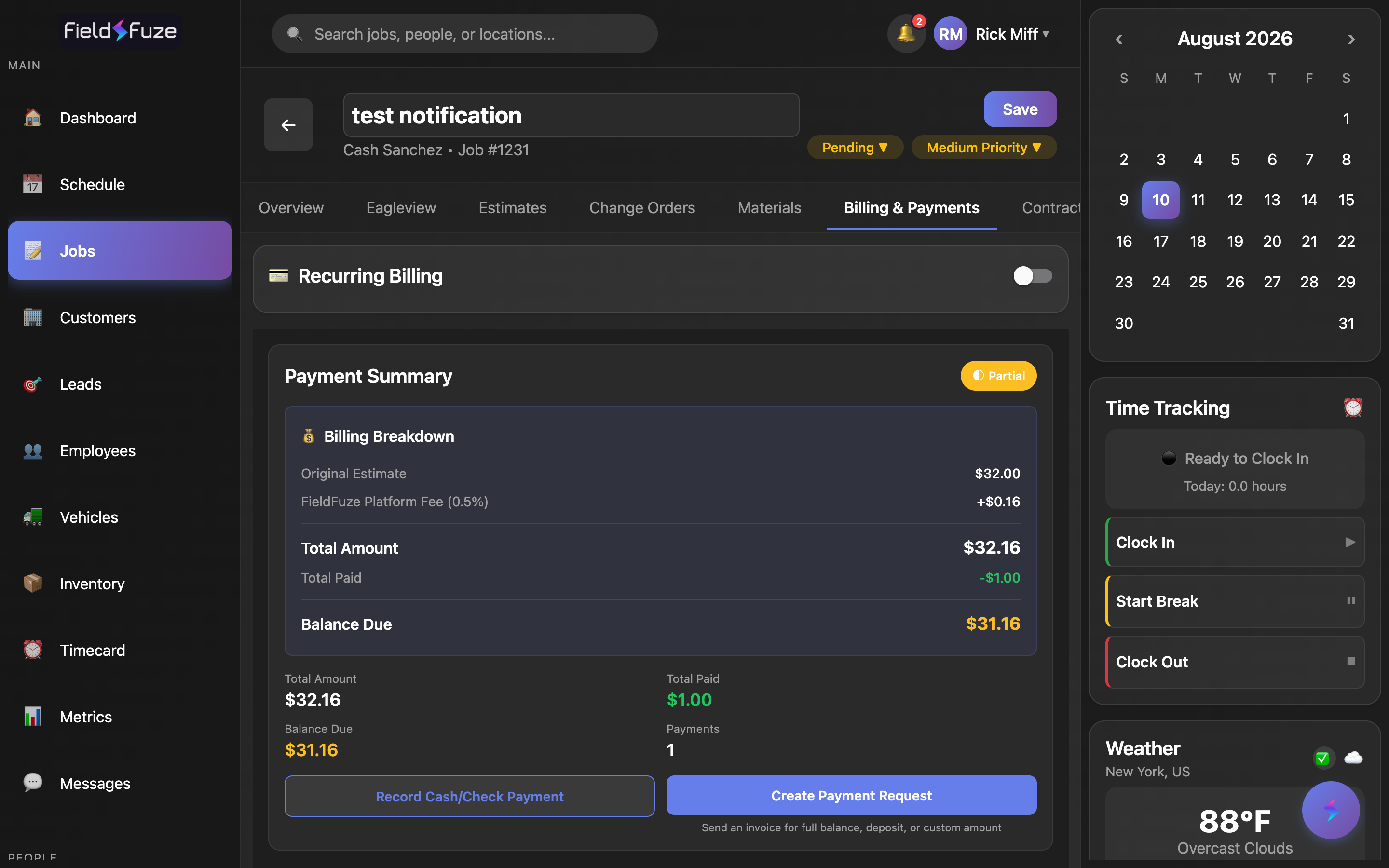
The Payment Summary card sits at the top of the tab and rolls everything up in one place. A status badge on the right tells you where the job stands at a glance, and the Billing Breakdown shows exactly how the total was built — line by line, so you and the customer see the same math.
The Billing Breakdown, line by line
- Original Estimate — the total of every approved estimate on the job. Approving an estimate is what moves its value into billing, so the breakdown only ever reflects work the customer has signed off on.
- Change Orders — approved change orders add on top, with a count shown (e.g. Change Orders (2)) so added scope is always visible and itemized.
- FieldFuze Platform Fee — a small percentage on the subtotal (shown right in the row, e.g. 2.9%). This is the flat, transparent fee that powers card and bank payments, PDFs, receipts, and QuickBooks sync.
- Total Amount — estimate + change orders + platform fee. This is the customer's grand total.
- Total Paid — the sum of every recorded and collected payment, shown in green and subtracted from the total automatically.
- Balance Due — what's left to collect, updated the instant any payment lands. When it reaches zero the job flips to fully paid on its own.
Status at a glance
- Partial — a job paid in part shows a partial badge so deposits and progress payments are obvious across your job list.
- Processing — when a bank/ACH payment is clearing, its amount appears in amber as ~ Processing, so you can see money on the way before it fully settles.
- Payments count — a running tally of how many payments have been recorded on the job, right next to the totals.
Because the breakdown is computed from approved estimates and change orders, the Total Amount, the customer's invoice PDF, and the pay page all agree by construction. Update an estimate or approve a change order and the balance updates itself — no manual re-invoicing.
Record a cash or check payment
Collected in person? Log it against the balance in seconds and it flows straight into your books and QuickBooks.
Log the payment
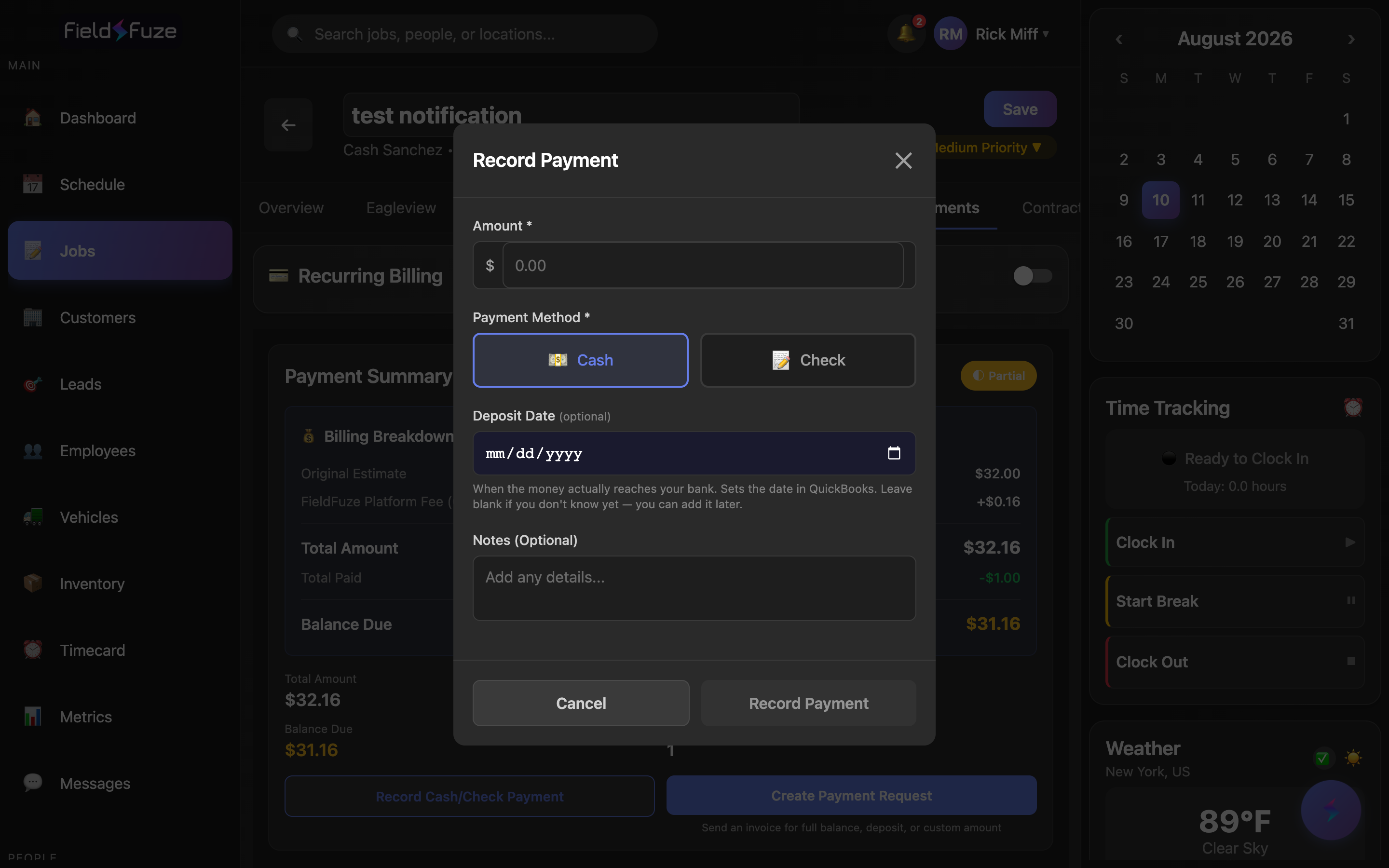
- Click Record Cash/Check Payment and enter the Amount.
- Pick Cash 💵 or Check 📝. For a check, add the Check Number and Check Date — FieldFuze keeps these on the ledger entry and even watches for a duplicate check number so the same check is never recorded twice.
- Optionally set a Deposit Date — the day the money actually reaches your bank. This becomes the transaction date in QuickBooks so your entry matches your bank statement. Leave it blank if you don't know it yet and add it later.
- Add optional Notes (e.g. "paid at final walkthrough") for a clear paper trail.
- Click Record Payment. The balance and status update instantly, and a receipt is ready to send to the customer.
Recording a check brings up a quick confirmation showing the check number, amount, customer, and the small platform fee with the date it's scheduled to be collected — so there are no surprises before you finalize.
Cash at the curb, a check handed over at the final walkthrough, a card the customer read out over the phone that you ran on your own terminal — anything collected outside the app. Recording it keeps the job balance and QuickBooks perfectly current.
Create a payment request (invoice / pay link)
Click Create Payment Request to send the customer a professional invoice and a one-tap way to pay online. You choose the amount, optionally attach photos, and pick how it goes out.
Choose the amount
- Full/Remaining Balance — request everything that's still owed. Great for the final invoice.
- Percentage Deposit — collect a share up front (defaults to 50%, set any percent). Perfect for "half now, half on completion."
- Fixed Amount — type an exact dollar figure for milestone or progress billing.
Attach job photos (optional)
- Toggle Include Photos in PDF to embed job photos in the invoice — a powerful way to show the finished work alongside the ask.
- Tap Choose Photos to hand-pick exactly which shots to include (all are selected by default), with a running "X of Y selected" count.
Send it your way
- Card Link — generate a secure card checkout link, copied to your clipboard (or shared on mobile) to drop into any message.
- ACH Link — the same, for a lower-cost bank transfer the customer can choose.
- Email Invoice — email a branded invoice PDF with the pay button built in; confirm the address, add CC recipients, and set due terms right in the send window.
- Text Invoice — text the invoice link straight to the customer's phone once SMS is connected, using your saved invoice message template.
- Charge Card — key a card in on the spot to charge it immediately, ideal for over-the-phone payments.
Bank transfer (ACH) is a customer payment option that's enabled per account. To present ACH as a receivable option, email admin@toricentlabs.com and we'll switch it on for you. Until ACH is enabled for your account, collect with the Card Link or Charge Card — sending the ACH pay link by email before it's active will return an error. Once ACH is turned on, the bank-transfer link and emailed invoices work normally.
However you send it, FieldFuze generates the itemized invoice PDF (with your logo, line items, payment history, and any photos) and stores it, so "View PDF" works later and the customer always has a clean copy. A success screen then hands you the link to copy again if you need it.
How the customer's total is calculated
The customer pays your quoted amount plus a small, fully-disclosed platform fee, and then chooses how to pay. FieldFuze shows both options side by side so they can pick the cheaper route:
- Bank transfer (ACH) — the low-cost option: a 0.8% processing fee capped at just $5.00. Present this as the customer's savvy choice.
- Card — the fast, familiar option at standard card processing (2.9% + $0.30), for customers who'd rather tap a card.
- Customer saves — the invoice highlights how much the customer saves by paying with ACH, nudging them to the lower-cost method automatically.
Processing is grossed-up on the customer's side, so the payout you receive matches your quote. See Payments for how funds settle and how the platform fee is handled on cash/check entries.
Recurring billing
For maintenance plans, retainers, rentals, or anything you bill on repeat, flip on Recurring Billing at the top of the tab. FieldFuze then invoices the customer on schedule for you, and shows an ACTIVE or PAUSED badge so the status is always clear.
Set up a schedule
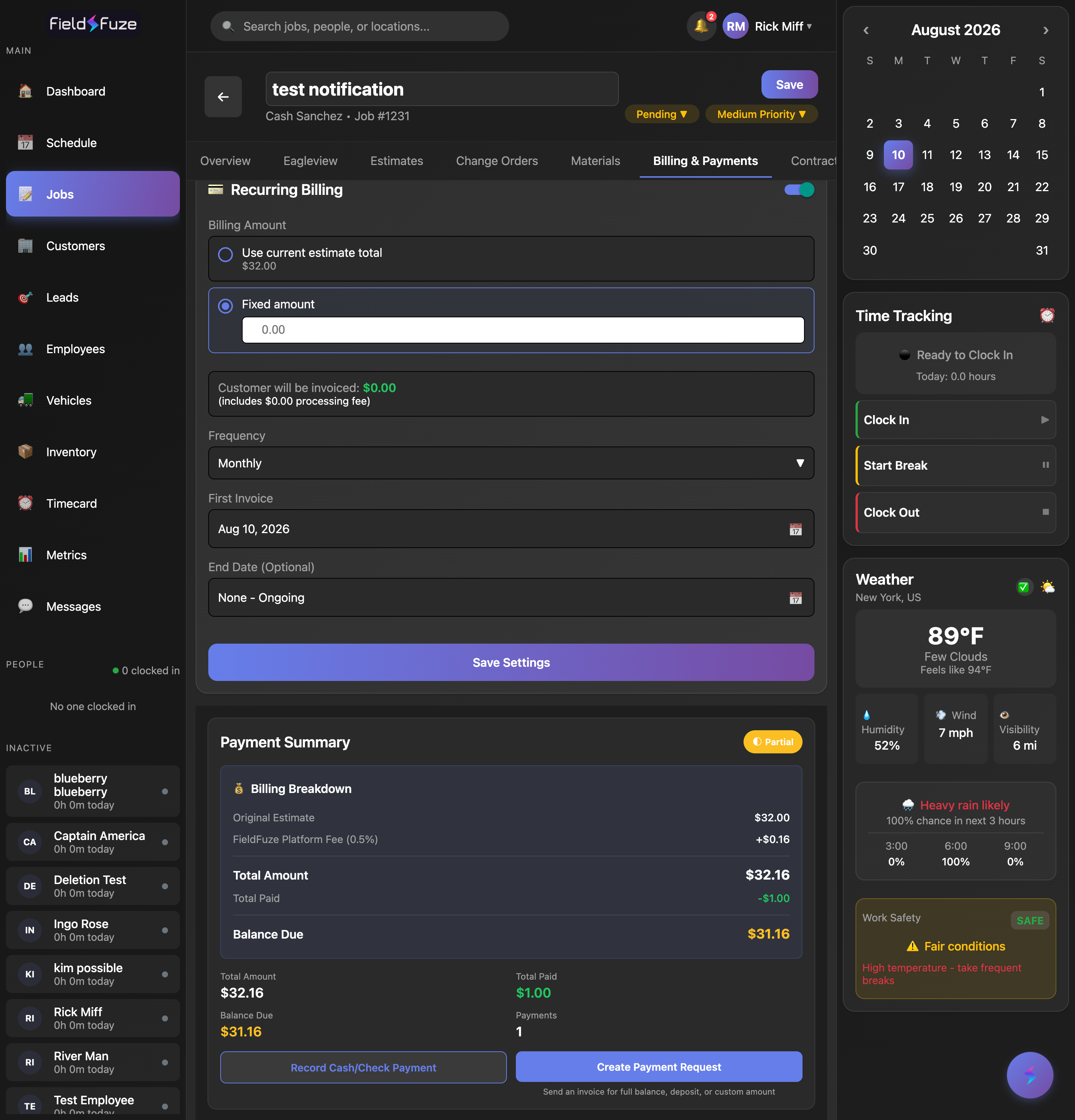
- Billing Amount — bill the job's current estimate total (it follows the estimate automatically), or a Fixed amount you type in. FieldFuze shows exactly what the customer will be invoiced, including the processing fee, right below your choice.
- Frequency — Weekly, Every 2 Weeks, Monthly, Quarterly, or Annually.
- First Invoice — the date the first invoice goes out; pick it from the calendar.
- End Date — set a stop date, or leave it None – Ongoing to run indefinitely. Once active, the card also shows the Next Invoice date so you always know what's coming.
- Save Settings. Then use Pause Billing to hold sends (and Resume Billing to pick right back up), or Cancel Billing when the agreement wraps.
Recurring settings live on the parent job and each repeat invoice is generated automatically as its own record — so a year of monthly service becomes a tidy, trackable series without you lifting a finger each cycle.
Monthly and quarterly service agreements and maintenance plans, retainers for ongoing accounts, equipment rentals, or any customer on a subscription. Set it once and let the invoices flow.
Issue a refund
Need to send money back — an overpayment, a courtesy credit, a partial refund? Use Refund Customer to record it so your ledger and QuickBooks stay perfectly in sync.
Record the refund
- Open Refund Customer. The dialog shows Total paid and Total invoiced up top, and flags any overpayment so the right figure is obvious.
- Enter the Refund amount (up to the total paid), pick a Refund method — Cash, Check, ACH / Bank Transfer, Credit Card, or Other — and set the Refund date.
- Add a Reason (e.g. "Customer overpayment") and optional Notes (e.g. "Check #4523 mailed 5/21").
- Click Issue Refund. FieldFuze logs the refund and posts a matching RefundReceipt to QuickBooks once it's connected — your books reconcile themselves.
Reverse a payment
If a recorded payment needs to be backed out — a bounced check is the classic case — open the payment and choose Reverse Payment, add a reason, and confirm. FieldFuze restores the balance due and, once QuickBooks is connected, creates a credit memo and voids the original payment there too, so the invoice balance is restored on both sides.
Issue Refund for money you're sending back (overpayments, goodwill credits, partial refunds). Reverse Payment for a payment that never truly cleared, like a returned check — it puts the balance right back on the job so you can collect again.
Refunds and reversals are available if your role includes payments control, keeping this sensitive step in the right hands while everyone else can still record and collect.