🧭 Navigating FieldFuze
Every screen shares the same layout, so once you learn it you can find anything fast.
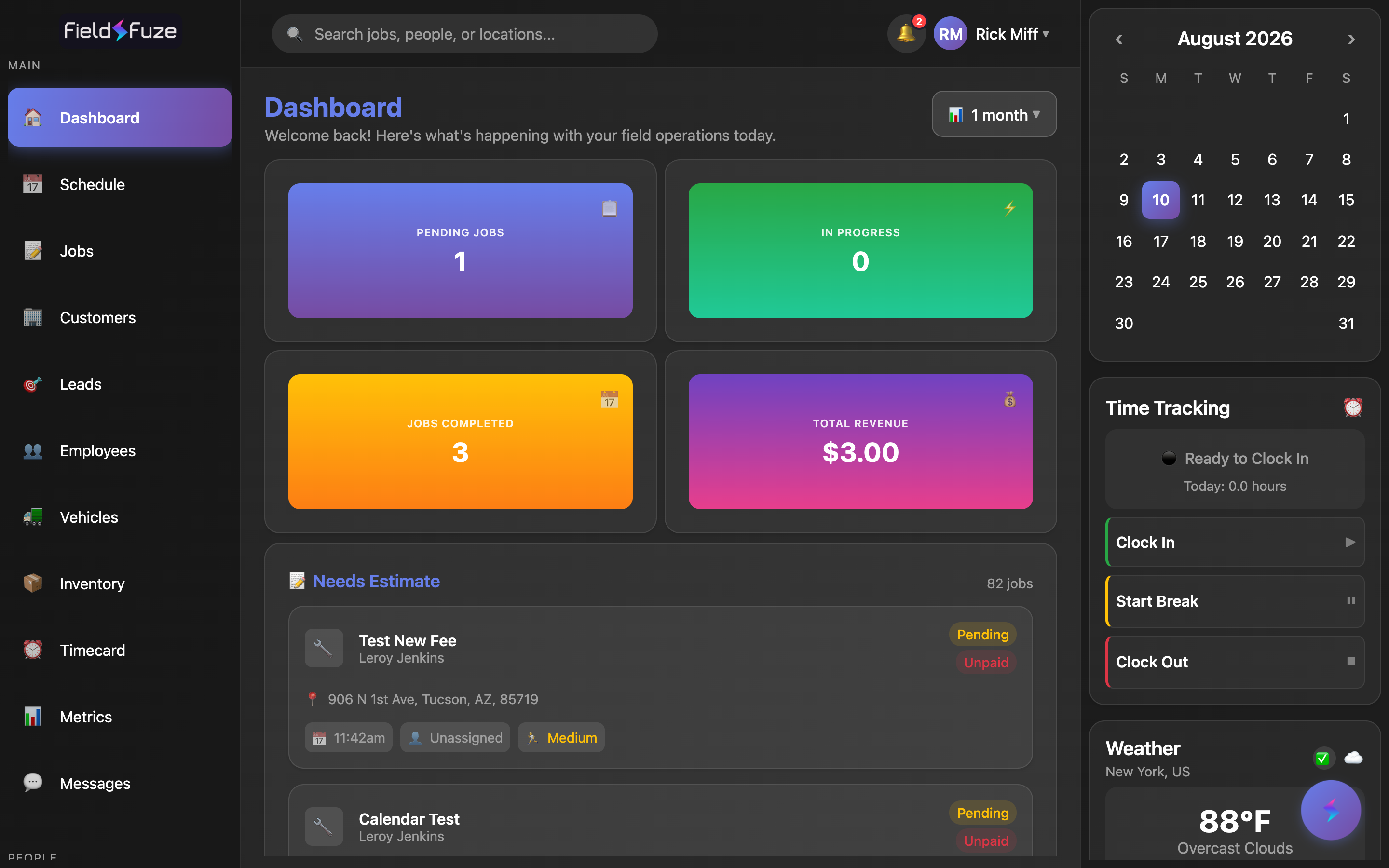
The left menu
- Dashboard, Schedule, Jobs, Customers, Leads, Employees, Vehicles, Inventory, Timecard, Metrics, Messages — you'll only see items your role includes.
- The People panel below shows who's clocked in and lists your team.
The top bar
- Global search — finds jobs, people, locations; also powers search on Jobs, Customers, Leads, and Messages.
- Notifications bell — new assignments, payments, and estimate updates.
- ⚡ Ask Ciro — the AI assistant (floating bolt on wide screens, top-bar icon on smaller ones).
- Your profile (top-right) — Account Settings, Organization Settings, Help & Support, and Sign Out.
The right rail (wide screens)
On wide desktop displays a right-hand rail shows a Calendar (tap a date to open the Schedule), Time Tracking (Clock In / Start Break / Clock Out), and Weather. On laptops, tablets, and phones it's hidden — those tools live on their own screens.