🏠 The Dashboard
Your home base — a live snapshot of the business the moment you sign in. In one screen you get the numbers that matter, the two queues that keep work flowing, today's and this week's jobs, and a right-rail with your calendar, time clock, and on-site weather. It's built to be the first thing you open and the last word on "what needs my attention right now."
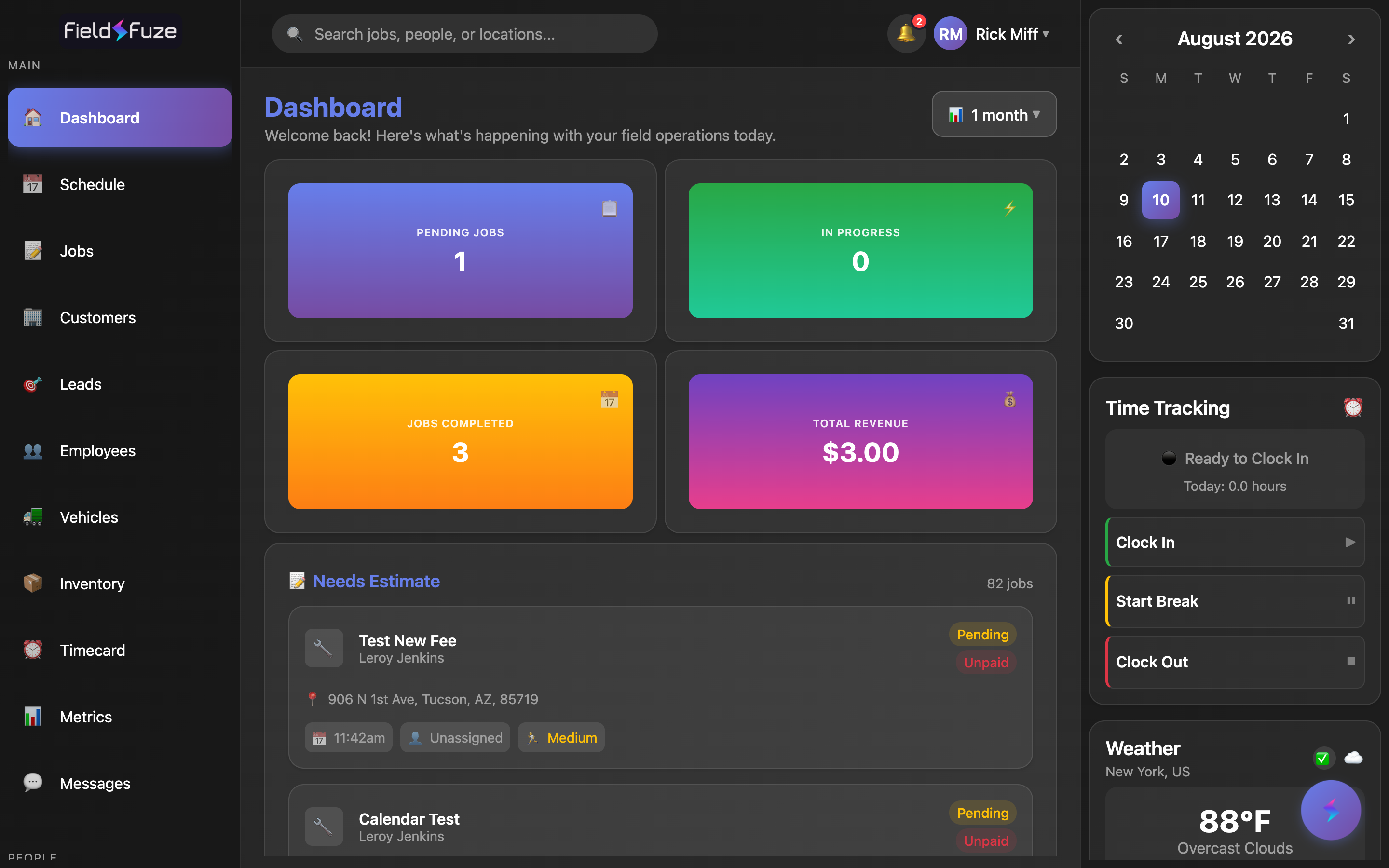
The four KPI cards
Across the top of the Dashboard sit a row of bold, color-coded metric cards. Each one is a single number that summarizes your operation for the time period you've selected, so you can read the health of the business at a glance before you scroll a single line.
- Pending Jobs — booked work that hasn't started yet. This is your on-deck count: everything that's committed and waiting for a crew to begin. Watch it to make sure nothing scheduled is slipping past its date.
- In Progress — jobs your crews are actively working right now. A live pulse on how much is in motion across your teams at this moment.
- Jobs Completed — finished work for the selected period. This is your throughput number — how much you're actually closing out — and it's a satisfying one to watch climb.
- Total Revenue — money collected across every payment method for the selected period, animated so you can watch it update. Shown if your role includes financial visibility.
The Total Revenue card is shown if your role includes financial visibility. Owners and managers with that visibility see all four cards; everyone else sees Pending Jobs, In Progress, and Jobs Completed — a clean, focused view of the operational numbers that apply to their work.
The time-range selector
The button in the top-right corner (marked 📊) sets the window the KPI cards measure. Tap it to open the Filter Time Period picker and choose the span that fits the question you're asking — a quick daily pulse, a monthly rollup, or the whole story since day one.
- 1 day — today's snapshot, perfect for a same-day pulse on what's moving.
- 1 week and 2 weeks — short-horizon views that track the current sprint of work.
- 1 month — the default, and a great everyday balance of recent and representative.
- 6 months and 1 year — seasonal and annual perspective for spotting trends.
- Lifetime — the all-time total, ideal for milestones and big-picture reporting.
The time-range selector applies to the four KPI cards. Switch to Lifetime to celebrate a revenue milestone, drop to 1 day for a morning read, then return to 1 month for your everyday view. The picker highlights your current choice with a ✓ so you always know what window you're looking at.
The two action queues
Below the cards are the two lists that keep your pipeline moving. They exist to answer two simple questions every day: what still needs a price? and what's approved and ready to get on the calendar? Working these two queues to zero is the single highest-leverage thing you can do each morning.
📝 Needs Estimate
Every job here is waiting on a quote. The header shows the exact count, and each job appears as a full card you can open with one tap. Clearing this queue keeps proposals moving out the door and revenue flowing in.
- Live count in the header tells you how many jobs are waiting for a price.
- Shows the first few jobs by default; tap Show all N jobs to expand the full list, and Show less to collapse it again.
- Tap any card to open the job and build the estimate. See Estimates & E-Signatures.
📅 Ready to Schedule
These jobs are approved and just need a date on the calendar. The header shows the count, and a helpful hint reminds you exactly how to book each one.
- Live count of jobs approved and awaiting a scheduled date.
- Guided hint: tap a job, then tap a stage in the Overview tab to set its scheduled date — booking is right where you'd expect it.
- Shows the first few by default; tap Show all N jobs to see everything, and Show less to collapse.
- Tap any card to open the job and set its date. See The Schedule.
Today's Jobs & This Week
Two more lists round out the picture with your near-term calendar, so you know what's happening today and what's on the horizon without leaving the Dashboard.
- Today's Jobs — everything scheduled for the current day, with a count of how many jobs are on today's plate. This is your dispatch board for the morning.
- This Week — upcoming jobs across the next seven days, each labeled with its day (for example, Mon, Aug 11) so you can staff and sequence the week ahead at a glance.
Reading a job card
Every job in every list uses the same rich card, so you learn to read it once and it works everywhere. Each card packs the essentials into a single glance:
- Title & customer up top, with a 🔧 job icon.
- Status badge — color-coded Pending, In Progress, or Completed.
- Stage badge — for multi-stage jobs, a Stage 2/3 marker shows exactly where the job is in its lifecycle.
- Progress badges — automatic status indicators like Estimate Sent, Awaiting Signature, Needs Your Signature, and Invoice Sent keep the next action obvious.
- Payment badge — a clear Paid or Unpaid marker once a job has billing activity.
- Location, schedule & assignment — the 📍 address, the 📅 date and time (or Unscheduled), and the 👤 assigned technician.
- Multi-day & priority — a Day 2/4 marker for multi-day jobs, or a color-coded High / Medium / Low priority chip.
The right-rail: calendar, time clock & weather
A dedicated side panel keeps three always-useful tools one glance away — a mini calendar to jump into your schedule, a time clock to track your hours, and live weather for planning field work.
🗓️ Mini calendar
A compact month view sits at the top of the rail. Flip between months with the ‹ and › arrows, and today's selected date is highlighted with a purple gradient so it's easy to find.
- Use ‹ / › to page to any month — past or future.
- Tap a date to open The Schedule anchored on that day, ready to view or book work.
⏰ Time tracking
Clock in and out right from the Dashboard, no separate screen needed. A status pill shows your current state — 🟢 Working, 🟡 On Break, or ⚫ Ready to Clock In — and a running Today: X hours counter ticks up live while you're on the clock.
- Clock In to start your day — the status flips to Working instantly and your hours begin counting.
- Start Break / End Break to pause and resume without clocking out.
- Clock Out to end your shift and lock in your total for the day.
The buttons respond the instant you tap them and the Today counter keeps ticking on its own between actions. For your full history, corrections, and payroll-ready totals, head to Time Cards.
🌤️ Weather
Live conditions for your location help you plan field work with confidence. The widget shows current temperature, condition and feels-like, plus humidity, wind, and visibility — with a short rain outlook and a Work Safety read-out that flags conditions from Excellent through to weather worth a heads-up before you send a crew up a roof.
- Now — temperature, sky condition, and feels-like.
- Details — 💧 humidity, 💨 wind speed, and 👁️ visibility.
- Rain outlook — the chance of rain over the next few hours, so you can time outdoor work.
- Work Safety — a plain-language safety read-out with any relevant alerts surfaced up front.
Ways to use it
Morning triage in 60 seconds
- Open the Dashboard and read the four KPI cards to gauge the day.
- Scan Today's Jobs to confirm every crew has a plan.
- Glance at the Weather rail before dispatching outdoor work.
- Clock In from the time widget and you're rolling.
Clear the estimate queue
- Open Needs Estimate and tap Show all to see everything waiting on a price.
- Tap each card, build the quote, and send it — see Estimates & E-Signatures.
- As quotes get approved, jobs move into Ready to Schedule — tap a job and set its date to book it. See The Schedule.
- Prefer the full pipeline view? Every job also lives on the Jobs screen with filters and board view.
Empty Needs Estimate and Ready to Schedule each day and your pipeline never stalls — quotes go out, approved work gets booked, and nothing falls through the cracks.