🧾 Expenses & Job Costing
Two things live here: snap field receipts on a job's Expenses tab, and watch that job's real profit on the Job Costing card on the Overview tab. Every receipt you add rolls straight into the job's gross margin — no spreadsheet, no shoebox of receipts at tax time.
Snap a receipt — the AI fills it in
On a job's 🧾 Expenses tab, tap + Add receipt, choose a photo (or take one on your phone), and FieldFuze's AI reads it and fills the form for you.
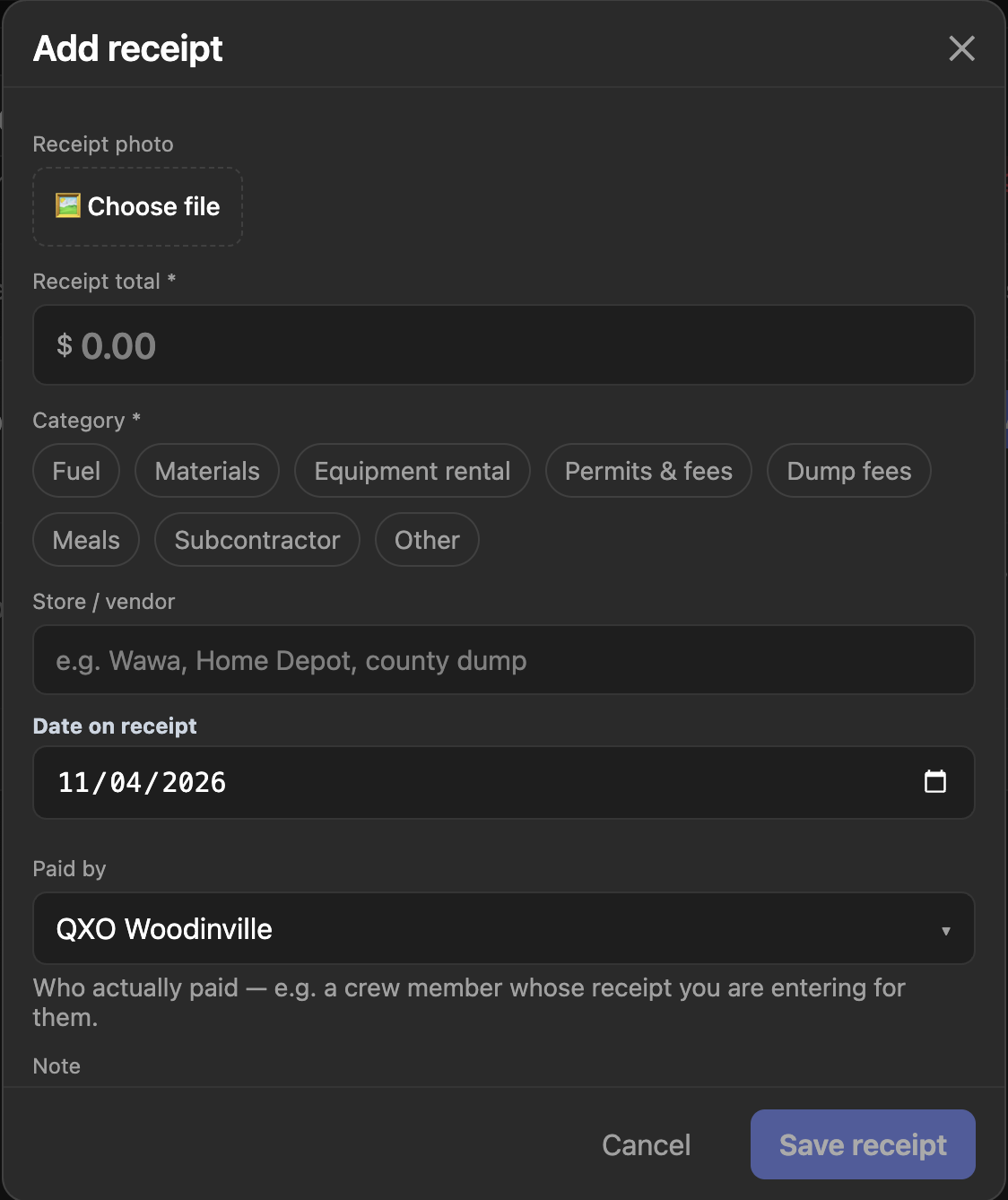
- Open the job's Expenses tab and tap + Add receipt.
- Tap 📷 Take photo (on a phone) or 🖼 Choose file — the read starts right away ("Reading receipt…").
- Check the fields it filled, pick a category if it didn't, then tap Save receipt.
What the AI reads
From the photo it pulls four things, each with its own confidence level:
- Receipt total — the final amount paid, after tax and any handwritten tip (never the subtotal or "change due"). Money is never guessed: a clearly printed total fills automatically; anything less shows a "Receipt reads $248.17 — tap to use" chip you confirm.
- Store / vendor — the brand name only, e.g. "The Home Depot".
- Date on receipt.
- Category — filled only when the AI is confident; otherwise you pick it.
The read never overwrites a field you've already typed, it flags refunds and returns, and if it can't read the image it simply stays quiet — the form works exactly as if you'd filled it by hand. Editing an existing receipt? Tap 🔍 Re-read receipt to fill any blanks from the photo.
The rest of the form
- Category (required) — one of eight job-cost buckets.
- Paid by — managers only: record who actually paid, e.g. a crew member whose receipt you're entering for them. Everyone else is recorded as the payer automatically.
- Paid out of pocket — flag a receipt reimbursable so field spend owed back to whoever paid is never lost.
- Note — what it was for.
- Up to 10 photos on a single receipt.
If a receipt's amount matches a purchase order already on the job, or a receipt you already logged (same amount, date and store), the form warns you. It never blocks — so you can still save a genuinely separate purchase.
Who can add, edit, and see receipts
- Anyone on the job can add one — the laborer at the gas station is the usual author.
- The person who added it, or a manager, can edit or delete it.
- Receipts are private to the job. They are stored separately from job photos, so they never show up in the Photos tab or anything a customer sees.
The Job Costing card
On the job's Overview tab, the 💰 Job Costing card turns all of this into a live profit statement — your estimate beside what has actually landed.
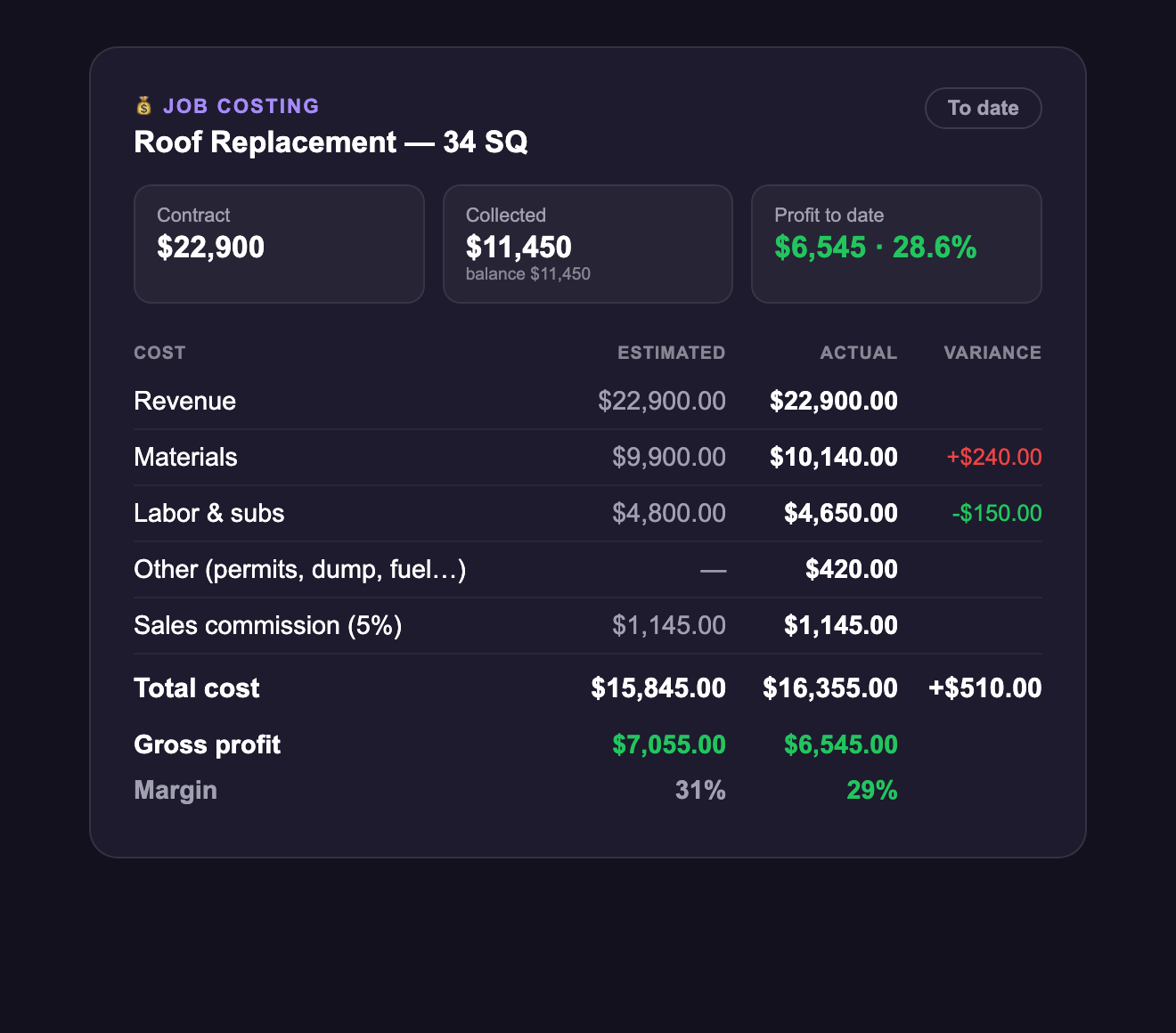
- Contract · Collected · Profit tiles — the headline numbers, profit shown green or red.
- Estimated vs Actual rows — Revenue, Materials, Labor & subs, Other, and Sales commission, with the variance called out.
- Receipts flow in by category — Materials receipts land in Materials, Subcontractor in Labor & subs, everything else in Other, automatically.
- A mode chip moves from Projected → To date → Final as the job progresses.
Until something real lands, the Actual column falls back to your estimate (marked "est.") instead of showing a fake 100% margin. Revenue is your contractor price — platform fees are never counted as your cost or your revenue. And a line with no cost entered is left out and flagged ("⚠ N lines with no cost"), never treated as free profit.
Fill in labor and commission (managers)
- Tap the Labor & subs row to type what you paid the crew, with an optional note. Subcontractor cost fills itself from awarded bids and receipts tagged Subcontractor.
- Tap Sales commission to set a rate; it accrues on collected revenue, and you can record payouts from the detail view.
- Tap Show detail for the full breakdown — POs ordered vs invoiced, receipts by category, and commission earned so far.
Because every receipt lands the moment it is snapped, you see a job's true gross margin while there is still time to act — tighten the crew, adjust scope, or write a change order — instead of finding out weeks later.