🧮 Estimates & E-Signatures
Build a quote on the Estimates tab, then send it to the customer for e-signature. FieldFuze totals it and shows the customer-facing price.
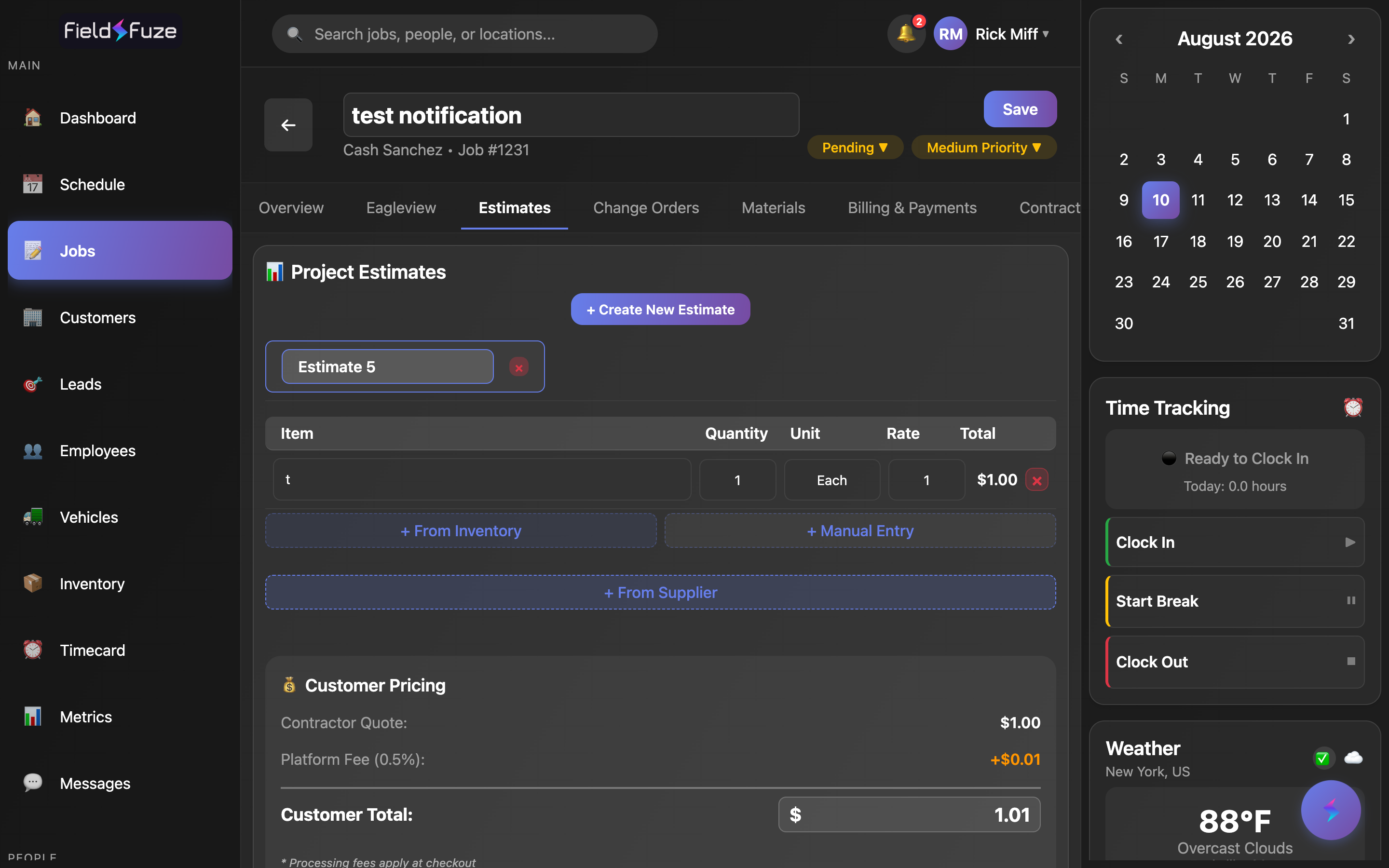
Multiple estimates per job
A single job can hold as many estimates as you like — a "good / better / best" set of options, a phased-work proposal, or a fresh revision after the customer asks for changes. The top of the tab shows 📊 Project Estimates with a + Create New Estimate button, and a row of estimate tabs lets you switch between the drafts you're still editing.
- + Create New Estimate — spins up another draft instantly and makes it the active one. Tap the tab name to rename it inline (e.g. "Full Re-Roof", "Repair Only", "Option A").
- Estimate name — give each estimate a clear label so the customer and your office can tell them apart on the PDF and in the approved list.
- Draft tabs — only estimates you're still working on appear as switchable tabs; sent and approved ones move into their own sections below so your workspace stays clean.
Presenting two or three priced options on the same job is one of the fastest ways to close bigger tickets — the customer chooses between your options instead of deciding whether to buy at all. Each estimate signs and approves independently, so the one they pick is the one that bills.
Building the estimate
- Click + Create New Estimate (a job can have several).
- Add line items — Item, Quantity, Unit, Rate; the Total calculates itself. Pull items in with + From Inventory, + Manual Entry, or + From Supplier (ABC / SRS / QXO when connected).
- Set a markup on items that have a cost — FieldFuze shows your margin per line (green ≥30%, amber ≥15%, red below).
- Review Customer Pricing: your contractor quote, a small platform fee, and the final Customer Total.
Line-item fields
- Item — the description the customer reads. It's multi-line, so you can spell out exactly what's included ("Tear off & dispose existing shingles, install synthetic underlayment…").
- Quantity — how many units; defaults to 1. Accepts decimals (e.g. 12.5 squares, 3.25 hours).
- Unit — the unit of measure, defaults to Each. Type anything that fits the work — Each, Sq Ft, Square, Linear Ft, Hour, Day, Roll, Bundle, Gallon, and so on. Items pulled from a supplier arrive with the vendor's own unit already filled in.
- Rate — the per-unit price the customer sees. Total is Quantity × Rate and updates as you type.
- Total — calculated for you and rolled into the estimate subtotal automatically.
- × (remove) — clears a line you no longer need.
Three ways to add a line — the item sources
Right under the items are the buttons that add new lines. Use whichever source fits the item:
- + From Inventory — opens your inventory picker and drops the chosen part in with its saved description, unit, and cost already attached — so FieldFuze can show your margin the moment it lands.
- + Manual Entry — adds a blank line (Qty 1, Unit "Each", Rate 0.00) for anything you'd rather type by hand — labor, custom scope, a one-off charge.
- + From Supplier — searches a connected distributor's live catalog and pulls the real part in with its vendor cost. The button labels itself for what you have connected: + From ABC Supply, + From SRS, or + From QXO when one is linked, and simply + From Supplier when several are. See Ordering from Suppliers.
Because supplier lines carry a live cost, your quote is built on today's real material pricing. Once the estimate is approved, that same line list becomes a purchase order — an 🚚 Order materials from ABC / SRS / QXO button appears with the count of orderable lines, and approved estimates even show a 📦 Order reminder so materials never fall through the cracks. Full flow is in Ordering from Suppliers.
Per-line markup & the live margin display
Any line that has a known cost — an inventory part, a supplier item, or one you cost manually — shows a slim internal-only bar beneath it. This is your profit cockpit, and the customer never sees it.
- Cost — your unit cost, shown for reference.
- Markup % — an editable field. Type a markup and the customer Rate recalculates from cost; type a Rate instead and the markup back-fills. It's a true two-way sync, so you can price whichever way you think.
- Margin — your margin on that line, color-coded so you can read profitability at a glance: green at 30% or higher, amber from 15%, and red below that.
- Profit — the dollar profit on the line (Rate − Cost × Quantity).
Estimate-level markup
Beyond per-line markup, you can apply a single markup percentage across the whole estimate. FieldFuze multiplies your base cost by it to build the subtotal, so you can add a blanket margin to a job priced at raw cost with one number — handy when you build the line items from supplier costs and want to layer your profit on top uniformly.
The editable Customer Total (back-solving)
The 💰 Customer Pricing box breaks the price into three lines and ends with an editable total:
- Contractor Quote — your base cost plus markup; the number that's yours.
- Platform Fee (2.9%) — a small fee added on top of your quote; the percentage shown reflects your organization's rate.
- Customer Total — the final all-in price, shown in a $ input you can type directly into.
Type a round number into Customer Total and FieldFuze re-solves every line rate to hit it. It strips the platform fee, removes your estimate markup, then redistributes the new base cost across your lines proportionally to their current share — so "$10,000 even" lands exactly on $10,000 while keeping each line's relative weight, cents included. Only approved estimates count toward the job's bill — a sent-but-unsigned estimate adds $0 until it's approved.
Customers love round numbers and sales quotes that "come out to" a clean figure. Instead of nudging individual rates to hit $7,500, type it into the total and let FieldFuze do the algebra — every line stays consistent and the math always ties out.
Attach a contract, terms, photos & documents
Below the line items, the estimate has two sections — Documents included in estimate and Attachments included in estimate — that bundle the right paperwork into the estimate you send. Whatever you attach here becomes switchable in the ⚙ PDF options at send time.
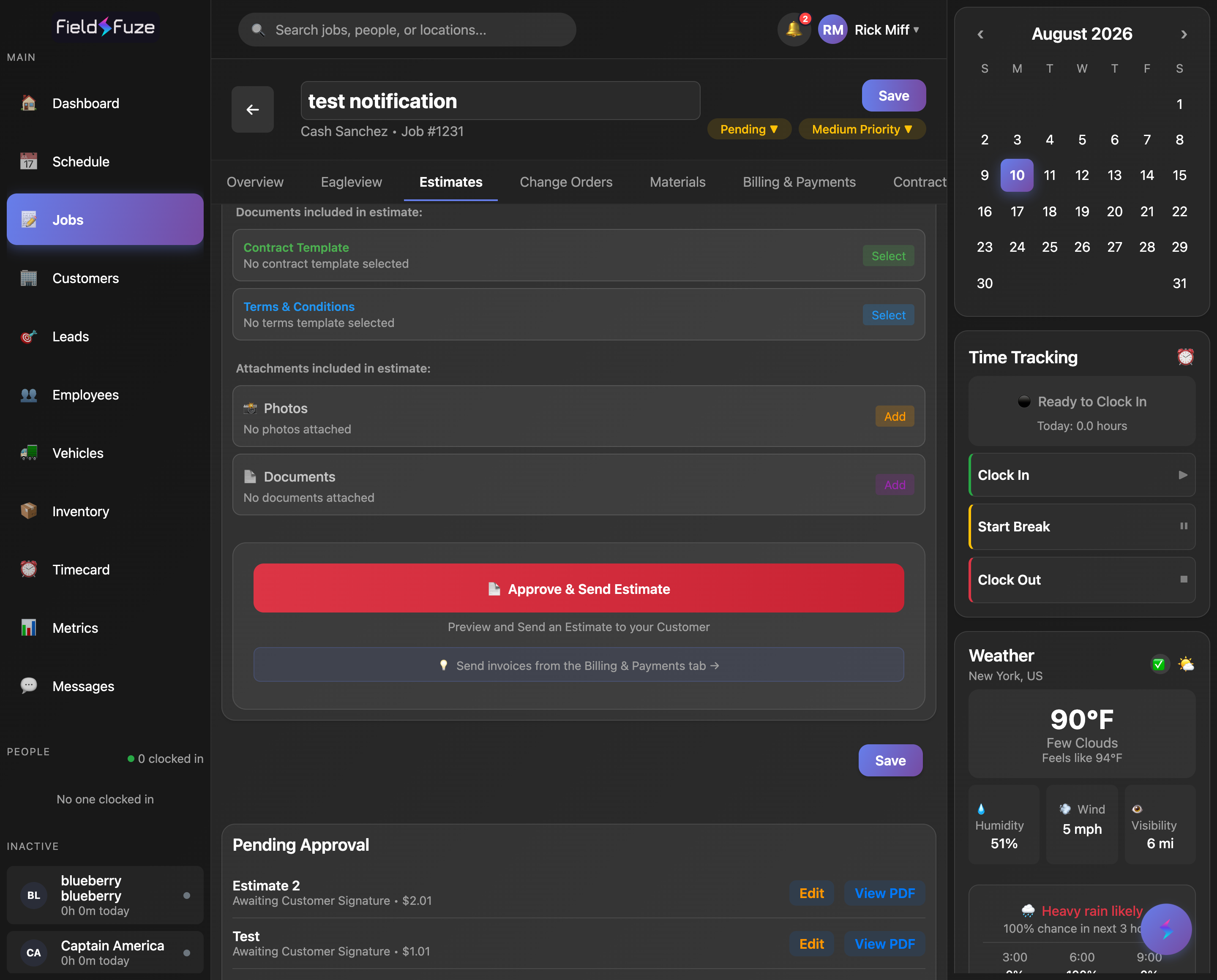
- Contract Template — Select one of your company's contract templates so the signed estimate doubles as a signed contract; Edit to tweak its wording for this estimate, or Remove it. You can layer several contract templates onto one estimate.
- Terms & Conditions — attach a T&C template (warranty language, payment terms, cancellation policy…). Edit or remove per estimate.
- 📸 Photos — attach job/estimate photos so the customer sees the problem and the proposed work right in the quote. See Job Photos.
- 📄 Documents — attach spec sheets, product brochures, or any supporting file. See Contracts & Documents.
- 📧 Send follow-up email with high-res attachments — when the estimate has photos or documents attached, tick this to also send the customer a separate email with download links to the full-resolution files.
The contract, terms, and photos you attach here are exactly what the ⚙ PDF options "Include contracts / payment terms / photos" switches turn on when you send. Build reusable contract & terms templates once in Organization Settings → Documents, then just Select them per estimate.
Preview & send options
When the estimate is ready, click 📄 Approve & Send Estimate. FieldFuze builds a live PDF Preview with a ⚙ PDF options panel on top — control exactly what the customer sees, then choose how to send.
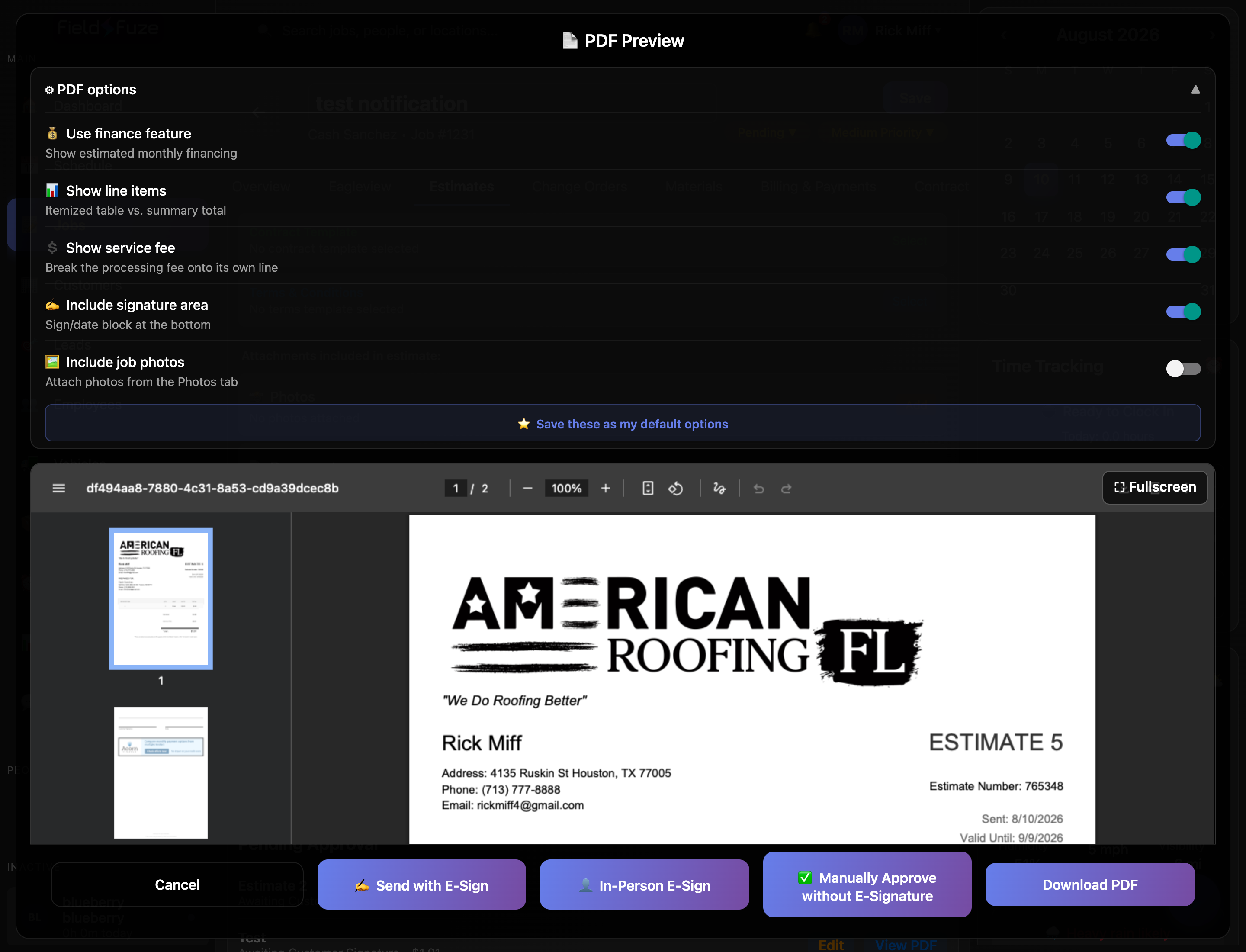
What to show on the estimate (⚙ PDF options)
The panel starts collapsed with a one-line summary of what's on (e.g. "Line items · Fee shown · Signature · Financing"). Expand it to flip any switch — the preview regenerates in place so you see the change immediately.
- 💰 Use finance feature — shows estimated monthly financing on the estimate. Great for making a big number feel affordable and closing larger jobs.
- 📊 Show line items — an itemized table vs. a summary total only. Turn it off to present one clean price without exposing your line-by-line breakdown.
- 💲 Show service fee — breaks the processing fee onto its own line. Turn it off to fold the fee into the price instead of itemizing it.
- ✍️ Include signature area — adds a sign/date block at the bottom.
- 📁 Include contracts, 🛡️ warranty policy, 📃 payment terms, ⚖️ arbitration clause, 🚨 emergency policy — each switch appears once your company has that document set up (in Organization Settings → Documents) and appends it to the estimate.
- 📸 Include estimate photos — attach the photos on this specific estimate; the panel shows how many are attached.
- 🖼️ Include job photos — attach photos from the job's Photos tab, with an all/none toggle plus a 🖼️ Choose photos picker (it shows "X of Y selected") to hand-pick exactly which ones.
- 📎 Embed estimate documents — include the full document pages inside the PDF vs. linking to them.
- ⭐ Save these as my default options — remember your choices for next time (it flips to ✓ Saved as default). Your default set is shared, so it applies to the download and email dialogs too.
Dial in the toggles the way your business always presents estimates — say, financing on, service fee folded in, signature block on — then hit Save these as my default options. Every future estimate lands on the preview already configured, so most sends are a single tap.
Four ways to finalize
At the bottom of the preview, pick how the estimate goes out:
- ✍️ Send with E-Sign — email the customer a link to sign electronically. The estimate becomes Awaiting Customer Signature, then Fully Signed once everyone's signed.
- 👤 In-Person E-Sign — hand your device to the customer to sign on the spot. FieldFuze pulls in whichever contract and terms templates you attached so the signed document is complete.
- ✅ Manually Approve without E-Signature — record a verbal or written yes without collecting a signature; the estimate is marked Manually Approved and starts billing right away.
- Download PDF — download or print the estimate (it reads Download PDF (with contracts) when contract files are bundled in). A 📤 Share PDF option is there too for sending it your own way.
Estimate statuses & signature states
Estimates sort themselves into three lists so you always know where each one stands.
Draft & pending — still editable
New estimates live in the editable workspace with their own tabs until you send or approve them. Edit freely, add options, adjust pricing.
Pending Approval — sent, awaiting a signature
Once sent, an estimate moves to Pending Approval with a live status line and a color dot:
- Awaiting Customer Signature (yellow) — the request is out; the customer hasn't signed yet.
- Awaiting Your Signature (purple) — the customer has signed and, if your company requires a countersignature, it's now your turn to countersign.
- Fully Signed (green) — everyone has signed; the estimate is complete.
- Sent to Adjuster — for insurance work routed to an adjuster for approval.
- Details, View PDF, and Edit buttons sit on every pending estimate so you can review or revise it any time.
Approved — signed or manually approved
Approved estimates carry a clear label of how they were approved — E-Signed or Manually Approved — alongside the total. Approved estimates are the ones that roll into the job's bill and unlock material ordering.
If your company requires it, an estimate isn't Fully Signed until you countersign after the customer — FieldFuze routes it to you automatically and shows Awaiting Your Signature in the meantime.
Recall a sent estimate to a draft
Need to change something after you've sent it? Recalling pulls the estimate back into an editable draft and cleanly voids the outstanding signature request so nothing signs against a stale version.
- On the sent estimate in Pending Approval, click Edit and confirm.
- FieldFuze voids the open signature envelope and moves the estimate to draft — it's fully editable again, and the change is saved so it survives a reload.
- Change whatever you need (or nothing), then re-send.
Manually approve without e-signature
Sometimes the customer says yes in person or over the phone and you just want it recorded. Manual approval marks the estimate approved without collecting a signature.
- From the PDF preview, click ✅ Manually Approve without E-Signature.
- Confirm on the Manually Approve without E-Signature? prompt.
- The estimate moves to Approved with a Manually Approved label and immediately counts toward the job's bill.
Repeat customers, small repairs, or a handshake deal you've already closed — manual approval keeps the record straight and lets you invoice and order materials without waiting on a signature.
Resend an estimate
Need to send an estimate again — a wrong email address, the customer misplaced it, or something changed? Edit the estimate, then send it again. If an email bounced, the estimate is flagged with an EMAIL BOUNCED badge and a one-tap Resend button that lets you correct the address and reissue in place.
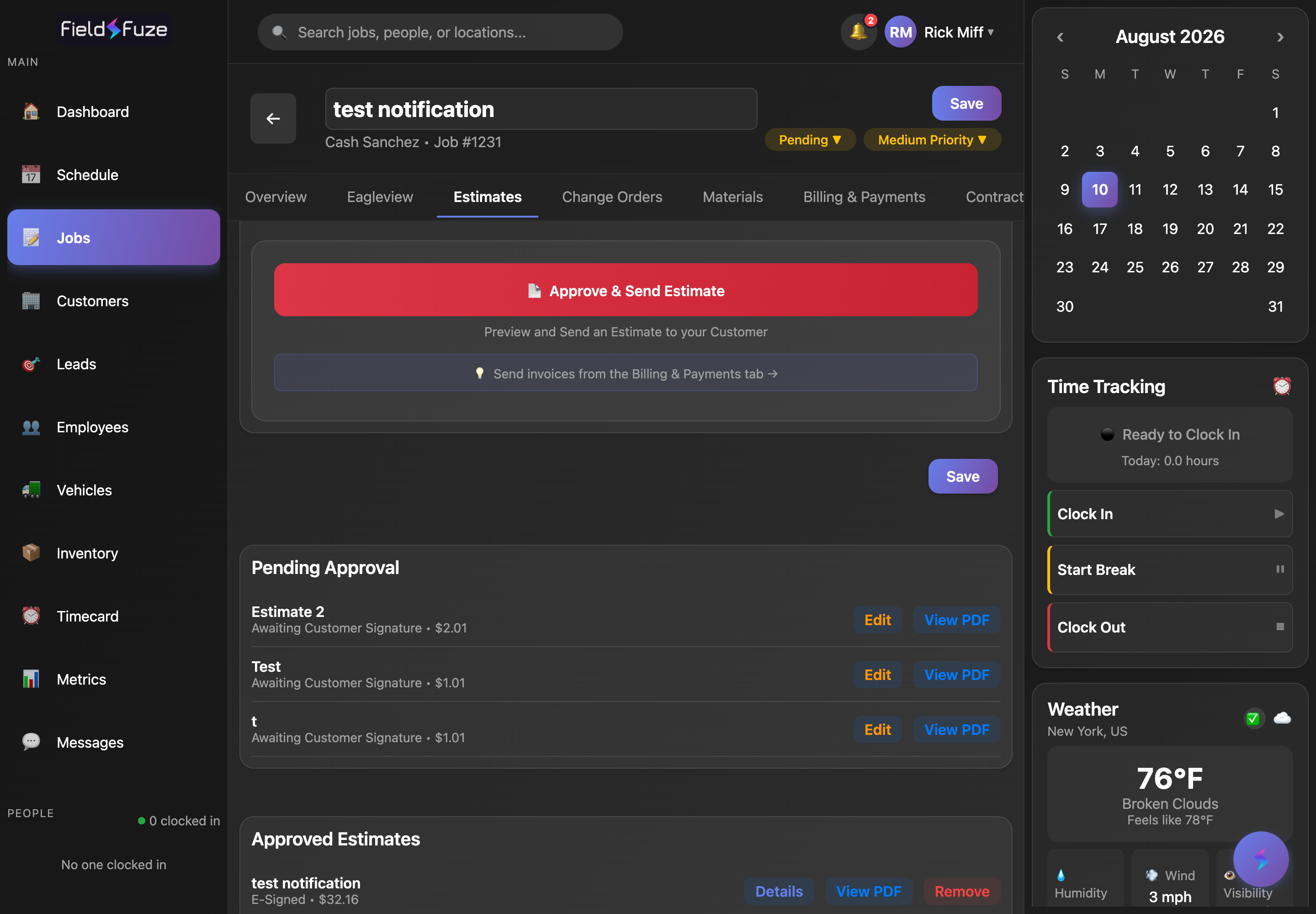
- Open the estimate and Edit it. Editing a sent estimate recalls it to a draft so it's editable again — change whatever you need, or nothing at all.
- Click 📄 Approve & Send Estimate to reissue it (you can fix the email address and CC recipients on the way out).
- For a bounced estimate specifically, just hit Resend, enter the corrected email, and FieldFuze voids the old request and sends a fresh one — clearing the bounce flag.
CC or copy someone on a signature request
Often you'll want a spouse, property manager, adjuster, or your own office copied. The send dialog handles this with an Also send a copy to (optional) field.
- In the send dialog, find "Also send a copy to (optional)."
- Type each email and press Enter or comma to add them as a removable pill (✕ to remove). Suggested contacts may appear as one-tap + chips.
- Copies go out as BCC by default (each is private — recipients are hidden from each other). To make recipients visible to one another, tick "CC instead of BCC."
- Send. Each person gets a copy now and the signed copy when it's complete.
The identical "Also send a copy to" field appears when you email an invoice or send a change order for signature — same pills, same BCC-by-default, same CC instead of BCC option.