📄 Contracts & Documents
Keep every document tied to a job in one place on the Contracts tab.
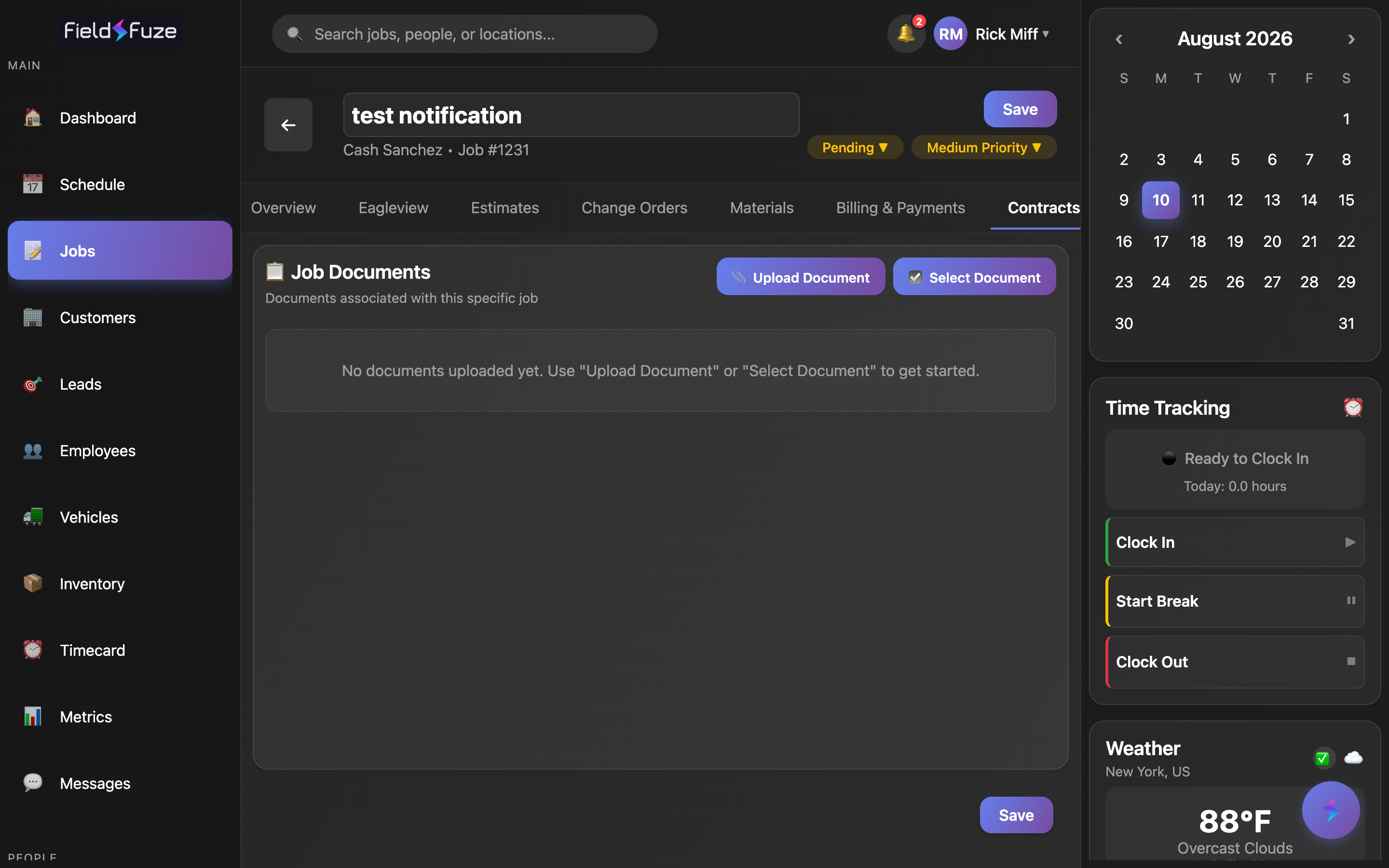
The Contracts tab is the document home for a single job. Everything you add here — a signed agreement, a spec sheet, a permit, a scope-of-work — lives with that job, is saved permanently, and is one tap away for anyone on the team who opens it. You have two ways to add a document: Upload Document pulls a file straight off your computer, and Select Document attaches one of your company's ready-made documents that already live in FieldFuze.
The Job Documents area
Open a job and choose the Contracts tab. The 📋 Job Documents card lists every file attached to this specific job. Each row shows the document's name, its size, and a green ✅ Permanently saved for this job marker so you always know the file is stored, not just held in the browser. A 📋 icon marks PDFs and a 📄 icon marks Word documents at a glance.
- Two add buttons — 📎 Upload Document and ☑️ Select Document sit at the top-right of the card.
- Permanent per-job storage — every document you add is saved to this job right away and stays with it, so it's there the next time you (or a teammate) open the job.
- Open in one tap — tap any row to open the document in a new tab; a Tap to open in new tab hint appears under each file.
- Tidy list — the area scrolls independently, so a job with a long paper trail stays neat.
Upload a document from your computer
- On the Contracts tab, click 📎 Upload Document.
- Pick a PDF or Word file (.pdf, .doc, or .docx). You can select several at once — up to 5 in a single upload.
- Each file saves to this job automatically and appears in the Job Documents list with its name and size.
Hold Ctrl (or ⌘ on a Mac) in the file picker to grab multiple files in one go. FieldFuze skips a file that's already attached to the job, so re-running an upload won't create duplicates.
Attach a company document with Select Document
Use Select Document when the file already exists as one of your company's standard documents — a blank contract, a warranty sheet, a safety form, a policy PDF. Instead of hunting for it on your computer, pick it from your shared library and it copies straight onto this job.
- Click ☑️ Select Document. The Select Contracts window opens and lists your company's available documents with their size and date.
- Tap the document you want. FieldFuze copies it into this job and adds it to the Job Documents list.
- A confirmation appears and the tab refreshes so the newly attached document is right there, permanently saved to the job.
The documents in the Select Contracts list are your company-wide standard documents, set up once in Organization Settings → Documents and available on every job. Attaching one here copies it onto this job so you can send, sign, or annotate it without touching the master.
Open a document
- In the Job Documents list, tap the document's name.
- It opens in a new browser tab so you can read, download, or print it.
Company templates & e-signature
Your reusable, company-wide documents are built once and reused everywhere. They live in Organization Settings → Documents, where you set them up and keep them current — then attach them to jobs (above) or fold them into an estimate.
- Contract Templates — write reusable contract text (name, category, and body) that you can drop onto estimates and jobs.
- Terms & Conditions Templates — build multi-section terms once and reuse them across estimates.
- Fillable PDF Contracts — upload your own contract PDF and place fields right on it: ✍ Signature, 📅 Date, ⧉ Auto-fill (merge fields like customer name and estimate total), 🅣 Text, and ☑ Checkbox. The result is a ready-to-sign, ready-to-fill contract.
- Standard Documents — upload company-wide PDFs and Word docs (with 📄 Upload Document) so they show up in the Select Document library on every job.
When you build an estimate, turn on Include contracts to append your chosen contract and terms templates to the estimate PDF, and Include signature area to add a sign/date block. From the preview you can Send with E-Sign (email the customer for signature) or capture an In-Person E-Sign on a device right at the appointment. Once everyone signs, the fully signed PDF is saved back to the job — your finished contract, filed automatically.
In Organization Settings → Documents you can require a company countersignature, so a signed estimate or change order is finalized once both the customer and your company have signed.
Handy ways to use it
- File the signed contract — attach the customer's signed agreement to the job so the whole team can see the deal is locked in. (E-signed estimates land here automatically.)
- Keep the spec sheet handy — upload manufacturer spec sheets, product data, or scope-of-work PDFs so the crew has the details on site.
- Store the permit — attach building permits, HOA approvals, or inspection reports right on the job for quick reference and proof.
- Share standard forms fast — use Select Document to drop your warranty, safety, or policy document onto a job in a couple of taps.