⚙️ Account Settings
Manage your personal profile and notifications. Open it from the top-right profile menu.
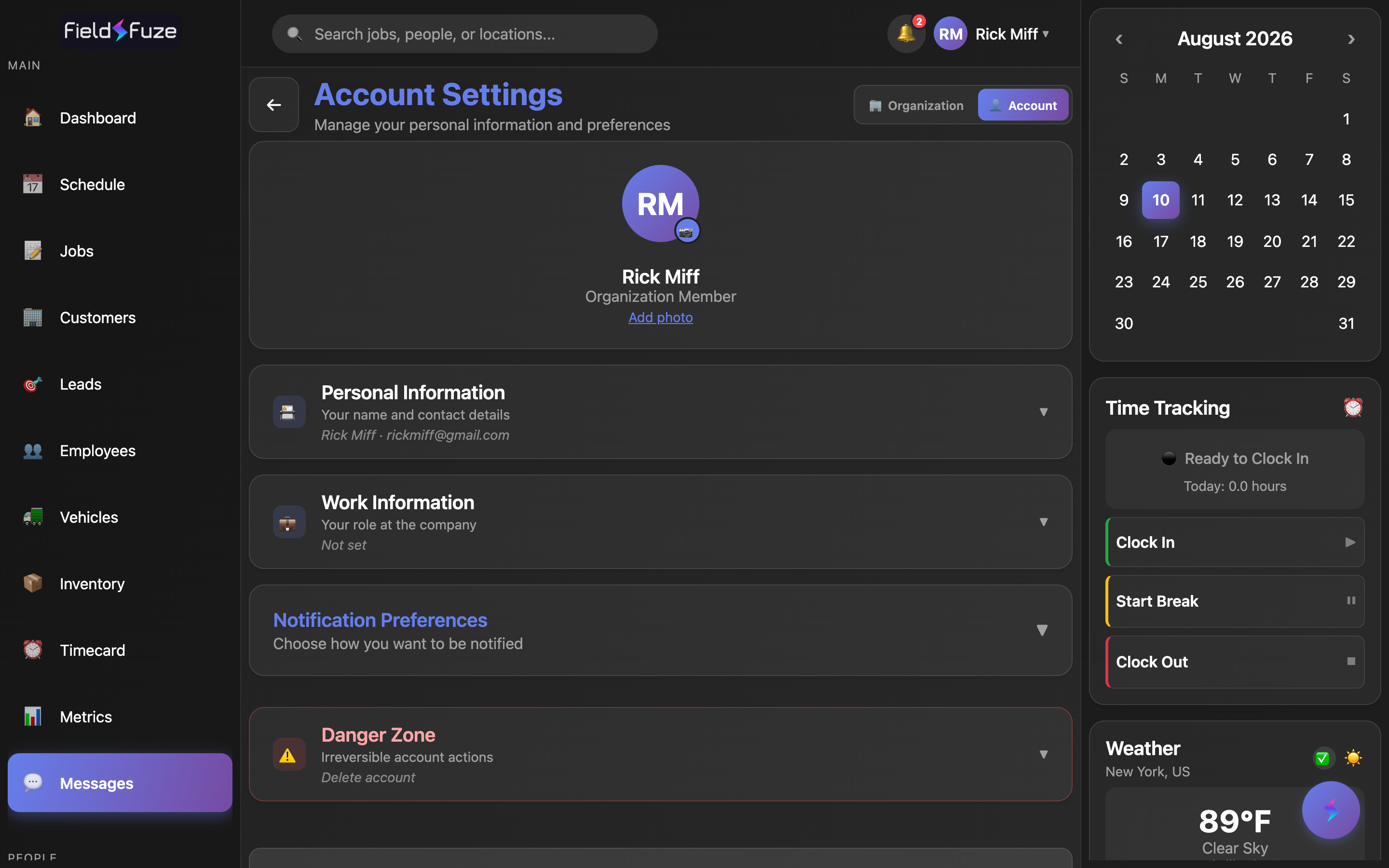
- Personal Information and Work Information — name, contact details, position, department.
- Use the Organization / Account toggle to jump to company-wide settings.
Your profile at a glance
The Account Settings screen is your personal home base — everything about you lives here, separate from company-wide settings. At the top sits your profile card: a round avatar showing your initials in the FieldFuze gradient, your full name in bold, and your position underneath (it reads Organization Member until you fill in a title). It's the same identity your teammates see next to your work across the app, so keeping it current keeps everything tidy.
Below the card, your details are organized into clean, collapsible sections — Personal Information, Work Information, and Notification Preferences — each with a one-line summary so you can see what's set without expanding anything. A subtitle reminds you of the job: Manage your personal information and preferences.
Jumping to company settings with the Organization / Account toggle
In the header you'll find a two-way Organization / Account switch. You're on Account here (your personal settings); tap Organization and FieldFuze takes you straight to Organization Settings — the company-wide home for your logo, documents, integrations, roles, billing, and more. It's the fast lane between "my stuff" and "the whole company's stuff," so you never have to hunt through menus to cross over.
The details on this screen follow you across FieldFuze — on the web app and on your phone. Update them once here and your name, title, and preferences stay in sync wherever you sign in.
Personal Information — your name and contact details
Open the 📇 Personal Information section to manage how people reach you. The summary line shows your name and email at a glance; expand it to edit the full set of fields:
- First Name and Last Name — sit side by side and drive your display name and the initials on your avatar.
- Email Address — your contact email, validated as you save so it's always a real, well-formed address.
- Phone Number — a phone-friendly field for your direct line.
- Birthday — an easy MM/DD/YYYY field, handy for team celebrations.
Edit any field and a Save Changes button lights up at the bottom — FieldFuze only enables it once you've actually changed something, so you always know there's a pending edit to save. Names and a valid email are confirmed on save so your profile stays clean and complete.
Work Information — your role at the company
The 💼 Work Information section captures where you fit in the organization, with its summary line showing your position and department together:
- Position — your job title (e.g. Lead Estimator, Office Manager). This is exactly what shows under your name on the profile card.
- Department — the team you're part of (e.g. Sales, Roofing, Operations).
Filling these in makes your identity across FieldFuze richer and more recognizable — teammates instantly know who does what, and your profile card upgrades from a generic Organization Member to your real title.
Edits across both sections stack up into one Save Changes action. Click it and FieldFuze confirms with a success message; if you decide to step away, Cancel takes you back — and if you have unsaved edits, FieldFuze checks with you first so nothing gets lost by accident.
Notification preferences
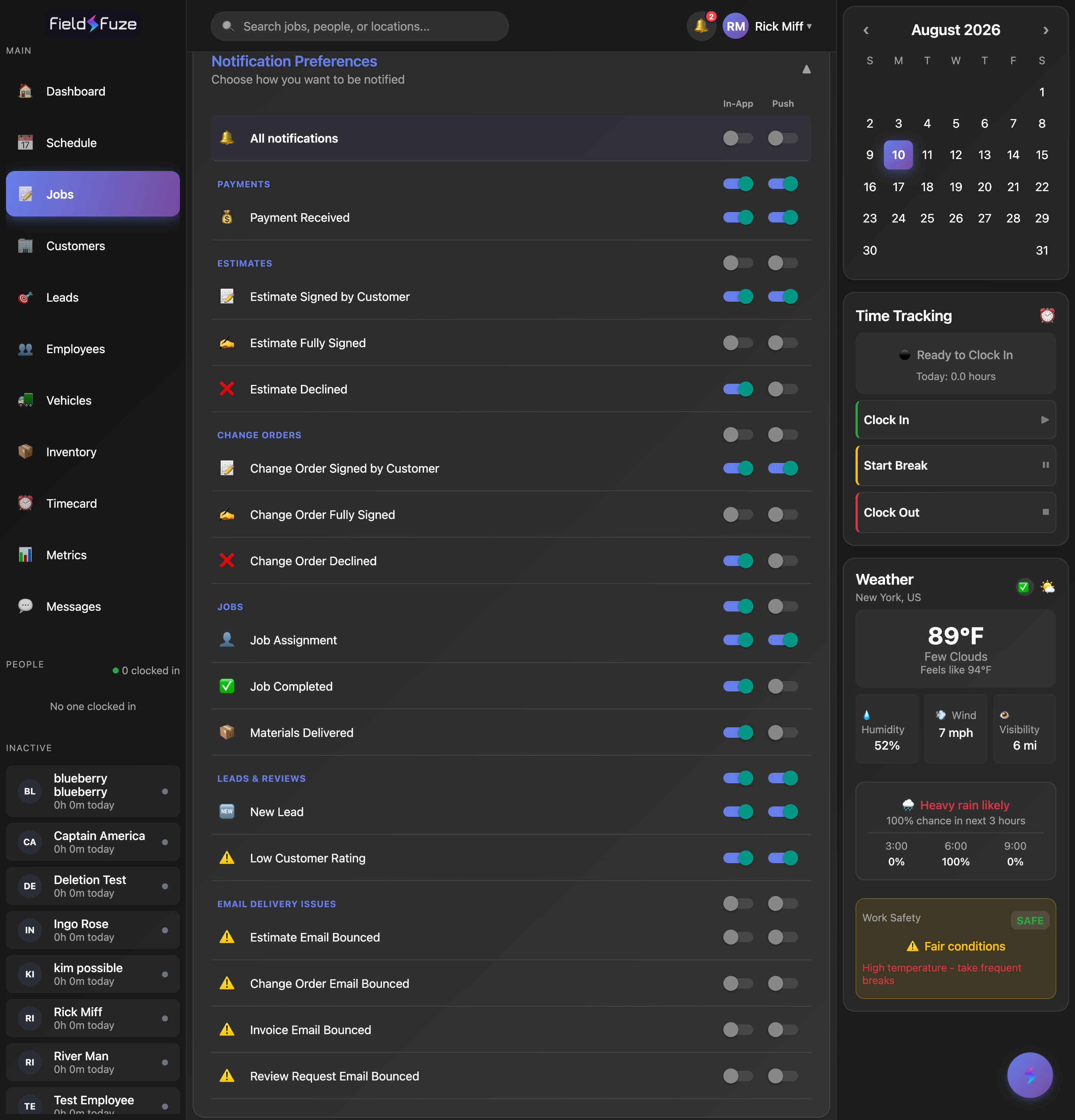
Choose exactly what FieldFuze notifies you about — and where. Every notification type has an independent In-App switch and a Push switch (Push = desktop browser + your phone). A master All notifications row and per-group toggles let you flip a whole category at once.
Two channels, side by side
The preferences open as a clean two-column matrix. Each row is a notification type; the two columns are the channels you control independently:
- In-App — the alerts that show up in your notification center inside FieldFuze while you're working.
- Push — the buzz that reaches you when you're not looking: a browser notification on desktop and a push notification on your phone.
Because the two switches are fully independent, you can dial in exactly the mix you want — for example, keep a type In-App for a tidy running log while turning its Push on only for the events worth interrupting your day. Flipping a switch saves instantly, so your choice takes effect the moment you tap it.
Flip a whole area at once
You don't have to toggle every type by hand. FieldFuze gives you roll-up switches at two levels:
- All notifications — the master row at the top. One tap turns a channel on (or off) for every type you can see. It reads as ON only when every type below it is on, so it's always an honest picture of your setup.
- Per-group toggles — each category header (Payments, Estimates, etc.) has its own In-App and Push switch that flips just that group. Perfect for "I want everything about Payments, nothing else pushing to my phone."
Set your baseline with the master row, then fine-tune a group or an individual type — it's the fastest way to go from "notify me about everything" to a perfectly curated list in seconds.
The notification groups
Types are organized into clear, work-focused groups so related alerts live together:
- 💰 Payments — Payment Received, so you know the moment money lands.
- Estimates — Estimate Signed by Customer 📝, Estimate Fully Signed ✍️, and Estimate Declined ❌.
- Change Orders — Change Order Signed by Customer 📝, Change Order Fully Signed ✍️, and Change Order Declined ❌.
- Jobs — Job Assignment 👤, Job Completed ✅, and Materials Delivered 📦.
- Leads & Reviews — New Lead 🆕 and Low Customer Rating ⚠️, so you catch new opportunities and follow up fast on feedback.
- Email Delivery Issues — a heads-up when an Estimate, Change Order, Invoice, or Review Request email bounces, so you can reach the customer another way.
FieldFuze ships with sensible defaults already dialed in — the events most people want to know about are on out of the box — so you get useful alerts from day one and only tweak what you care to change.
The list is filtered by your role, so you see the notifications that actually apply to your work — a field tech mainly sees the Jobs group, while an owner sees everything across every group. It stays clean and focused automatically, with no empty categories to scroll past. And if Push is turned off on your device, FieldFuze shows a friendly reminder so you can switch it back on and never miss a beat.
Owner / office: keep Payments and Leads & Reviews pushing to your phone so revenue and new work reach you instantly, with everything else In-App. Estimator: push Estimate Signed by Customer so you know the second a quote is accepted. Field crew: the Jobs group covers what matters — a push on Job Assignment means you're never surprised by a new dispatch. Anyone customer-facing: switch on Email Delivery Issues so a bounced invoice or review request never slips through the cracks.
Danger Zone — account actions in your control
The ⚠️ Danger Zone section holds the big, deliberate actions, kept safely tucked away so they're there when you want them and never in your way. Expanding it reveals the Delete Account option.
Deleting your account (with a 30-day safety net)
Choosing Delete Account opens a confirmation dialog and asks you to type the phrase DELETE MY ACCOUNT — a deliberate step so it only ever happens on purpose. Once confirmed, your account is scheduled for deletion, and here's the reassuring part: nothing is permanent for a full 30-day grace period.
- Open the ⚠️ Danger Zone section and click Delete Account.
- In the dialog, type DELETE MY ACCOUNT to enable the confirm button.
- Confirm — FieldFuze shows the exact date deletion is scheduled for, and a banner on this screen keeps that date visible any time you sign back in.
Changed your mind? Simply log back in within 30 days and your account is fully restored — the grace period exists precisely so you're always in control and a moment's decision is never final.
If you're the organization owner, the delete dialog offers one extra checkbox — Also delete my entire organization and all its data — so you can close out the whole company in the same guided flow. Like a personal account, it runs on the same 30-day grace period, giving you a clean, deliberate way to wind things down with a window to reverse course.
Between the typed confirmation, the clear scheduled date, and the 30-day "log back in to cancel" window, account deletion is designed to be reversible right up until the end — so you can act with confidence, knowing you've got a full month to change your mind.