🏢 Organization Settings
Company-wide configuration (the header reads Organization Management). Open it from the profile menu → Organization Settings. Everything is organized into seven tabs — Company, Documents, Integrations, Communications, Operations, Billing, and Activity Log — and most changes save automatically as you go. A built-in search box at the top of the screen jumps you straight to any setting by name.
Company
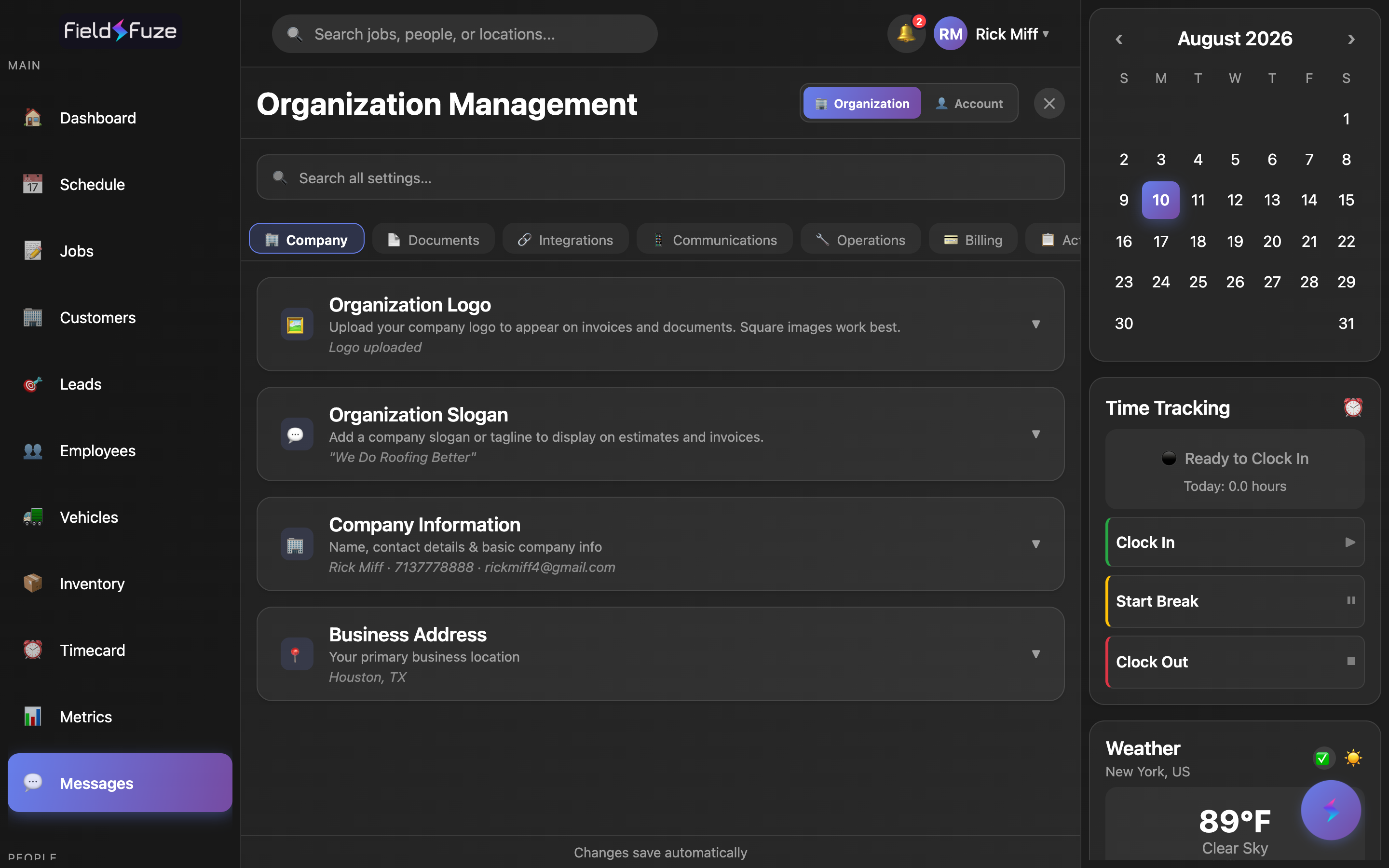
The Company tab holds the identity and contact details that flow onto every estimate, invoice, and customer-facing document you send.
Organization Logo
Upload your company logo to brand every invoice and document you generate. Click the upload tile (Upload Logo → Click to select an image) to add one — square images look best. Once it's in place you'll see Change Logo and Remove so you can swap it any time. Your logo appears at the top of estimate and invoice PDFs automatically.
Organization Slogan
Add a company slogan or tagline (up to 150 characters, e.g. "Quality Service You Can Trust") that can print on your estimates and invoices. Flip on Show on Estimate/Invoice PDF and the slogan renders right below your logo on PDF documents — a clean, professional touch on every quote and bill.
Company Information
- Company Name — the business name that headlines your documents.
- Organization Code — a shareable code shown here so laborers can log in and join your organization. Hand it to a new field worker and they're in.
- Industry — describe what you do (e.g. Field Services, Roofing, HVAC).
- Phone Number — your organization's main line, shown to customers on documents.
- Email Address and Website — your public contact points, printed on invoices and estimates.
Business Address & Timezone
Enter your primary business location — Street Address, City, State, and Zip Code — which prints on your paperwork. Then set your Timezone from a one-tap list: Eastern (ET), Central (CT), Mountain (MT), Pacific (PT), Arizona (no DST), Alaska (AKT), or Hawaii (HT). Your timezone drives when appointment-reminder texts go out, so customers always get their reminder at the right local time. FieldFuze even suggests a timezone based on your phone number — one tap to accept it.
Documents
The Documents tab is your reusable-paperwork library: contract templates, terms & conditions, fillable-PDF contracts with e-signature fields, and company-wide standard documents you can attach to estimates. Build them once and reuse them across every job. See Contracts & E-Sign for the full contract workflow.
eSign Settings
Control how electronic signatures work on your estimates and change orders. Turn on Require Company Countersignature and each document needs both a customer signature and a company signature before it's approved — perfect for teams that want an internal sign-off on every deal. Leave it off and documents are approved the moment the customer signs, for the fastest possible turnaround.
Contract Templates
Create reusable contract & agreement templates once and drop them into any job. Click + New Template, give it a Template Name (e.g. "New Roof Replacement Contract"), an optional Category (e.g. Roofing, HVAC, Plumbing) to keep your library organized, and your full Contract Content. Edit or duplicate templates any time — every crew works from the same approved language.
Terms & Conditions Templates
Build reusable terms and conditions for your estimates, organized into named Sections (e.g. "Warranty Policy," "Payment Terms"). Give each template a name, add as many sections as you need with a Section Title and description, and mark one as Set Default so it auto-applies to new estimates. Update the master template and every future estimate uses the latest language.
Fillable PDF Contracts
Upload your own contract PDF and place e-sign and auto-fill fields right on it with drag-and-drop field placement. FieldFuze fills in customer and job details automatically, then the customer signs on-screen — no printing, scanning, or third-party tool. You can even add a pricing exhibit to a signable contract. Existing signable contracts show their page and field counts at a glance.
Standard Documents
Upload company-wide standard documents (PDF or Word) — safety sheets, warranties, HOA forms — that can be attached to estimates. Click Upload Document, and every estimate can carry the paperwork your customers expect. Files show their size and upload date so your library stays tidy.
Integrations
The Integrations tab is where you connect FieldFuze to the tools you already use. Each integration shows a clear Connected status and a one-click connect button. See the Integrations section for step-by-step guides.
- Payment Integration (Stripe) — Set Up Payments to accept card and ACH payments from customers, with full access to your Stripe Dashboard once you're live. See Payments & Stripe.
- QuickBooks Online — Connect to QuickBooks for two-way sync of customers, invoices, and payments, plus one-click import of historical data. See QuickBooks.
- GoHighLevel CRM — sync leads in automatically, convert them to customers, and apply a tag when jobs complete to trigger your GHL review-request automations.
- Meta Lead Ads — Connect Meta Account to capture leads from Facebook and Instagram ad forms in real time; they land within seconds and fire the same notifications as your web forms.
- ABC Supply, SRS Distribution, and QXO — browse each distributor's catalog, pull live account-specific pricing onto estimates, place material orders, and track deliveries without leaving FieldFuze. See Supplier Ordering.
- EagleView — Connect EagleView to order aerial roof-measurement reports right from a job record. See EagleView.
Communications
The Communications tab turns on two-way texting and automated review requests so you stay in front of every customer. Full walkthrough in SMS & Texting.
Enable SMS & get a dedicated number
- Under SMS Phone Number, tap the + to auto-provision a texting number for your business (or enter an existing one and Save Number).
- Flip on Enable SMS — the master switch for all texting features.
- Turn on the message types you want and press Save SMS Settings.
Your provisioned number sends every message and lets customers reply right back to you.
Automated text templates
Each message type has its own toggle, a fully editable template, and a live preview. Handy merge variables like {{customerName}}, {{companyName}}, {{appointmentDate}}, {{appointmentTime}}, {{technicianName}}, {{jobTitle}}, {{reviewLink}}, {{invoiceLink}}, and {{amountDue}} personalize every text automatically.
- Review Request SMS — automatically ask for a review after a job wraps, with a Send Delay of Immediately, 1 hour, 24 hours, or 1 week, and your Review Link (Google, Yelp, or any page).
- Appointment Reminder SMS — send reminders 24 hours before, 2 hours before, and/or the morning of (with a chosen send time), all timed to your organization's timezone.
- Tech En Route SMS — an "I'm On My Way" button on job stages texts the customer that the technician is heading over, with tailored wording whether or not an appointment time is set.
- Lead Auto-Response SMS — instantly replies when a lead submits your web form with SMS consent, so no lead waits.
- Invoice SMS — text a secure payment link so customers can pay from their phone in seconds.
- Forward SMS Replies — forward customer replies straight to your phone as "SMS from [Customer Name] ([Phone]): [Message]" so you never miss one.
- New Lead Notifications — get a text the instant a new lead submits your web form, sent to your forwarding number.
Email review requests
Alongside SMS, FieldFuze can email customers for a review after a job is fully paid — with the same Send Delay options. Add your Google Review Link and an optional Facebook Review Link, and happy customers are guided straight to leave five stars where it counts.
Operations
The Operations tab tunes the day-to-day mechanics of how your team runs jobs — from calendar colors to payroll rules and access control.
Stage Colors
Assign a color to a stage name. Any job stage with a matching name uses that color on the Schedule, so at a glance you can tell tear-offs from installs. Add one with a Stage Name plus a color from the palette → + Add Stage Color, and edit or remove them any time. Each stage color also has its own SMS reminder toggle that controls whether reaching that stage sends the customer a reminder text.
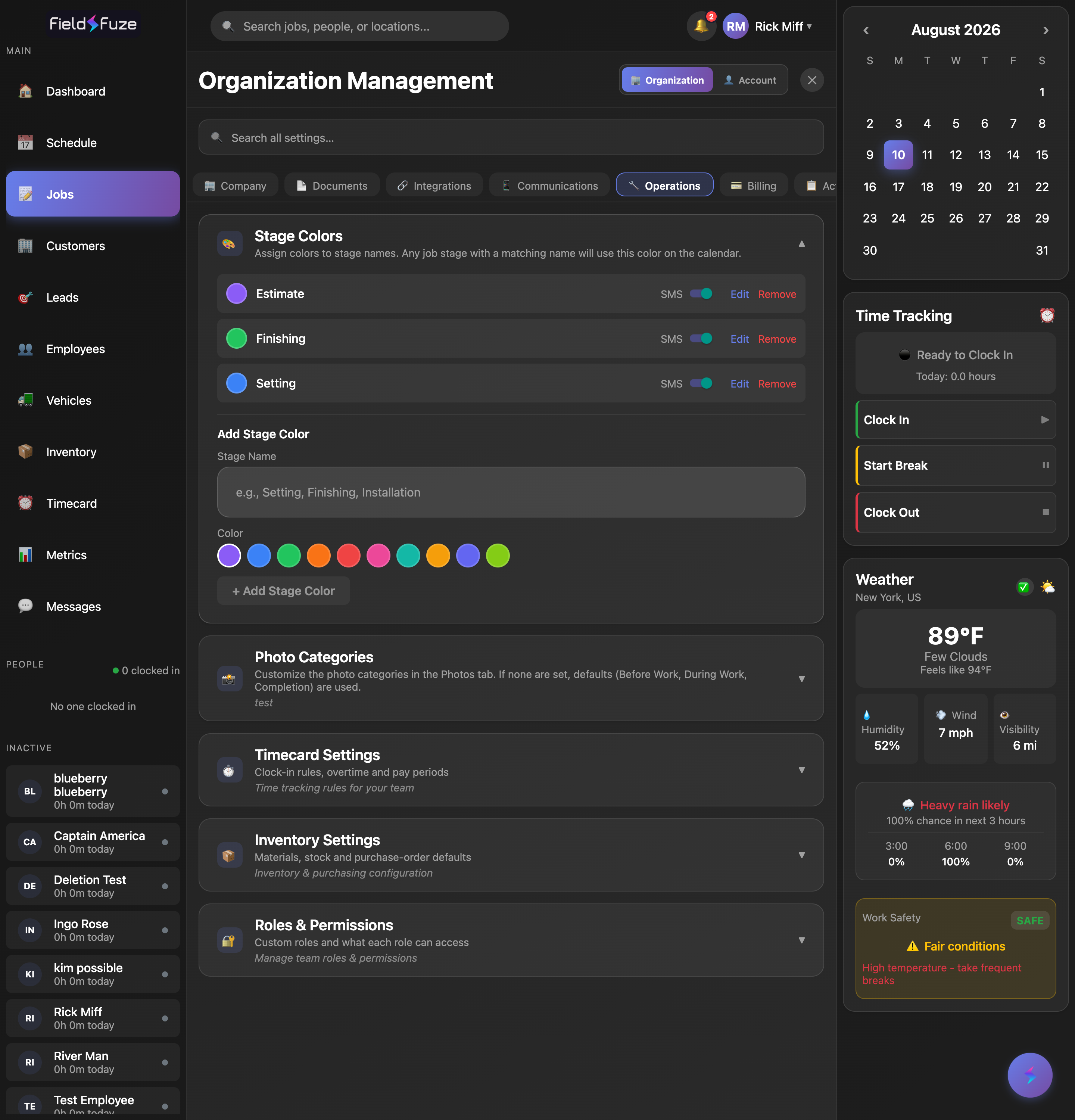
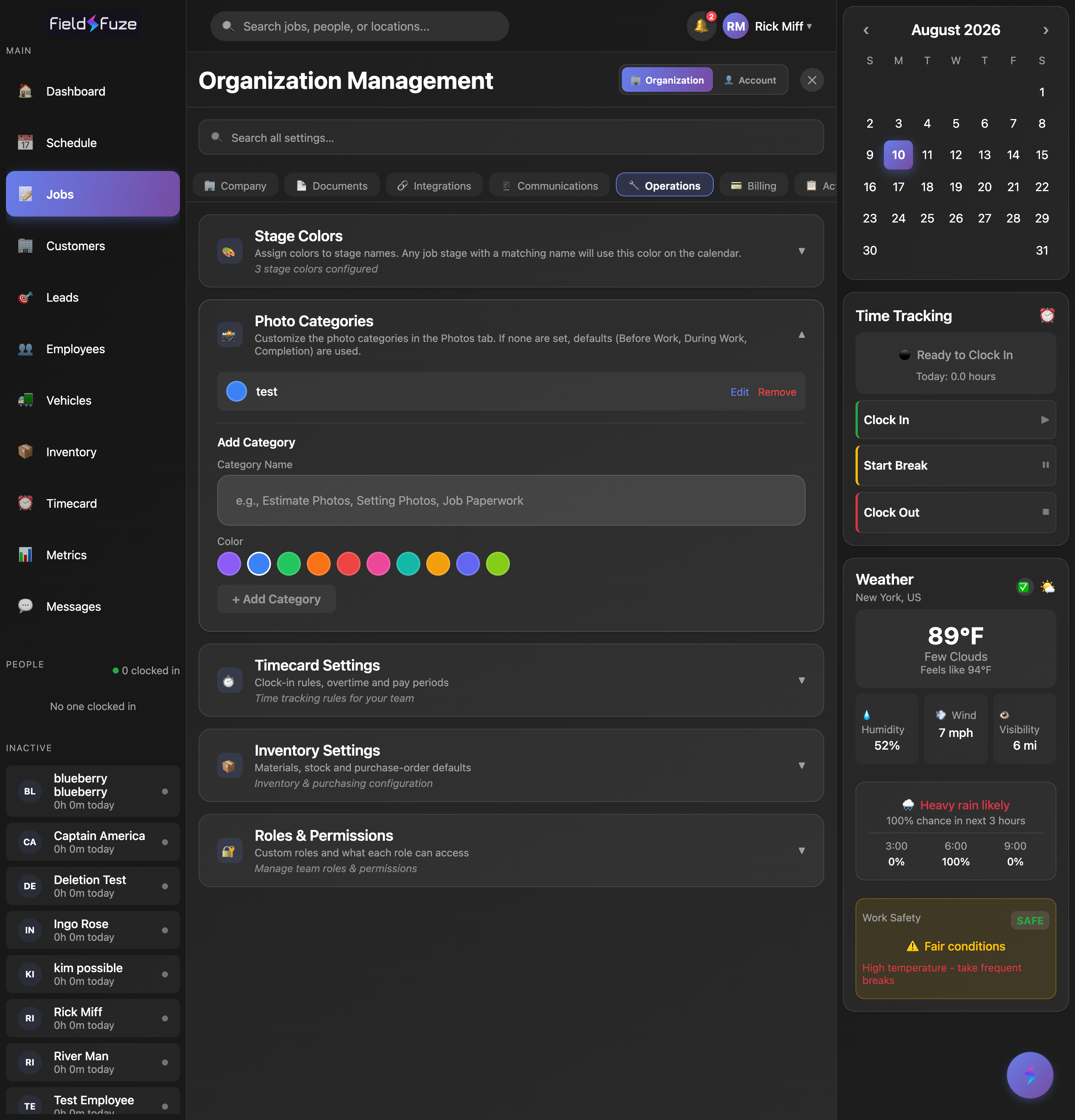
Photo Categories
Customize the categories crews pick from on a job's Photos tab (defaults are Before Work, During Work, and Completion). Add your own — e.g. "Estimate Photos," "Job Paperwork" — with a Category Name plus a color → + Add Category. Perfect for keeping insurance or inspection photos organized exactly how your workflow needs.
Timecard Settings
Dial in payroll rules once and every timecard follows them automatically.
- Overtime — set a daily Overtime Threshold (default 8 hrs/day) and Overtime Multiplier (default 1.5× for time-and-a-half).
- Weekly Overtime — optionally pay overtime once weekly hours pass a threshold (default 40 hrs, the FLSA standard).
- Holiday Pay — turn on premium pay on holidays with a Holiday Multiplier (default 2.0× for double-time). US federal holidays are recognized automatically every year with no maintenance, and you can add Custom Holidays for company anniversaries or observances.
- Weekend Pay — optional premium pay on Saturday and/or Sunday with your own multiplier.
- Auto Clock-Out — automatically clock employees out after a Max Shift Length and send a Shift Reminder earlier — so nobody's left on the clock overnight.
Inventory Settings
Set a Default Material Markup percentage that auto-calculates the sell price whenever you enter a cost on a new inventory item — with an Auto-calculate sell price option that fills it in for you (always overridable). You can also require inventory reconciliation on job completion, so crews confirm actual material usage and any unused stock returns to inventory automatically. See Inventory.
Roles & Permissions
Decide exactly what each team member can see and do. FieldFuze ships with ready-made role templates — Owner, Admin, Sales Manager, Estimator, Office Staff, Crew Head, and Laborer — and you can + Create Role to clone any template and fine-tune it. Permissions span 14 categories including Jobs, Customers, Estimates & Invoices, Payments, Revenue & Financials, Schedule, Timecards, Employees, Leads, Inventory, Vehicles, Communications, Settings, and Billing — each with graduated access levels from view-only up to full control. Assign a role to any team member from Team.
Billing
Invoice Settings
Set the defaults for every invoice you email — and still override them per invoice when sending. These changes save automatically.
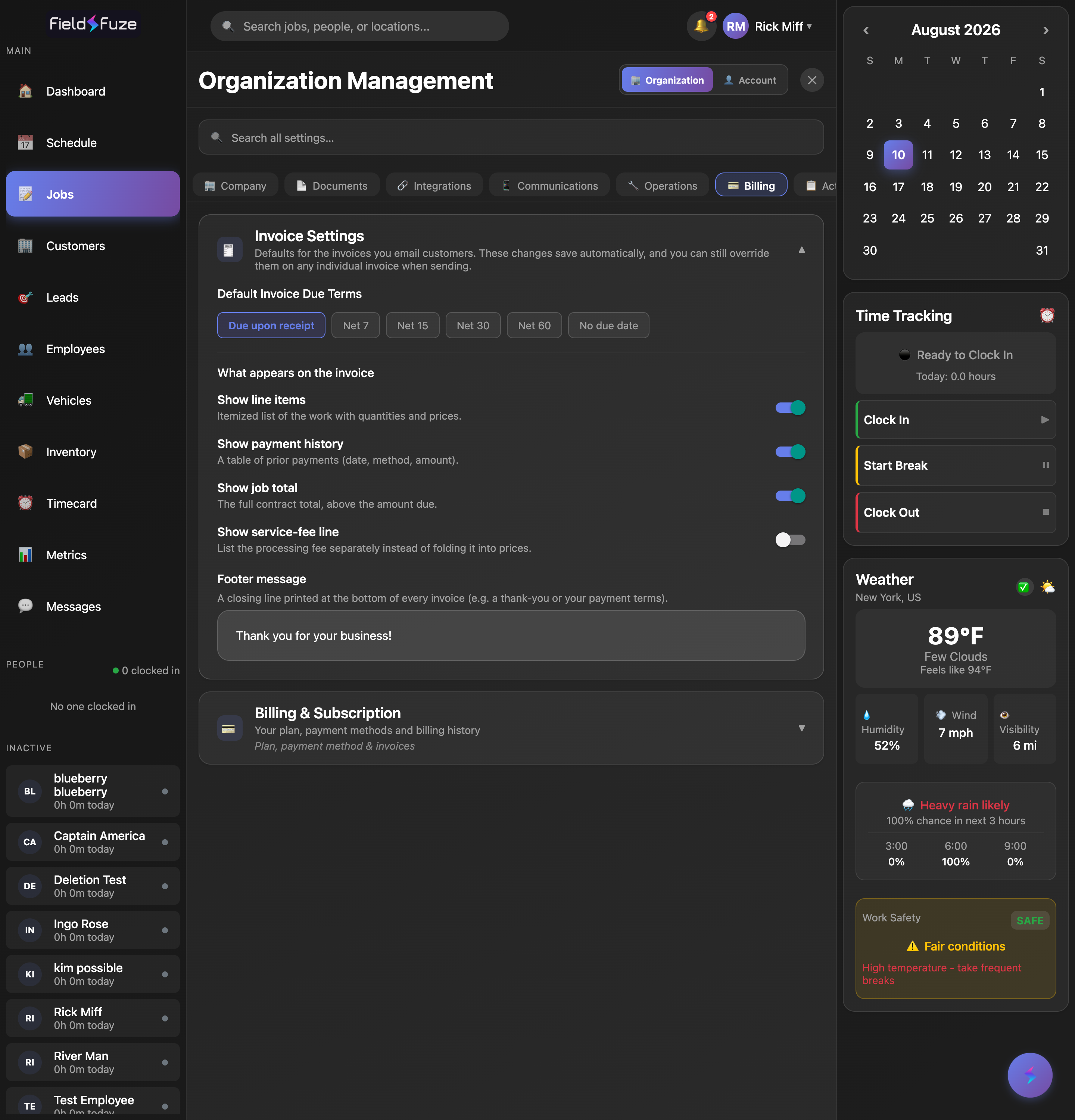
- Default Invoice Due Terms — Due upon receipt, Net 7, Net 15, Net 30, Net 60, or No due date. FieldFuze calculates the due date for you from the send date (Net 30 = sent date + 30 days), and per-invoice you can even pick a Custom date.
- What appears on the invoice — Show line items (itemized work with quantities and prices), Show payment history (a table of prior payments with date, method, and amount), Show job total (the full contract total above the amount due), and Show service-fee line (list the processing fee separately instead of folding it into prices).
- Footer message — a closing line printed at the bottom of every invoice (e.g. "Thank you for your business!" or your payment terms).
Billing & Subscription
Manage the money side of your account in one place.
- Payment Method — link a bank account used to auto-collect platform fees on cash and check payments, with clear verification status and one-click Update or Remove.
- Pending Platform Fees — see fees scheduled to charge to your bank account, each with its payment method, amount, and charge date; you're in full control and can void a payment within the window to cancel its scheduled charge.
- Fee History — a complete, expandable record of past platform-fee charges with status, amounts, and dates.
- Ciro Usage — track your AI usage for the month (questions asked, data lookups vs. general chat, tokens used, and estimated cost) so you always know your consumption at a glance.
See Billing & Payments for the full picture of how invoicing and platform fees work.
Activity Log
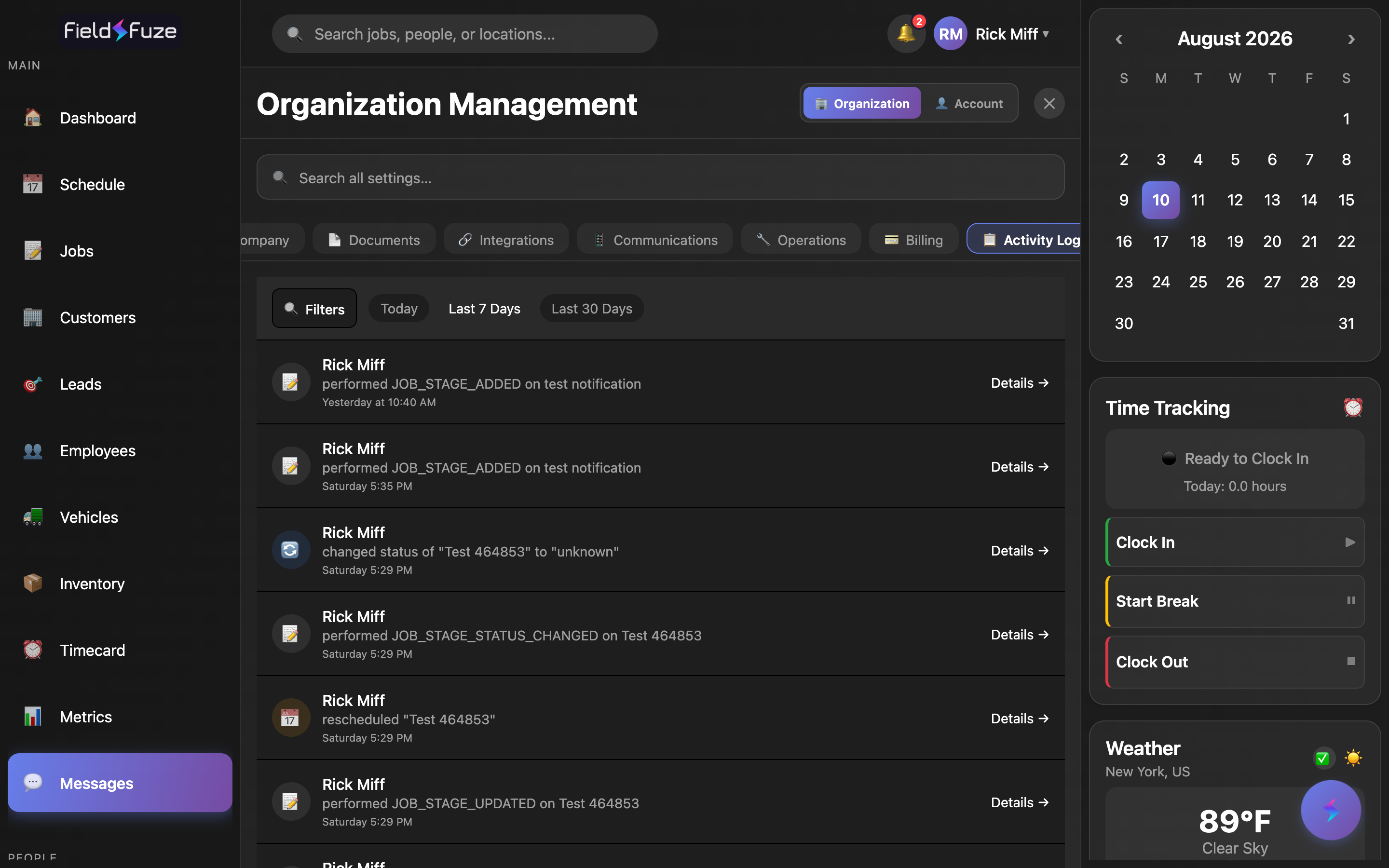
The Activity Log is a complete audit trail of everything that happens in your account — jobs created, statuses changed, technicians assigned, schedules moved, estimates and change orders sent and approved (manually or by e-sign), invoices sent, payments recorded, and recurring billing set up or paused. Every entry shows who did it, what they touched, and when.
Find exactly what changed
- Date Range — Today, Last 7 Days, Last 30 Days, or Last 90 Days.
- Action filters — narrow by General Actions (Created, Updated, Deleted), Job Actions, Estimates & Change Orders, or Payments & Billing.
- Resource Type — focus on a customer, job, employee, or the organization.
- User — see the activity of any single team member.
Open Details on any entry to see the full Changes Made table — every field with its old value and new value side by side, plus the user, their role, the resource, and the exact date and time. It's the clearest possible record of your team's work.