🎯 Leads
Track new opportunities from first contact to won or lost — before they become full jobs.
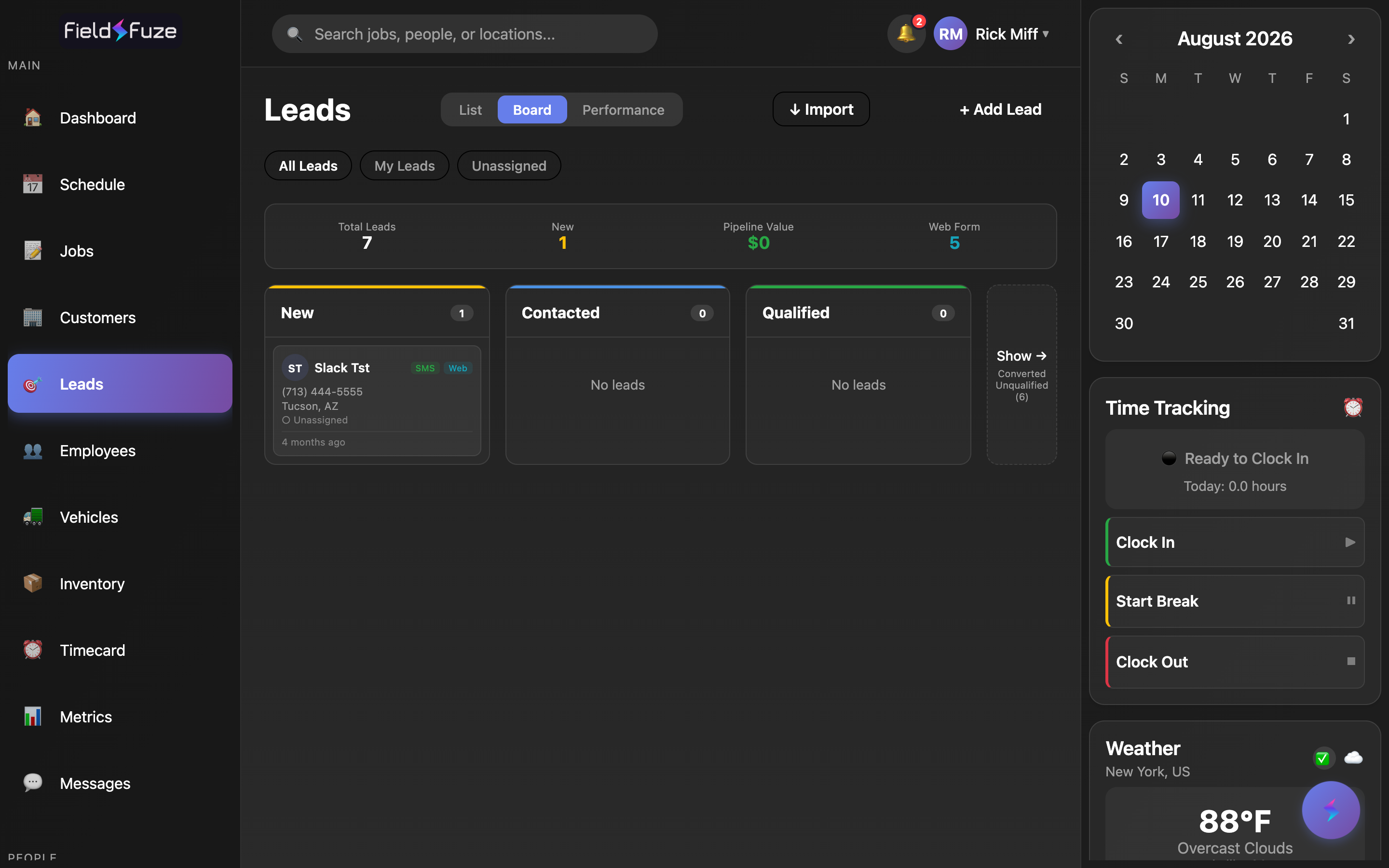
The Leads pipeline is where every opportunity lives before it becomes a customer and a paying job. New inquiries land here automatically, your reps work them, and the ones that close get promoted into your Customers list with one click. Three views — List, Board, and Performance — let each person work the way they like, and a live KPI strip keeps managers on top of the whole funnel at a glance.
The three views
Switch views any time from the toggle in the header. The pipeline scales cleanly as your lead volume grows — the board loads each status column independently and the header totals come from a live rollup, so the screen stays fast whether you have fifty leads or fifty thousand.
- Board — a visual pipeline with a column for each stage: New, Contacted, and Qualified. A collapsible Converted / Unqualified section keeps closed leads one tap away without cluttering the active pipeline. Each column loads more on demand, so long lists stay tidy. This is the default view and the fastest way to see where everything stands.
- List — a searchable, sortable, top-to-bottom feed of every lead. Great for quickly scanning contact details, searching by name, phone, or company, and filtering to a single status.
- Performance — a sales leaderboard and per-rep scorecards (see Rep scorecards below). Perfect for stand-ups and end-of-month reviews.
Scope filters — whose leads you're looking at
Below the view toggle, scope chips narrow the pipeline to exactly the leads you care about. They apply across every view:
- All Leads — every lead in your organization (managers).
- My Leads — the leads assigned to you, so a rep can focus on their own book of business.
- Unassigned — the open queue of fresh leads waiting for an owner. This is where reps go to claim their next opportunity.
On top of scope, the All / New / Contacted / Qualified / Unqualified status filter and the search box let you drill in even further — for example, "show me every Unassigned lead in New status" in two taps.
The KPI strip
At the top of the Board, managers see a live stat strip that summarizes the whole funnel. It's driven by a real-time organization rollup, so the numbers are always current:
- Total Leads — everyone in the pipeline right now.
- New — untouched leads waiting for a first contact, so nothing sits cold.
- Pipeline Value — the total estimated dollar value of open opportunities, so you can forecast the month at a glance.
- Web Form — how many leads came in from your website form.
- Meta Ad — how many arrived from your Facebook / Instagram Meta Lead Ads (this chip appears once you've received Meta leads).
Working a lead through the pipeline
Open any lead to see everything in one place — contact details, source, estimated value, assigned rep, notes, and a full activity timeline. Moving a lead forward is as simple as tapping the next stage.
- Open the lead and find the Lead Status card.
- Tap the status button for the stage you want — New, Contacted, Qualified, or Unqualified. The active stage is highlighted.
- Set an Estimated Value so the lead rolls into Pipeline Value, and add Notes to capture what was said.
- Close the lead — your status, value, and note changes save automatically — or tap Save Changes. On the Board, the card moves to its new column right away.
Marking a lead Contacted the moment you reach out, then Qualified once it's a real fit, keeps Pipeline Value and your rep conversion rates accurate — and gives every lead a timestamped history you can look back on. Every status change, claim, assignment, and conversion is logged to the lead's Activity timeline.
Adding & converting a lead
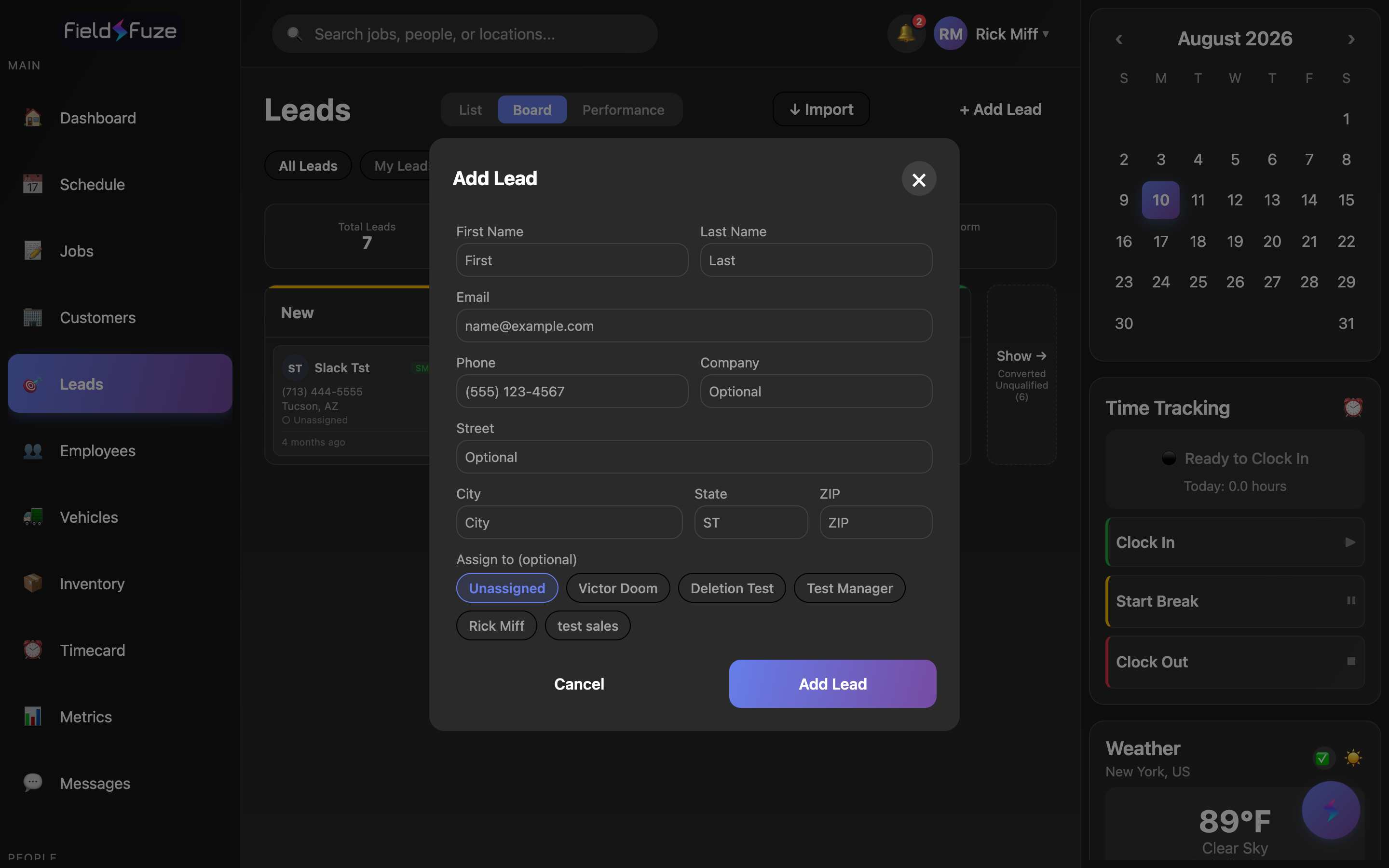
- Click + Add Lead, enter the contact details — first/last name, email, phone, company, and address (add at least a name, email, or phone).
- Optionally pick a rep under Assign to. The lead lands in the New column, tagged Manual so you always know where it came from.
- Work it through the pipeline using the status buttons in the lead.
- When it's won, open it and click Convert to Customer — then create a job from that new customer.
Use + Add Lead for word-of-mouth referrals, walk-ins, and phone calls that don't come through a connected source — so every opportunity your team hears about is captured in one pipeline instead of scattered across notebooks and texts.
Assigning & reassigning (managers)
Inside a lead, the Sales Rep card shows the current owner. Managers can hand the lead to the right person at any time:
- Under Assign to, tap a teammate's chip to make them the owner. They'll see it under My Leads immediately.
- To hand it to someone else later, just tap a different rep. To send it back to the open queue, tap Unassign.
Claiming a lead (reps)
Reps don't have to wait to be handed work — they can grab the next opportunity from the queue themselves:
- Set the scope filter to Unassigned to see the open queue.
- Open a lead and tap Claim this lead. It becomes yours and moves into My Leads — a fast, fair way to keep fresh leads moving without a manager in the loop.
Converting a won lead to a customer
When a lead says yes, promote it into your CRM in one step. The customer record is pre-filled from the lead, so there's no re-typing:
- Open the won lead and click Convert to Customer.
- Review the pre-filled name, email, phone, and address, then choose Convert — or Convert & View to jump straight into the new customer's CRM record.
- The lead is marked Converted and (on the Board) slides into the Converted column, keeping a permanent link back to the customer it became. From the new customer, build an estimate and schedule a job.
Because the customer is created from the lead, the source, estimated value, notes, sales-rep credit, and timeline all carry forward — Lead → Customer → Job → revenue stays connected end to end, so the rep who sold it still gets the credit when the money comes in.
Where leads come from
The best leads are the ones you never have to type in. FieldFuze pulls opportunities into this pipeline automatically from three sources, each tagged so you always know the origin:
- Website web form — inquiries from your site's contact / estimate form flow straight into New, tagged Web Form (paid-ad landing-page traffic is tagged Paid so you can tell marketing channels apart).
- Meta Lead Ads — leads from your Facebook and Instagram lead-ad campaigns arrive in real time, tagged Meta along with the ad's page name.
- GoHighLevel — sync opportunities from your GHL pipelines into FieldFuze, tagged GHL with their pipeline and stage carried over.
Set all three up in Lead Sources. Web-form and Meta leads land automatically once connected; GoHighLevel flows in automatically via webhook and can also be pulled on demand with the ↓ Import button.
Importing from GoHighLevel
Use ↓ Import to bring GoHighLevel opportunities into your pipeline whenever you want a fresh pull. You choose exactly which pipeline and stages to bring over, so only real, sales-ready opportunities land in FieldFuze:
- Click ↓ Import. FieldFuze loads your live GoHighLevel pipelines, each showing its stages and current opportunity counts.
- Pick the pipeline to import from, then select the stages you want — for example, only stages past "New Inquiry."
- Click Import. Matching opportunities land in your pipeline, tagged GHL, with duplicates skipped automatically. Your pipeline and stage choices are remembered as defaults for next time.
Opportunities you've already closed in GoHighLevel can be auto-converted to customers on import — the toast tells you how many leads came in and how many became customers in one pass.
Rep scorecards (Performance)
The Performance view turns your pipeline into a motivating, transparent sales leaderboard. Pick a range — This Month, This Quarter, This Year, or All Time — and each rep gets a scorecard, ranked with the top performer at #1. Every card shows:
- Collected & Sold — revenue the rep has collected and sold in the selected period.
- Pipeline — the value of their open, in-progress opportunities.
- Conv. rate — how effectively they turn leads into customers.
- Leads — converted vs. assigned, so effort and outcome are both visible.
- Avg deal and Jobs / cust. — average deal size and repeat-business strength.
Managers get the full ranked leaderboard for coaching and spiffs; a rep with their own metrics sees their own scorecard so they can track their numbers day to day.
Team selling — split the credit fairly
When two people team up to win a deal — one sets the appointment, another closes it — FieldFuze lets you split the credit so everyone's numbers reflect what they actually did. On a lead with an owner, a manager opens Split credit (team selling) and:
- Add each rep who contributed and set their share % (shares add up to 100, and Split evenly divides it for you in one tap).
- Mark one rep as the primary — they own the conversion count — while revenue splits by each rep's percentage.
- Save. The split rides along with the deal, so scorecards and revenue reporting credit each rep correctly all the way through to the job.
Use cases
- Roofing after a storm — a surge of Meta and web-form leads lands in New; reps claim from the Unassigned queue, mark each Contacted as they call, add roof estimates as Estimated Value, and Qualified ones get an on-site inspection.
- Manager Monday stand-up — open Performance set to This Month, celebrate the #1 rep, and check Pipeline Value to see whether the team is on pace.
- Referral from a happy customer — + Add Lead, Assign to the rep who did the original job, work it to Qualified, then Convert to Customer and book the job.
- Consolidating your CRM — ↓ Import your sales-ready GoHighLevel stages so every live opportunity is in one pipeline, with won deals auto-converted to customers.
- Setter + closer team — the setter books the appointment, the closer wins it, and a manager uses Split credit so both reps' scorecards reflect the assist and the close.
Leads flow in automatically from your website web form, Meta Lead Ads, and GoHighLevel — see Lead Sources to connect them. The Import button pulls leads from GoHighLevel. Edits you make while a lead is open (status, notes, value) save when you close it.
Reps see their own (and unassigned) leads and can claim leads; managers see all leads, the KPI strip, and can assign/reassign and split credit.