📋 Proposals
A proposal turns the estimates on a job into a branded, multi-page sales document — a photo cover, your credentials, an introduction letter, good / better / best options with financing, and an online page where the customer picks an option and signs. It's built right on the job, from estimates you already made, and sent for e-signature in a couple of taps.
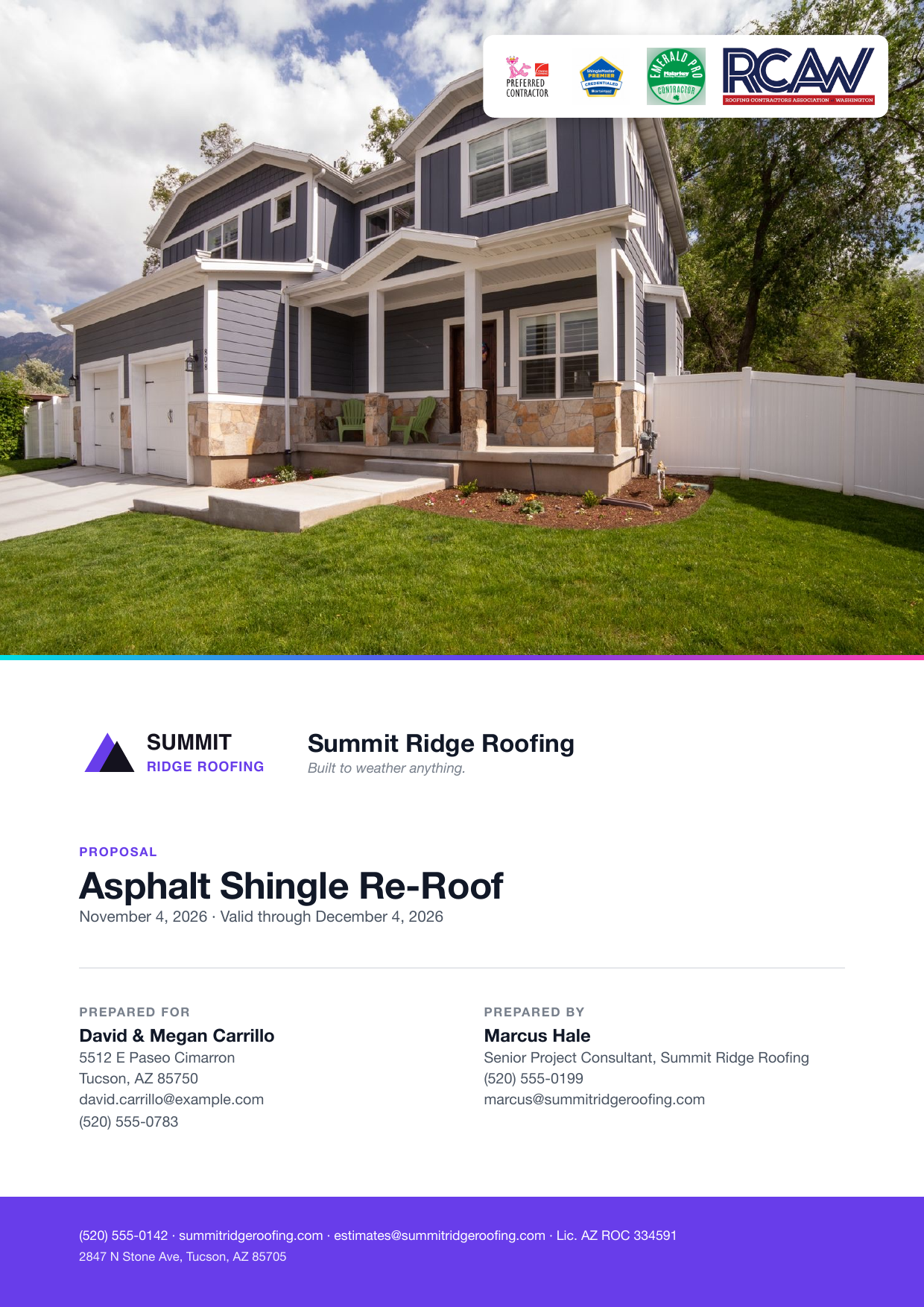
The fastest way to understand proposals is to read one end to end. Open the live sample proposal (cover through signature) in a new tab, then come back and build your own.
Where proposals live
- On the job — every job has a Proposal card with a Build proposal button (it reads Edit proposal once you've started one), plus Preview PDF, send, and the history of every version you've sent.
- In settings — your reusable defaults live in Organization Settings → Documents → Proposals: cover photo, brand colours, the introduction-letter template, financing, pages, and how much pricing detail to show. Set these once and every proposal starts from them. Your credential badges come from License & Credentials.
The proposal doesn't copy your estimate — it points at it. Each option on the proposal is an estimate on the job, so pricing, line items, and markup stay in sync. Change the estimate and the proposal follows. That's why you build your estimates first.
Building the proposal
- On the job, make at least two estimates — e.g. a straight re-roof, an upgraded system, and a total-protection package. These become your options.
- On the Proposal card, tap Build proposal. FieldFuze pulls your estimates in as good / better / best options and starts from your saved template.
- Work through the builder tabs (below), then tap Preview to see the exact PDF the customer will get.
- Send it for signature, or copy the private link.
The builder tabs
The builder is organised into tabs so you only touch what matters for this job:
- Options — order your estimates as the tiers, name each one (Good / Better / Best, or your own labels), and write the “what this adds” line that tells the customer why to step up.
- Upgrades — add optional extras and set, per option, whether each is priced, included, or not offered. Choose whether the customer picks one option or can accept several.
- Photos — pull inspection photos from the job's Photos tab onto the site-photos page, with captions, two or four to a page.
- Letter — the introduction note. It auto-fills the customer's first name, the property address, and your company from a template you write once.
- Financing — pick the plan that drives the “as low as” monthly payment shown on each option (Acorn Finance or your own lender), and choose whether to show the monthly figure, the cash total, or both.
- Pages — turn pages on or off and reorder them (cover, letter, photos, options, upgrades & signing, terms, warranty, and any custom PDF you merge in).
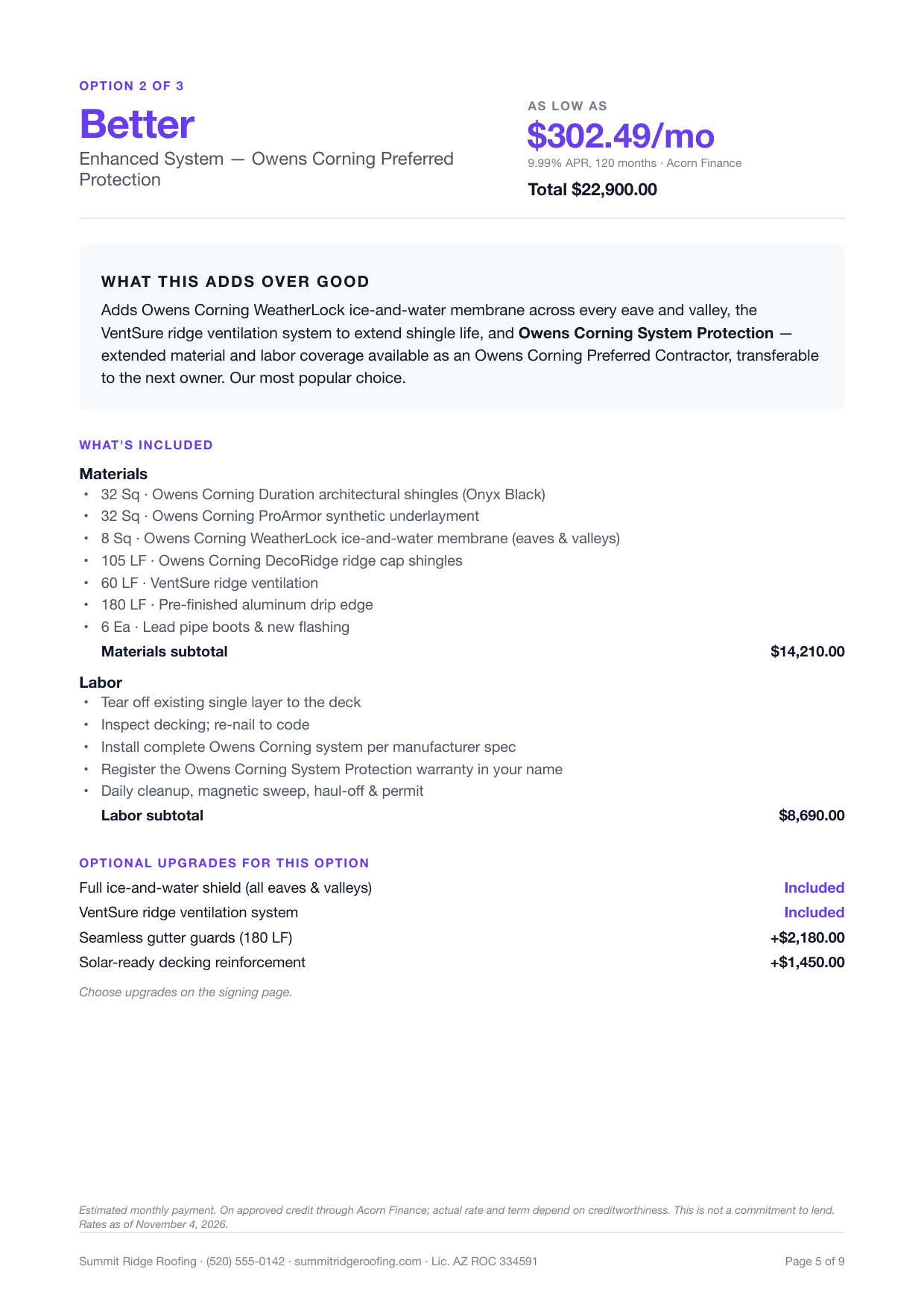
A single price is a yes/no question, and “let me think about it” wins too often. Good / better / best reframes the decision to which option — customers who were going to say no choose Better instead. You need at least two options to send a proposal for signature.
Pricing, financing & what shows
- Monthly or cash — show an estimated monthly payment, a cash total, or both on each option. Financing makes a big number feel affordable; the lender's disclosure prints verbatim under the figure.
- Pricing detail — set in settings: print the scope with one total (most common — customers compare packages, not lines), category subtotals, or every line priced. Whatever you show always adds up to the option total.
- Credentials — the credentials you hold (GAF Master Elite, Owens Corning, CertainTeed, BBB, licensed & insured…) print as badges on the cover. You upload each badge once under License & Credentials; an expired one drops off automatically.
The option totals the customer sees already include your markup and the platform fee — the same all-in Customer Total as the underlying estimate. The option the customer signs is exactly the amount that bills.
Send it & get it signed
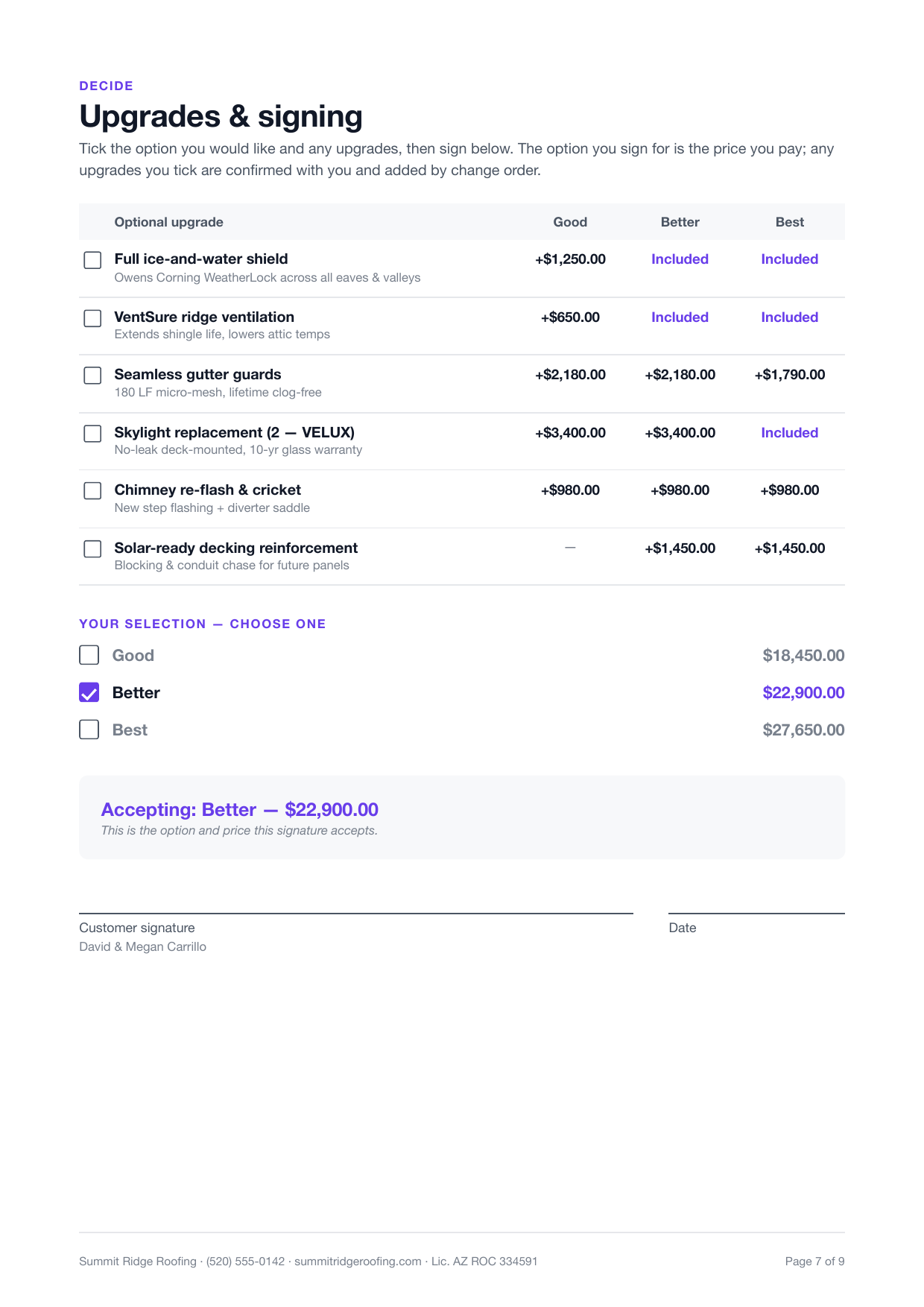
When the preview looks right, send the proposal to the customer. They get a private link, review the whole document on their phone, choose an option, and sign — no printing, no app to install.
- Tap Send on the builder (or the Proposal card) and confirm the customer's email.
- FieldFuze emails a private link. The customer opens it, compares the options and monthly payments, picks one, and signs — the page shows exactly the option and price they're accepting.
- You're notified when they open it and when they sign. The card tracks every version and shows how many times the link was opened.
The proposal's status moves as the customer works through it:
- Sent — the link is out; the customer hasn't opened it yet.
- Viewed — the customer has opened the proposal (the card notes how many times).
- Signing — they've chosen an option and started the signature.
- Signed — complete. The signed option flows into the job, unlocks material ordering, and can take payment.
- Expired — the link's validity window (set in settings, 30 days by default) has passed; resend to issue a fresh one.
Once a proposal's page order, letter, financing, and pricing detail are the way your business always presents, your settings become the default every new proposal starts from — so most proposals are a few taps from estimate to signed.
Start a fresh proposal on the same job
Need a clean second round after big changes? On the Proposal card choose New proposal — it starts a fresh draft while keeping every version you've already sent on file in the history.