📦 Materials & Purchase Orders
Order the exact materials from a signed estimate straight to the jobsite, and track every purchase order live as your supplier fulfills it. (See Ordering from Suppliers for connecting the accounts, and Estimates for building the line items you'll order.)
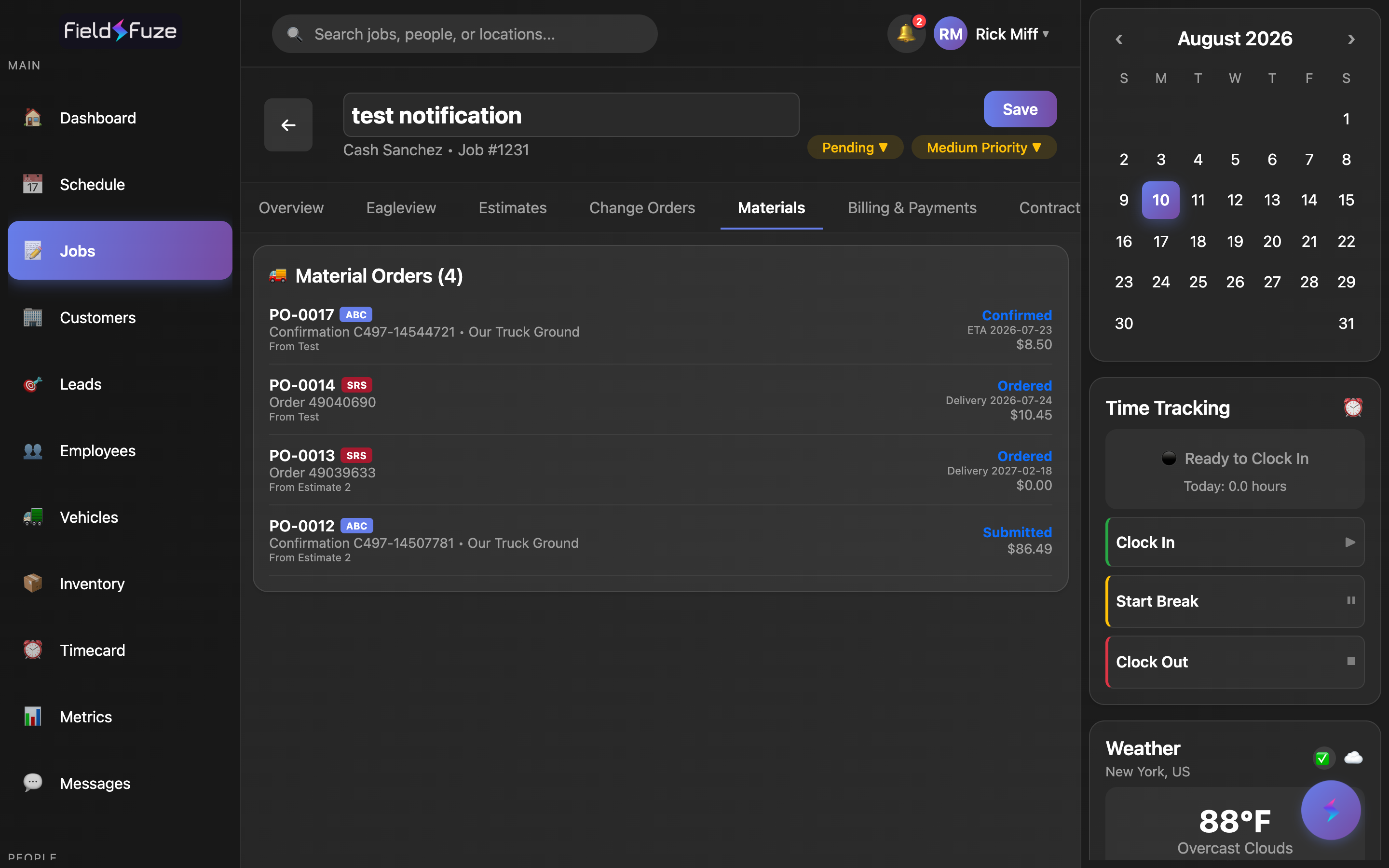
- Order from what you already priced — the materials come straight from an approved estimate or change order, so the jobsite gets exactly the items the customer signed off on.
- One button per supplier — use the "Order materials from ABC / SRS / QXO" button (it appears as + From ABC Supply, + From SRS, or + From QXO when one distributor is connected, and + From Supplier when several are).
- Live tracking — each purchase order shows a status pill that updates as the supplier confirms, schedules, ships, delivers, and invoices the order.
- Everything ties back to the job — your job number rides along on the order so the supplier prints it on their paperwork and invoice.
The Materials tab lives inside a job and lists that job's material orders with a running count. You place a new order from the estimate or change-order builder using the supplier button, then follow it here.
Ordering materials for a job
When an estimate or change order is approved, its supplier line items are ready to order. Tap the supplier button in the estimate or change-order builder, review the order dialog, and submit — FieldFuze sends it to the distributor electronically and creates a tracked purchase order on the job.
- Open the job's estimate (or change order) and tap the supplier button — + From ABC Supply, + From SRS, or + From QXO. With more than one distributor connected, tap + From Supplier and pick which one.
- Choose the catalog items to order (they carry over with the quantities and costs from your estimate).
- Review the order dialog — confirm the account/branch, where it's going, the order lines, and a date.
- Tap Submit order. FieldFuze returns the supplier's confirmation and adds the purchase order to the Materials tab.
Every order dialog opens with a read-only Ordering from card so you can verify the destination before you submit — the account, the branch (number, name, and city), and the Ship-To / Bill-To accounts (ABC), or the branch and job account (SRS), or the account and branch (QXO). Multi-branch orgs can point a job at its own Materials branch, so the order prices and books against the right location automatically.
The order dialog
The dialog walks you through the delivery details and shows exactly what will be ordered before anything is submitted. Options are tailored to each supplier, but the flow is the same.
Where it goes
- Deliver to — send it to the Job site (uses the job's address), pick it up at the Branch, or ship to your Warehouse / account address on file. Branch pickup carries no freight.
- Delivery or pickup method — pick the carrier/service the supplier offers. On ABC these are spelled out for you: Our Truck Ground, Our Truck Roof, Our Truck Window, Common Carrier, and Third-Party Carrier for delivery, or Customer Pickup / Express Pickup for branch pickup. SRS offers the branch's own shipping methods and an order type of Delivery (WHSE) or Pickup (WILLCALL).
- Delivery destination — on SRS and QXO the ship-to defaults to the job site and is fully editable; if you change it away from the jobsite, you confirm the new address before it sends.
Reviewing the order lines
- Unit conversions shown both ways (ABC) — FieldFuze re-fetches each item live and shows the quote basis (e.g. 12 SQ) alongside the order basis it actually submits (e.g. 36 BD), with the conversion factor, so you confirm the math before sending. Nothing is silently converted.
- Live re-price vs. your estimate (ABC) — the dialog compares today's ABC material cost against what the estimate assumed and shows the margin impact, or a green cost matches your estimate check when they line up. The customer's signed price never changes.
- SKU and quantity (SRS / QXO) — each line shows the item, quantity, unit, and SKU, with a per-line total drawn from your estimate.
- Running totals — a Material subtotal, any freight, and a bold PO total update as you go.
Freight you can bill to the customer (ABC delivery)
For an ABC delivery you can enter an expected delivery charge so it's captured up front, and flip Bill to customer to pass it through. The PO total then shows freight as billed to customer or absorbed. Branch pickup skips freight entirely — a clean way to protect your margin. Actual freight reconciles from the supplier's invoice later.
Requested date, contact, and timing
- Requested delivery/pickup date — pick a date (a calendar picker starting at today), or check No specific date needed so it's a deliberate choice and never left blank by accident. SRS treats "no specific date" as to-be-scheduled.
- Delivery contact (ABC) — the name and phone the supplier calls about the delivery. It defaults to you and is editable; changing it prompts a quick confirm so the right number goes out.
- Preferred delivery time (ABC) — optionally request Anytime, Morning, Afternoon, First stop, a Specific time, or a Time range; named windows just take a sensible default, and specific/range times you enter yourself.
- Pickup time slots (SRS) — for a branch pickup, choose a 15-minute slot within the branch's open hours for the day you picked; the branch's location, phone, and hours ride along on the dialog.
- Notes to the supplier — add delivery instructions, a gate code, or pickup notes on any order.
Per-supplier specifics
- ABC — dual-UOM order lines, choice of deliver-to (job / branch / warehouse), full delivery-service list, optional bill-to-customer freight, delivery contact, and preferred-time windows.
- SRS — a required contact block (name, phone, and full address, with one-tap autofill from you or your organization), delivery-vs-pickup order type, the branch's shipping methods, and an editable jobsite ship-to. Your job reference prints on SRS's order and invoice.
- QXO — pick the QXO job the order books against from the account's job list (searchable by number or name, so a 100+ job account is easy to filter), confirm the jobsite ship-to, and submit. The PO number is generated automatically and sent to QXO.
If you're ordering from an estimate that was already ordered, FieldFuze flags it so a duplicate is never accidental. Once you connect a supplier's default account and branch (see Ordering from Suppliers), the dialog fills the destination in for you.
Live purchase-order status
Once submitted, each order carries the confirmation the supplier returns and a status pill that keeps up as the order moves. FieldFuze always surfaces the furthest-along state so the pill reflects real progress.
ABC
ABC reports the full lifecycle back to the job — Submitted → Confirmed → Scheduled → … → Delivered / Picked Up → Invoiced — along with the confirmation number, delivery ETA, any scheduled delivery window, shipment tracking (including proof of delivery and a map pin when provided), and the final invoice.
SRS
SRS reads back live as the order moves — Ordered → Processing → En Route → Delivered → Invoiced — and surfaces the delivery truck, the delivery date, and proof of delivery as it progresses.
QXO
QXO returns its own order number the moment you submit, shown as Order YD… on the PO so you can reference it directly with the branch.
The PO card
Every purchase order on the Materials tab shows, at a glance:
- PO number — formatted like PO-0008, with a color-coded supplier badge (ABC / SRS / QXO).
- Confirmation & method — the supplier's confirmation or order number and the chosen delivery/pickup method.
- Source estimate — a From [estimate name] line so you can see which approved estimate or change order it came from.
- Live status — the status pill described above, in its own color.
- Delivery / ETA date — the requested or estimated date (ABC), or the live truck/delivery date (SRS).
- Cost — the PO total.
Tap any card to open the full purchase order — its line items, delivery details, shipment tracking, proof of delivery, and invoice.
Receiving stock updates inventory
For a stock purchase order, tap Receive Items to log what arrived. Enter the quantity received and confirm the unit cost (it defaults to the PO cost and flags any change). FieldFuze then updates the item's on-hand quantity and recomputes its weighted-average cost in one atomic step, so your inventory count and average cost stay accurate. You can receive in parts — a PO moves to Partial until every line is fully received, then Received. Direct-ship job orders flow straight to job cost.
A real example
A re-roof estimate is signed Monday. From the estimate, you tap + From ABC Supply, pick the shingles and accessories you already priced, and the dialog shows your 12 SQ converting to 36 BD. You send it to the Job site on Our Truck Roof, request Thursday morning, name the foreman as the delivery contact, and add a small freight estimate billed to the customer. You submit and get a confirmation number. Over the next few days the PO card walks from Submitted → Confirmed → Scheduled → Delivered, and when ABC invoices it flips to Invoiced with proof of delivery on the order — no phone calls needed to know exactly where your materials are.