🔁 Change Orders
When a job's scope changes, log a change order so the extra work gets the customer's sign-off and bills correctly. Change orders work just like estimates — line items, customer pricing, e-signature — but they add to an already-approved job.
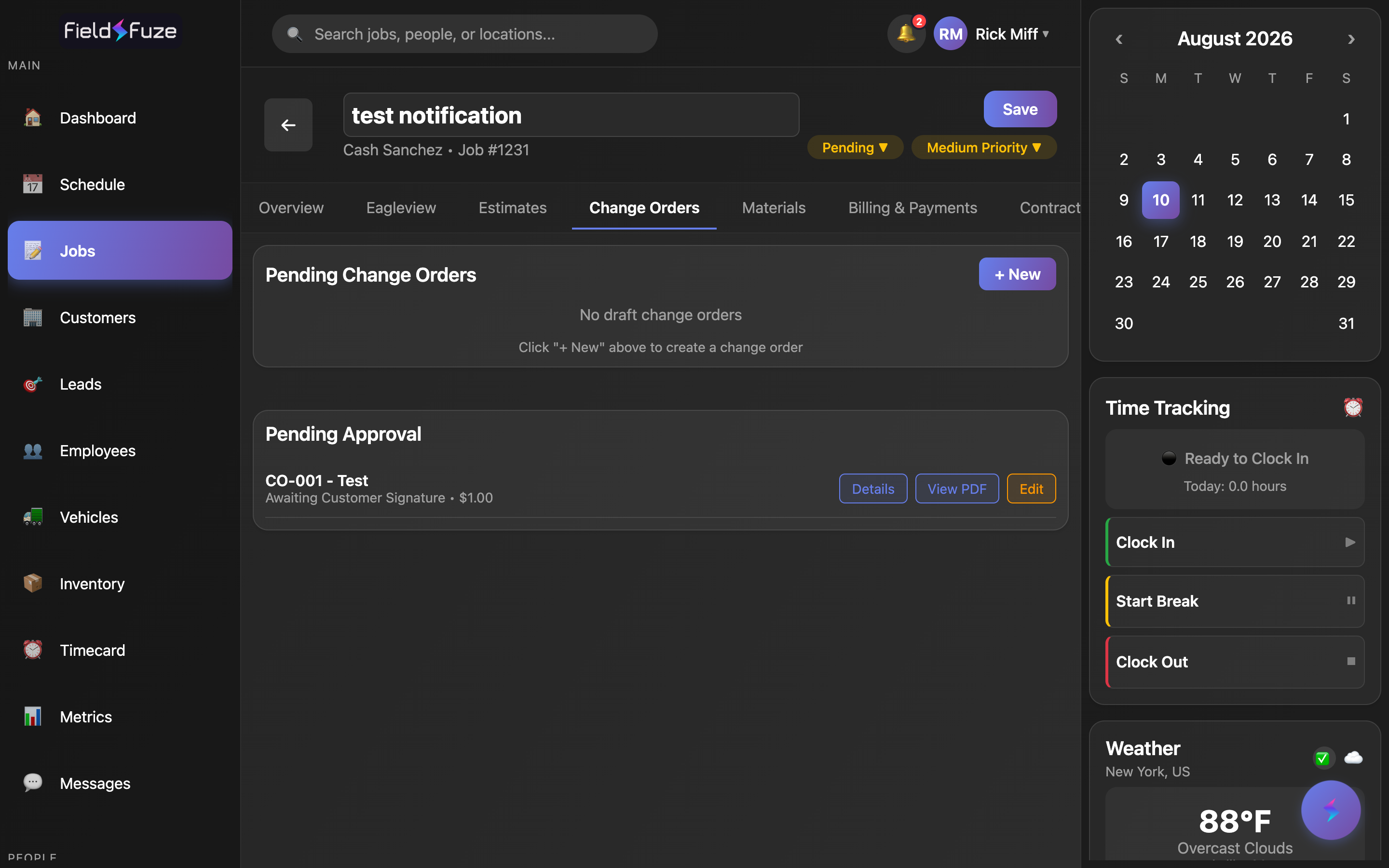
How the tab is laid out
The Change Orders tab groups your change orders into clear sections so you always know where each one stands:
- Pending Change Orders — your drafts. Each draft is a tab (CO-001, CO-002…) you can switch between; the open one shows the full editing form.
- Pending Approval — change orders you've sent out that are Awaiting Customer Signature.
- Approved Change Orders — signed or manually approved. These are the ones adding to the job's bill.
- Cancelled Change Orders — ones you've removed, kept on hand to Restore or Delete.
Creating a change order
- Click + New in the Pending Change Orders header. FieldFuze creates a numbered change order right away — CO-001, then CO-002, and so on — as a draft, and opens it for editing.
- Give it a Title and a Reason (why the scope changed — e.g. "Rotten decking found under old shingles"), plus an optional Description for extra detail.
- Add Line Items for the added work (see below), then review Customer Pricing.
- When it's ready, Approve & Send it for signature or approve it manually. Use View PDF, Details, or Edit any time.
You never type a change-order number — FieldFuze assigns the next one in sequence the moment you click + New, so every added-scope item on the job has its own paper trail (CO-001, CO-002…).
Line items — same sources as estimates
Change-order line items pull from the exact same places as an estimate, so you can price added work fast and accurately:
- + From Inventory — pick an item from your catalog; its sell price and unit fill in automatically.
- + Manual Entry — type a one-off line by hand (Description, Qty, Unit, Price). The Total calculates itself.
- + From Supplier — pull live catalog items and pricing from a connected supplier (ABC, SRS, or QXO) once connected — see Ordering from Suppliers.
Each line has Description, Qty, Unit (Each, Hour, Foot…), and Price, with a running Total. For items that carry a cost, a subtle internal margin bar shows your Cost, Margin % (green ≥30%, amber ≥15%, red below), and Profit — marked Internal only, so it never appears on the customer's copy.
Customer Pricing
As soon as a line exists, a 💰 Customer Pricing panel totals everything the same way estimates do:
- Contractor Quote — the sum of your line items (what you're charging for the added scope).
- Platform Fee — a small processing fee added on top.
- Customer Total — the final figure the customer sees. It's editable: type a round number and FieldFuze works backward from it, just like estimates.
Want the change order to land on a clean figure? Type it straight into Customer Total and FieldFuze re-solves the pricing to hit it. A note reminds you that processing fees apply at checkout.
Approving & sending
Once your draft has a title, a reason, and at least one line item, the 📄 Approve & Send Change Order button appears. FieldFuze saves your latest edits, builds the PDF, and opens a live preview with a ⚙ PDF options panel — the same preview-and-send flow as estimates, so you control exactly what the customer sees before choosing how to finalize.
Ways to finalize
- Send with E-Sign — email the customer a secure link to sign electronically. The change order moves to Awaiting Customer Signature.
- In-Person E-Sign — hand your device to the customer to sign on the spot.
- Manually Approve without E-Signature — record a verbal or written yes and mark it approved without collecting a signature.
- Download PDF — just download or print the change order.
The send dialog has the same "Also send a copy to (optional)" field as estimates and invoices — add a spouse, property manager, adjuster, or your own office. Copies go out as BCC by default (each private); tick "CC instead of BCC" to make recipients visible to one another. Everyone copied also receives the signed copy when it's complete.
Signature & approval states
Every change order wears a clear status so you always know where it stands:
- Draft — being built. Still fully editable, and shown in Pending Change Orders.
- Awaiting Customer Signature — sent for e-signature and waiting on the customer. (When your company countersigns, it briefly shows Awaiting Your Signature after the customer signs.)
- Fully Signed — signed electronically and approved.
- Manually Approved — approved without a signature. Counts exactly the same toward the job.
View PDF, Details & Edit
- View PDF — open or download the change-order PDF. On the web it opens in a new tab; in the mobile app it previews inline.
- Details — a clean summary modal: the number, title, status, and approval Method (E-Signature or Manually Approved), a Timeline (Customer, Sent, Signed — or the manual Approved date), plus the full line-item table and totals.
- Edit — reopen a sent change order to adjust it. Editing recalls it to a draft so it's editable again; make your changes and reissue it with Approve & Send.
How approved change orders add to the bill
Only approved change orders — whether Fully Signed or Manually Approved — add to the job's total. A brand-new draft, or one that's still Awaiting Customer Signature, adds $0 until it's approved. The moment a change order is approved, its amount flows into Billing & Payments on top of the approved estimate(s), so what you can invoice always reflects the real, signed-off scope.
Approved change orders and approved estimates together set the job's billable total. Because each change order is its own signed document, you get a tidy audit trail of exactly what the customer agreed to and when.
Restore or recall a change order
Plans change — and change orders flex with them:
- Remove (an approved change order) — moves it to Cancelled Change Orders and takes its amount back out of the job's total. It's kept on hand, not gone for good.
- Restore (a cancelled change order) — puts it back to approved and adds its amount back to the job's total in one click.
- Edit / recall (a sent or approved change order) — reopens it as a draft so you can adjust the scope or pricing, then send it again. Recalling clears the outstanding signature request so the resent version is the one that counts.
- Delete — permanently remove a draft or a cancelled change order you no longer need.
Because Remove and Restore are reversible, you can pull a change order off the bill temporarily — say, while a customer decides — and reinstate it later without rebuilding it. If your role includes managing change orders, these actions are right on each item.
You're mid-reroof and discover rotten decking that wasn't in the original estimate. Rather than eat the cost or bill a surprise, click + New to open CO-002, title it "Replace rotted roof decking," set the Reason, and add the sheathing and extra labor with + From Inventory and + From Supplier. Review Customer Pricing, then Approve & Send Change Order so the homeowner signs off electronically. As soon as it's Fully Signed, the added amount rolls into Billing & Payments — approved scope, signed authorization, and correct billing, all captured in one document.