💬 Messages (SMS)
Text your customers directly from FieldFuze and keep every conversation in one inbox — confirmations, "on my way" updates, review requests, and quick back-and-forth all live in the same place, tied to the right customer.
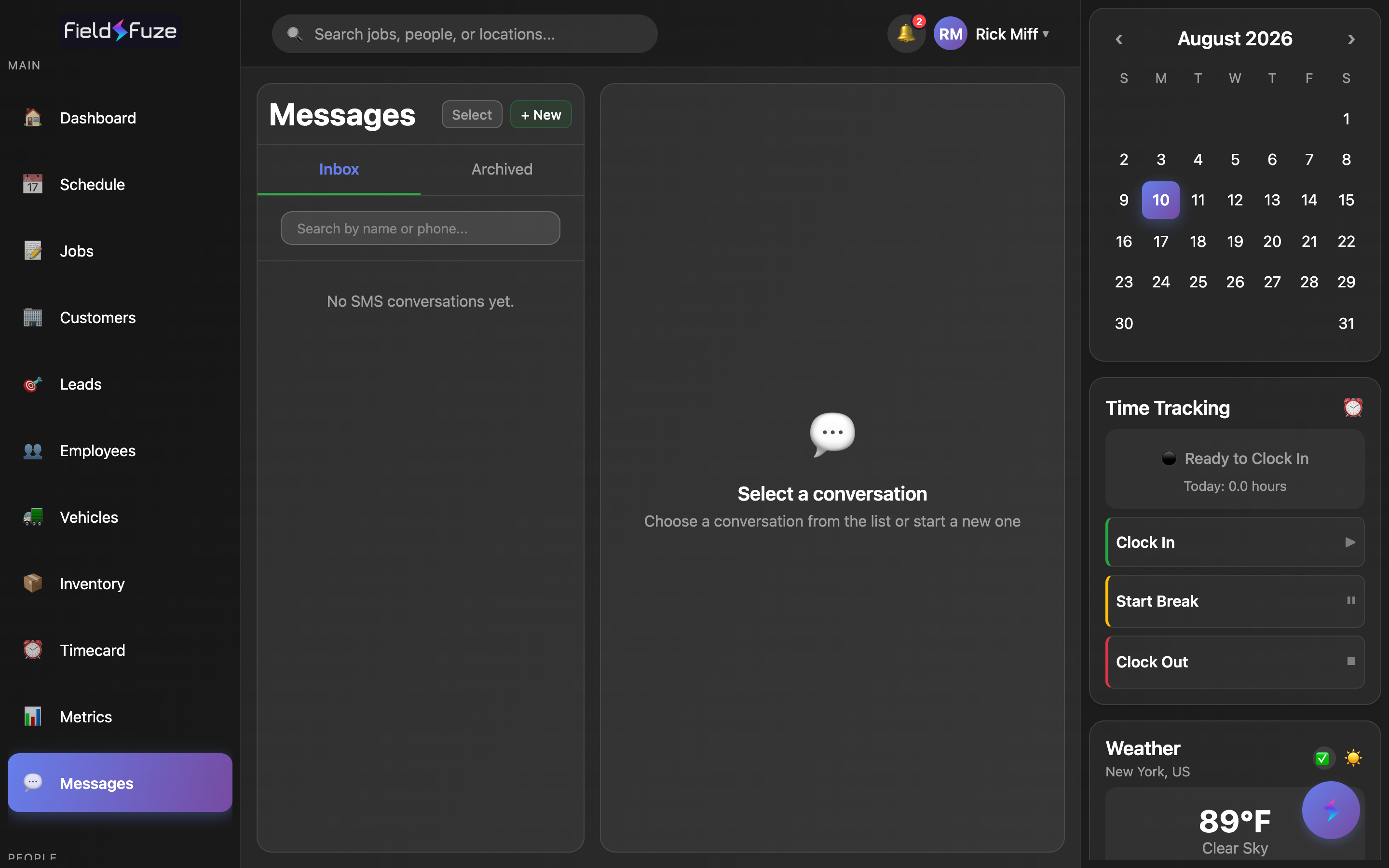
- Browse the Inbox and Archived tabs, search by name or phone, and reply right in the thread. Unread conversations stand out with a green badge.
- Start a fresh conversation with + New, pick the customer from a typeahead, and send.
- Use Select for bulk actions — Archive and Mark Unread — across many conversations at once.
- Every text is tied to a customer, so the same history shows up here and on the customer's profile in your Customers list.
Your two tabs: Inbox and Archived
The left panel is your full conversation list, split into two tabs so a busy inbox stays focused.
- Inbox — every active conversation, newest activity on top. This is your working list day to day.
- Archived — conversations you've tucked away once the exchange is done. Archiving clears a thread from the Inbox while keeping the entire message history, so nothing is ever lost — it's simply out of the way. Switch to the Archived tab any time to read it again or bring it back.
Archive a conversation once you've confirmed the appointment, answered the question, or closed the loop. Your Inbox then shows only the threads that still need a reply, and the archived history is one tab away whenever you want it.
The conversation list
Each row in the list gives you the whole story at a glance:
- Name & phone — the customer's name headlines the row, with their formatted phone number right beneath it. When a conversation isn't yet linked to a saved customer, the phone number leads instead — link it by texting from the customer's profile so their name fills in.
- Last-message preview — a one-line preview of the most recent text. Messages you sent are prefixed with "You:" so you can instantly tell who spoke last.
- Timestamp — a friendly relative time (Just now, 5m ago, 3h ago, 2d ago, then a date) shows how fresh the conversation is.
- Unread badge — conversations with new inbound texts show a bold name, a green avatar, and a green count badge. Open the thread and it clears automatically.
The list refreshes itself in the background, so new incoming texts surface within seconds without you touching anything. Newest activity floats to the top automatically as replies come in.
Search by name or phone
Type into the Search by name or phone… box above the list to jump straight to a conversation. Search matches on the customer's name, their phone number (formatted or raw digits), and even text inside the last message — so you can find a thread by who it's with or by what was said. The list filters live as you type, across whichever tab you're viewing.
The message thread
Click any conversation to open the full thread on the right. It reads like a familiar texting app:
- Inbound vs. outbound — the customer's messages sit on the left with their initials; your team's replies sit on the right, so the conversation flow is obvious at a glance.
- Timestamps — each message is stamped with a clean time (today shows the time, yesterday shows "Yesterday 4:15 PM," older shows the date and time).
- Delivery status — once a text you sent reaches the customer's phone, it's marked · Delivered right on the bubble, so you have confirmation it went through.
- Load older messages — long histories load the most recent messages first; scroll to the top or click Load older messages to pull in the earlier part of the conversation on demand.
- Reply inline — type in the Type a message… box at the bottom and hit Send. Your message appears in the thread immediately and the conversation jumps to the top of the list.
An open thread checks for new messages every few seconds, so a customer's reply lands in the conversation on its own — no refresh, no switching away and back. Just keep the thread open and watch it come in.
Starting a new message
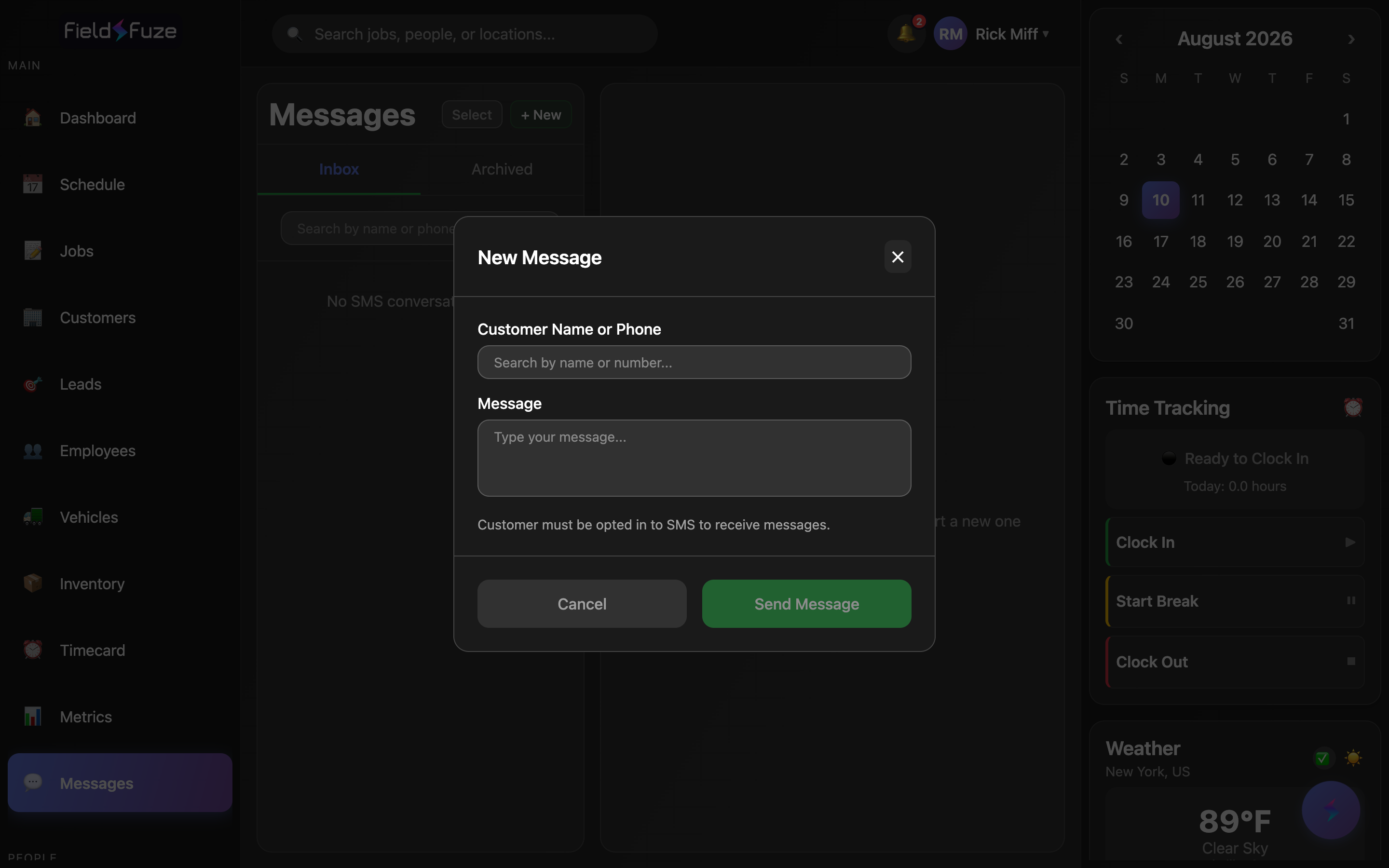
- Click + New at the top of the conversation list.
- In Customer Name or Phone, start typing a name or number. A typeahead shows matching customers with their phone numbers — pick one and the number fills in for you. (You can also type a number directly.)
- Write your text in the Message box.
- Click Send Message. The new conversation opens right away, ready for the reply.
Because the picker pulls from your Customers, you rarely need to hunt for a phone number — type the first couple of letters of the name and select. FieldFuze links the new thread to that customer automatically, so it shows up on their profile too.
Customers text-message you back only when they've opted in to SMS, which keeps your texting fully consent-based and carrier-friendly. Send an opt-in request from the customer's profile in Customers and, once they agree, you can text them freely. The new-message picker even flags anyone who's opted out, so you always know who's ready to hear from you. This one-time step protects your number's reputation and keeps your messages landing reliably.
Bulk actions with Select
Clearing out or triaging a stack of conversations is quick with Select mode.
- Click Select at the top of the list. A checkbox appears on every conversation.
- Tick each conversation you want to act on — the header shows a running "N selected" count.
- Choose an action: Archive to move them out of the Inbox (history preserved), or Mark Unread to flag them so they pop back onto your radar for follow-up.
- On the Archived tab, the same button reads Unarchive — select and bring conversations right back to the Inbox.
Read a message but want to circle back later? Select it and Mark Unread — the green badge returns so the thread stays visible and top-of-mind until you've handled it.
How texts tie to a customer and your job flow
Messages isn't a standalone chat box — it's woven into the rest of FieldFuze:
- One customer, one history — every conversation is matched to a customer by phone number, so the texting history you see here is the same one on their profile in Customers. From a customer's record you can jump straight into their thread with View Texts, and it opens the exact conversation here.
- Automated texts flow into the same threads — the review, reminder, "on my way," and invoice texts you set up under Organization Settings → Communications go out from your business number and appear as outbound messages in the customer's conversation. Any reply the customer sends comes right back into that same thread, so automated and hands-on messaging live together seamlessly. See SMS Texting Setup for the full list of automations.
Great ways to use Messages
- Appointment confirmations — send a quick "You're booked for Tuesday at 9 AM, see you then!" and let the customer reply to confirm — all captured in the thread.
- "On my way" updates — fire off an en-route text so the customer knows your tech is minutes out; it doubles as a professional heads-up that reduces missed appointments.
- Review requests — after a completed, paid job, a friendly text with your review link turns happy customers into public reviews.
- Payment nudges & invoices — text the invoice or pay link so the customer can pay from their phone in a tap.
- Fast Q&A — answer a quick question, share a gate code, or confirm a material color without a phone call — and keep the written record.
Turn on Review Request, Appointment Reminder, Tech En Route, and Invoice texts in Organization Settings → Communications (details in SMS Texting Setup). FieldFuze then sends these on the right trigger automatically — and every customer reply lands right here in your inbox, ready for you to jump in. Once your texting number is set up, the whole loop runs itself.