📅 The Schedule
Plan who's doing what and when. The Schedule lays your jobs onto a timeline by employee or crew, so you can build a whole week, dispatch the day, and print a clean copy for the field — all from one screen.
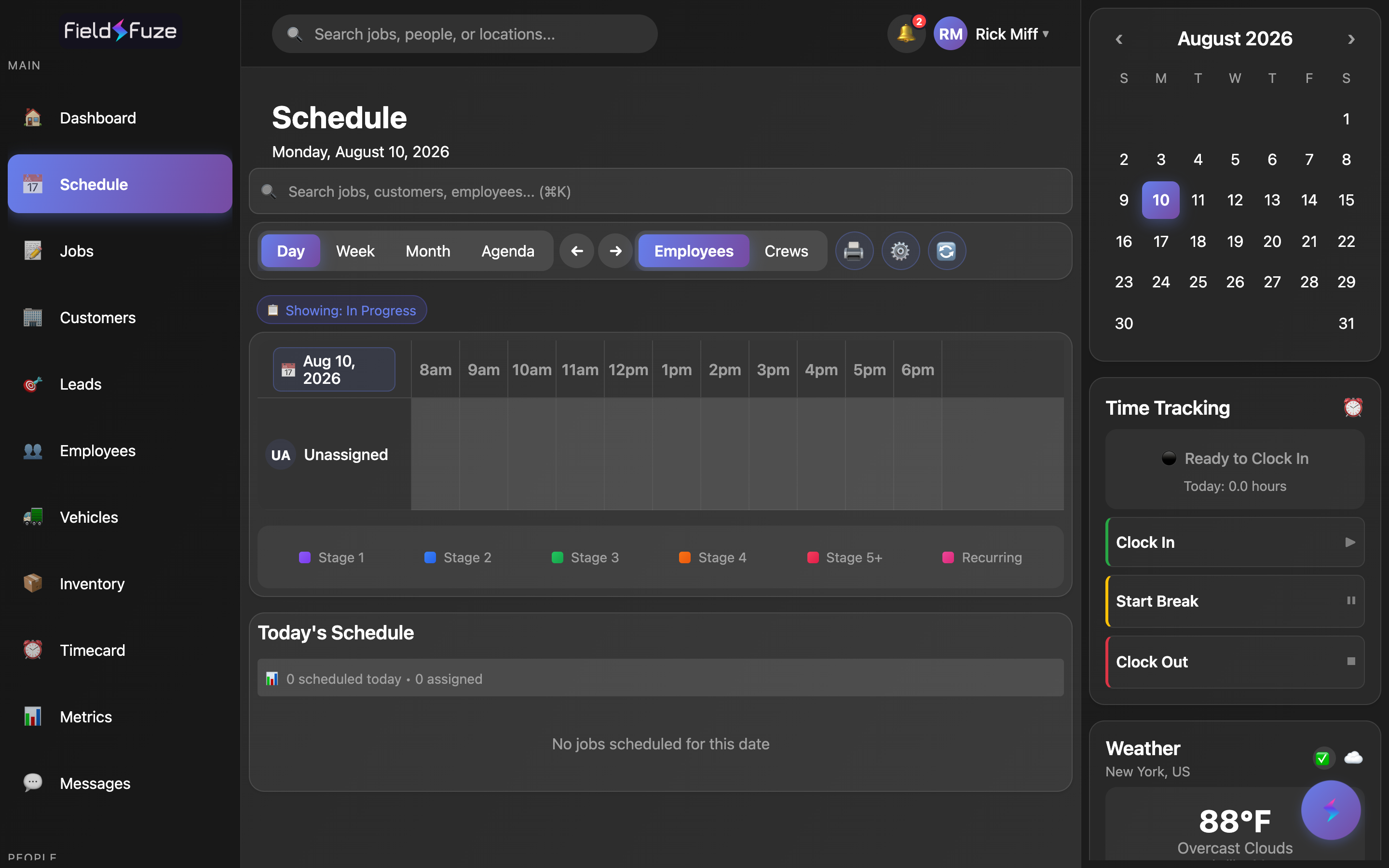
The four views
Switch views from the toggle at the top (a dropdown on mobile). Each view answers a different question, and the arrows step you through time.
- Day — one date, laid out as a timeline. Each employee (or crew) gets a row, and jobs sit in their hour slots. This is your dispatch board for "who's where, right now."
- Week — the whole week at a glance. Perfect for building a plan and spotting a light or heavy day before it arrives.
- Month — the big picture. See how work is distributed across weeks and plan ahead.
- Agenda — a clean, scrollable list of jobs as cards. Great on a phone and easy to read on the go.
Use the ← / → arrows to step by day, week, or month (they follow whichever view you're in). The current view and date always drive what you see below.
Plan by person or by crew
The Employees / Crews toggle flips the whole board between two ways of thinking about your team.
- Employees — one row per person. Ideal for balancing individual workloads and seeing exactly what each tech has on their plate.
- Crews — one row per crew, so you can assign and view a whole team as a unit. When Show individual assignments is on, crew view also breaks out the individual rows underneath, so nothing gets missed. Manage your teams over in Employees & Crews.
Add straight from a time slot
Tap an empty time slot in a person's row and an Add to schedule panel pops up, pre-filled with that person and that time so you're one tap from booking work.
- + Job — starts a new job for that employee at that time. It opens the job so you can add the customer, details, and stages.
- Block Time — reserve time that isn't a job: PTO, training, a lunch break, travel, or any hold. It shows on the timeline so nobody gets double-booked.
- + Note — drop a quick note on the timeline for that person and day — a reminder, a heads-up, or context for the crew.
Tapping the Unassigned row lets you start a + Job that isn't tied to anyone yet — a fast way to capture work now and assign it later.
How to (re)schedule a job
A job lands on the calendar at the scheduled date of its stage — that's the single source of truth for where it shows up. To place or move a job, set that date on the stage:
- Open the job (tap its block on the calendar, or open it from Jobs).
- Go to Overview and find the stage you want to schedule.
- Set the stage's scheduled date (and time). Save.
- The job now appears on that date in the Schedule, in the assigned person's or crew's row.
Because scheduling lives on the stage, a multi-stage job can span several days automatically — set each stage's date and the timeline shows the whole sequence. Reassign a job to another employee or crew from the same Overview, and it hops to their row.
Read the stage color legend
Every job block is color-coded by the stage it's in, so you can read progress at a glance. The legend sits under the calendar:
- Stage 1–5+ — colors follow the stage's order, so a job's block visually tells you how far along it is.
- Recurring — recurring-billing work gets its own pink marker so ongoing accounts stand out from one-off jobs.
- Your own colors — set custom stage colors for your organization and the calendar (and the legend) follow them automatically.
Filters & working hours (⚙️)
Tap the ⚙️ gear to open Calendar Settings and tune the board to how your shop runs. Your choices are remembered for next time.
- Time Range — set the calendar's Start and End hours (default 8am–6pm) so the timeline matches your working day.
- Hide employees without jobs — focus the board on just the people who have work on the day.
- Show individual assignments — in crew view, also list each member's own row.
- Show unassigned jobs — keep the Unassigned row visible so nothing slips through.
- Job Status Filter — show Pending, In Progress, and/or Completed jobs. Narrow to just active work, or turn them all on to see everything.
- Employee Filter — pick specific people to display (or All Employees), great for planning one team at a time.
Use the search box at the top to jump to a customer, employee, or job — the calendar filters to what you pick, and a chip shows the active filter until you clear it. A banner also tells you when you're viewing a filtered subset.
Print or export a schedule (🖨️)
Tap 🖨️ to open the export panel with a live preview, then print or share a polished copy branded with your company name and logo. Managers and owners get this button.
- Range — export the Day, Week, or Month, and step the date right in the panel.
- Layout — choose Combined (everyone on one sheet) or Per Employee (a clean page for each person to take to the field).
- Employees — export All Employees or check off exactly who to include.
- Options — toggle Include Time Off and Include Unassigned Jobs to match what the field needs.
The live preview updates as you change options, so you can confirm it looks right before you print. Per Employee is the go-to for handing each crew member their day.
Today's / This Week's / This Month's Schedule
Below the calendar, a summary card recaps the current view — titled Today's Schedule, This Week's Schedule, or This Month's Schedule to match. It shows a count of how many jobs are scheduled and how many are assigned, then groups the jobs so you can work top-down:
- Assigned Jobs — everything already handed to a person or crew.
- Unassigned Jobs — flagged so a manager can quickly staff them.
- Completed Jobs — finished work, kept separate so it doesn't clutter the plan.
Use it your way
- Plan a week by crew — switch to Week + Crews, tap open slots to add jobs, and balance the load across teams before Monday.
- Dispatch the day — start in Day + Employees, filter to In Progress, and print a Per Employee sheet for each tech.
- Look ahead — use Month to see where work is stacking up and spread it out early.
- Stay on top of accounts — the Recurring color and row keep ongoing recurring-billing work visible alongside everything else.
Team members without team-view access see only their own assigned jobs; managers see the whole team plus the Unassigned row, the filters, and printing/export.